
Build your WordPress mega menu visually

Lay out columns, icons, images, and post cards right inside your header, then shape the phone version in the same visual editor, with no extra plugin to keep updated.

WordPress mega menu with two columns of links and an image, open under a navigation item, from the Mosaic in Minutes tutorial "Build a mega menu"
Build a mega menu in your header

One menu item with an icon and a short description, saved as a component and copied for the rest, then given an image and a simpler, stacked layout for phones.

Ready in every theme

Blank, Monolith, and Gibraltar each have ready mega menus in their Parts library. Here are twelve of them, each card linked to its own live preview page.

One mega menu, any screen size

Switch the view to see the layout the dropdown takes at that screen size, and add breakpoints of your own whenever you want to tune the sizes in between.

Desktop
Tablet
Phone
Mosaic Builder editor with a WordPress mega menu open under the Features link, showing Resources, Product and Company columns of links with icons and descriptions plus a Get started column, the Navigator panel listing the Dropdown, Wrapper and Grid, and the Style panel on the right

What Mosaic builders say

Site owners, freelancers, and designers on building their sites in Mosaic, menus included, several of them coming over from other builders and plugin stacks.

I noticed that on Mosaic’s website, their drop down mega menu had each section as a clickable item. I then went in and learned how to wrap the image and text beside it in a DIV in order to make the entire section clickable. This was a game changer!

Andy Cain

Runs God Centered Theology

I can build interactive, polished websites much faster than before. Mosaic’s smooth and flexible editor lets me create layouts, interactions, and animations directly in the builder with very little custom CSS. Instead of relying on third-party plugins or workarounds, I can focus on refining the design.

Jornes Sim

Designer

The design library saves a huge amount of time when starting a project. Instead of building everything from scratch, I can start with well-designed sections and adapt them to my needs.

Daniel Hartmann

Freelance web designer

The Mosaic interface is organized and logical. In many page builders you constantly switch between tabs searching for CSS properties and settings, but in Mosaic the parameters are exactly where I expect them to be. Its library of blocks and pages, well designed class system, components, and interaction engine allow me to build complex and beautiful pages in hours instead of days.

Adil Maldybaev

Community member

Mosaic helped me to have control over my classes, over my design system. The pre-built templates came with full classes and variables ready for use. Of course, I like to build my own, but the way the builder came speeds up the process a lot.

Felipe Felix

UI/UX and WordPress designer

After I started with Mosaic Builder, I was very happy with the very clean UI and then blown away by the UX. It feels totally different from page builders like Elementor or Divi and sits outside of the bloated code ecosystem. Mosaic is super fast, super clean, and will be the builder for my next projects.

Valentin Lyong

WordPress site builder, SEO specialist

How the usual setup compares

Most sites add theirs as one more piece on top of the theme they run. Here is what changes when it is built in the editor where you design everything else.

Feature
The usual setup
Mosaic
What this means for you
What you install

A separate menu tool, or the paid tier of the theme or the builder you already use

Nothing extra to install, since the Dropdown already comes with the Navbar

One less plugin to license, update, and keep compatible with the rest of your site

Where it lives

Plugin or add-on settings that sit on top of the menu that your theme already has

In your header, inside its Master, right beside the logo and the other menu links

No more tug of war between your theme’s own menu and a separate plugin’s menu

What goes inside

Columns and widgets you place through the mega menu tool’s own settings panel

Elements from the Add panel, from icons and headings to images and buttons

Little new to learn, since the mega menu is laid out like any other part of your site

Styling

Style settings in a separate panel, often kept apart from your own CSS classes

The same classes and style variables that you already use on every other element

Change a brand color once, and the mega menu updates along with everything else

What it costs

Often a paid add-on or Pro license on top of the theme, usually renewed yearly

Part of the Personal, Creator, and Agency plans, with no separate add-on to buy

Your bill stays the same when another page on your site needs a mega menu

What your mega menu can do

The behavior visitors notice and the shortcuts that save you from rebuilding, set on the dropdown, on its items, or handled by Mosaic for you.

Build once, reuse

Save one finished menu item as a component and copy it for the rest, then edit it once to update every copy.

Click or hover

Pick whether each dropdown opens on a click or on hover, then choose the animation it plays as it opens and closes.

Animated contents

Use the Dropdown change interaction to fade or slide the items in as the panel opens, and out again as it closes.

Stays on screen

A simple dropdown that would run off the edge of the window moves back on its own, so it always stays 8px inside.

Current section

Style the Current within state, and the dropdown’s toggle stands out whenever a visitor is on one of its submenu’s pages.

Links per visitor

Show a members column only to signed in visitors, or hide a single link from anyone without the right WordPress user role.

Headers and footers that you edit once for your whole site

Your mega menu sits in the header of a Master, the shared layout around every template, so the header, the footer, and the menu change in one place.

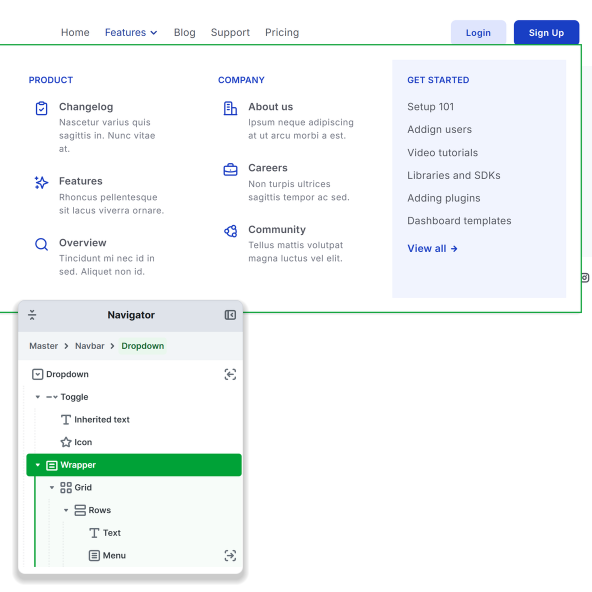
Mosaic Builder Master editor with the site header's WordPress mega menu open under Features, showing Product, Company and Get started columns, and the Navigator panel below listing the Dropdown, Wrapper and Grid inside the Navbar

One header for the whole site

The header and footer live in a Master, so one change in one place reaches every page that uses that Master.

Edit it once

Change the header in its Master once, and every page using that Master shows the update right away.

Per page headers

Give landing pages a Master with a simpler header, or hide one header element there with a condition.

Ready blocks and sticky headers

Start from a header block in the Library, then pin it to the top with Sticky position and a scroll interaction.

Ready blocks

Every theme Library has header and footer blocks with their menus built in, ready to drop into a Master.

Sticky header

Pin the header with Sticky position in the Style tab, then hide and show it with Scroll direction change.

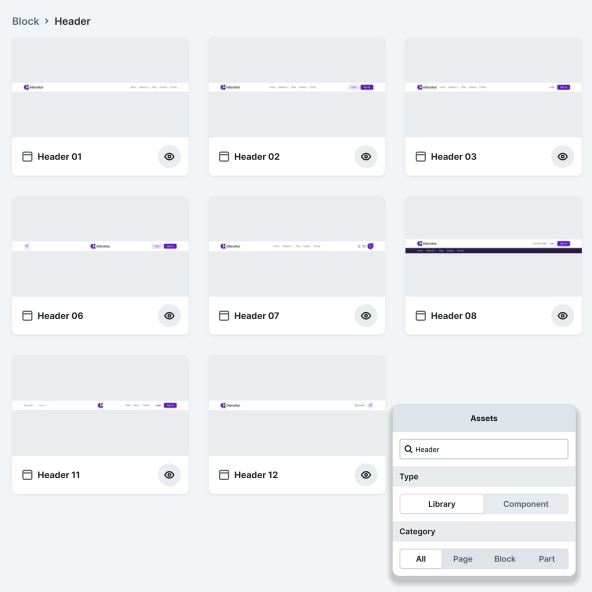
Mosaic Builder Library showing ready header blocks, from Header 01 to Header 12, each with a preview button, with the Assets panel searching for "Header" under the Library type and the Block category

Your mega menu starts here

Put Mosaic on a real site, move your navigation into its header, and see how far one dropdown can take you, from a handful of items to a wide panel of grouped links.

Get Mosaic
14-day money-back

We want you to be confident in your decision. If Mosaic doesn’t meet your expectations, you can get your money back within 14 days.

Help from the people who build it

Write to the team that designs and builds Mosaic for one-to-one email support, with most requests handled within one business day.

Updates for a year or for life

Personal and Creator include a year of updates and support that renews yearly, while the Agency lifetime license never expires.

Questions about mega menus

What people ask before they move their navigation into Mosaic, from menus they already have in WordPress to submenu levels and what happens if they stop paying.

What is a mega menu in WordPress?

A mega menu is a wide dropdown that shows many links at once, grouped into columns and often paired with icons, short descriptions, or an image. Sites with a lot of pages use one so visitors can see their options without digging through submenus.

Your cookie preferences

We use cookies to improve your experience, analyze traffic, and personalize content. By clicking "Accept all" you agree to storing them on your device. Read our privacy policy.