

Intro
Don’t be intimidated by the idea of building a complete design system from scratch. Trust me, you’re not alone in this journey. Many companies begin without all the required resources and just gradually develop them along the way, which can sometimes result in gaps and oversights.
However, by creating a design system, you’ll have the chance to bring everything together in a well-organized way, which guarantees consistency and efficiency.
It’s also worth thinking about your foundation. If you’re still figuring out which setup gives you the most flexibility in the long run, learning the difference between a theme and a page builder can help you make a more confident decision.
So, let’s explore the necessary steps to build your design system from the very beginning.
1. Perform an audit
Before you jump into creating a design system, it’s important to take a moment and look at the bigger picture. Instead of immediately thinking about what your design system should have, start by understanding its main objectives and tasks.
Take a step back and evaluate what your team already has and analyze your existing product. Collect all the design elements you’re currently using and see if there are any patterns or consistencies that can be the building blocks for your design system.
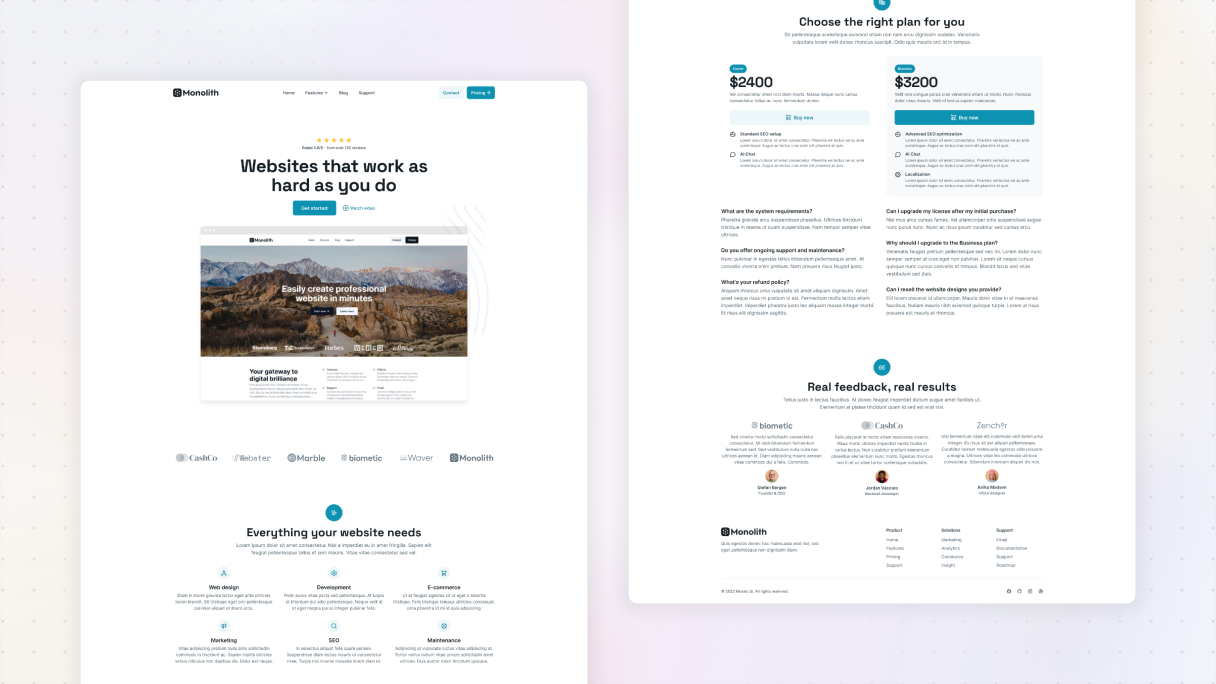
It’s important to really understand your current design. By carefully examining all the design elements you have, you’ll be able to see what’s effective and what could use some adjustments. This will help you lay a strong foundation for creating a design system that gets the job done.
2. Sort and categorize what you have
So if you already have certain color schemes or fonts set up, make sure to keep those in mind when creating your style guide. The key is to strengthen your brand identity, not drift away from it. Try to organize them so you can easily spot inconsistencies and opportunities, and ensure that your brand looks cohesive.
3. Identify opportunities
Now, why don’t you try taking a step back and looking at everything you gathered? See if there are any chances to make things better. Look for any missing pieces in your current design that don’t match up with what you need. Remember, we’re aiming to put together a complete guidebook and resource library, so don’t forget to include all the essentials.
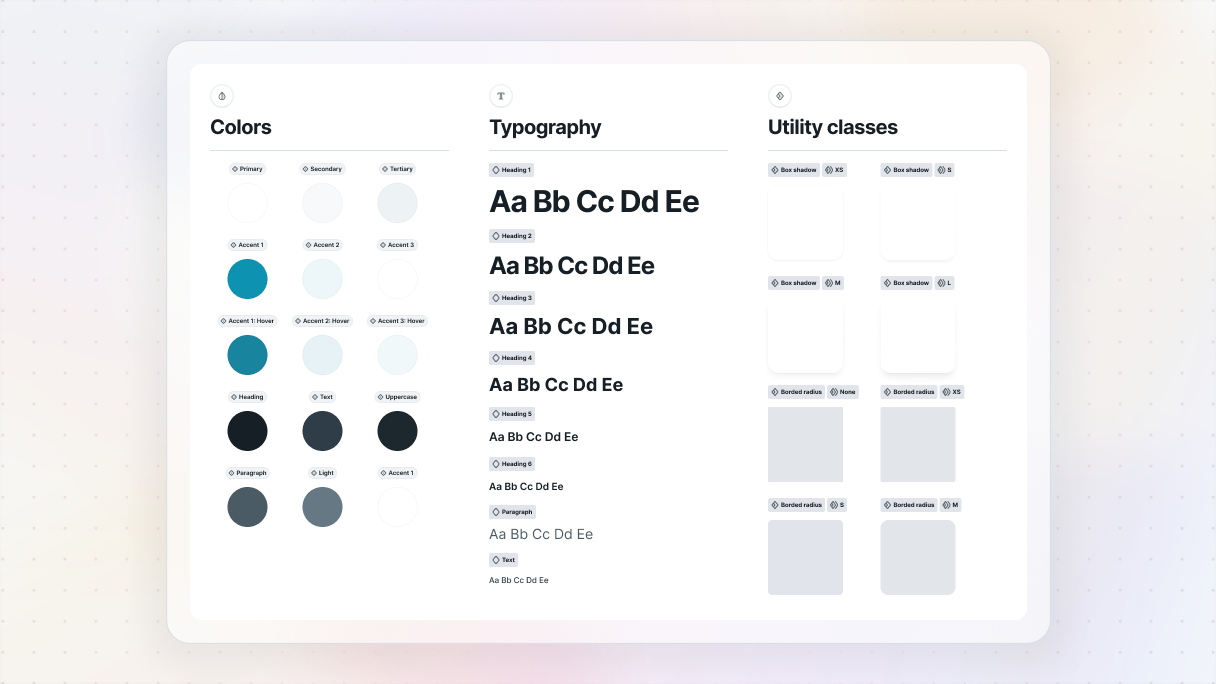
Choose a consistent style for your design. It’s important to have a standard style that you can use throughout your entire design. Sometimes, you might come across a situation where you need a component that you haven’t created yet. This is a great opportunity for you to fill in those gaps and make sure your design system is well-coordinated.
4. Define rules
One of the first things you need to do when creating a design system is to set clear guiding rules. Having simple usage protocols can really cut down on mistakes when putting everything into action. Once you’ve got these rules in place, make sure everyone knows about them and is on the same page.
Make sure these guidelines are crystal clear and easy to put into action. You should steer clear of vague rules and instead focus on being specific. It would be great if you got input from different team members so you can come up with rules that are inclusive and simple for everyone to follow.
5. Establish a governance strategy
Remember when we discussed governance strategies earlier? Well, let’s talk a bit about why they’re actually super helpful. These guidelines play an important role in preventing conflicts by promoting a common understanding of everyone’s roles.
This means that any updates made in your design system are done with purpose, consistency, and in line with your organization’s goals and design strategy.
Conducting an audit can help you identify the necessary skills for your design system that fit your company perfectly. And don’t forget that creating the system is only the first step, keeping it up to date is just as important.
6. Accessibility
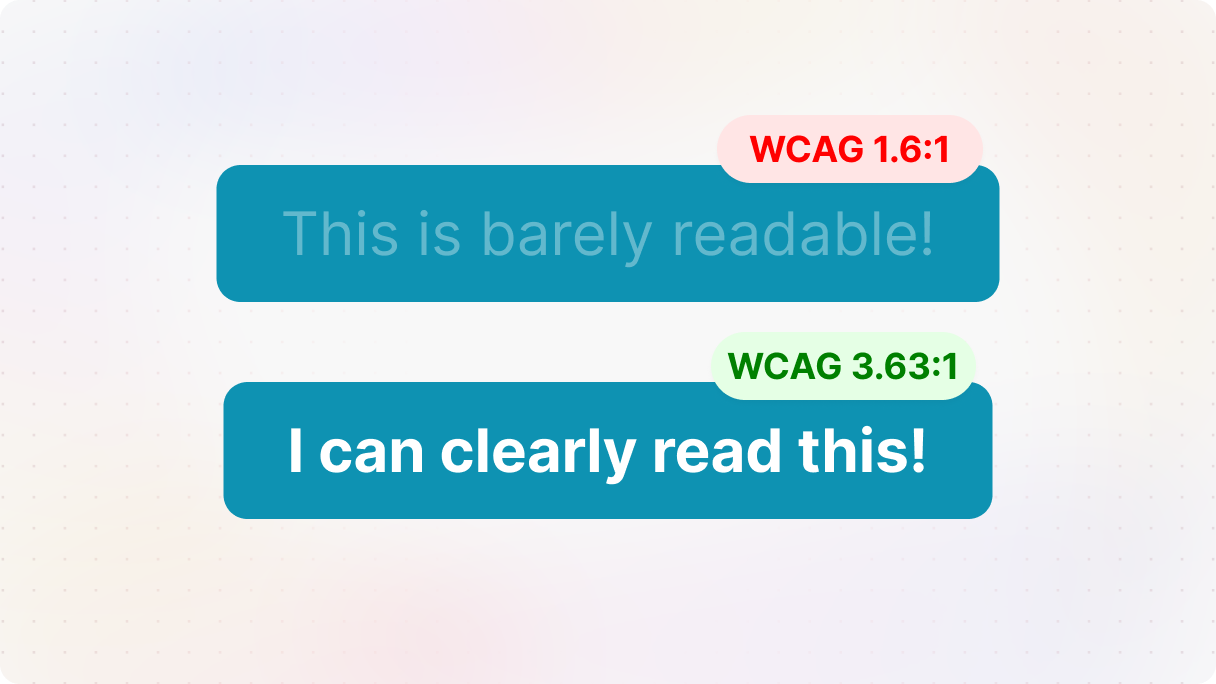
Accessibility is not just something to think about, it’s actually our responsibility. When we make accessibility a priority right from the start and give clear guidelines, we’re setting the groundwork for a product that includes everyone.
This means making sure that the colors have enough contrast, the text is easy to read against the background, and the font sizes work well for all users. You should always make sure your design system complies with the Web Content Accessibility Guidelines (WCAG) to guarantee accessibility for all.
7. Color palette
Now it’s time to get into the fun part of designing, making your design choices. Whether you’re improving what you already have or starting fresh, the key is to get rid of any inconsistencies right from the beginning. One awesome way to begin is by setting up your color palette, and a solid understanding of color theory can help you make those choices more intentional and consistent.
While you were going through your audit, you may have seen a bunch of different shades all over the place, like a hundred blues. It’s a good idea to narrow it down to just a few consistent hues to make your design process easier and your visuals more unified.
Be sure to gather all your colors together and establish clear guidelines for how to use them. Think about the colors you want to use for your text, links, buttons, and other elements.
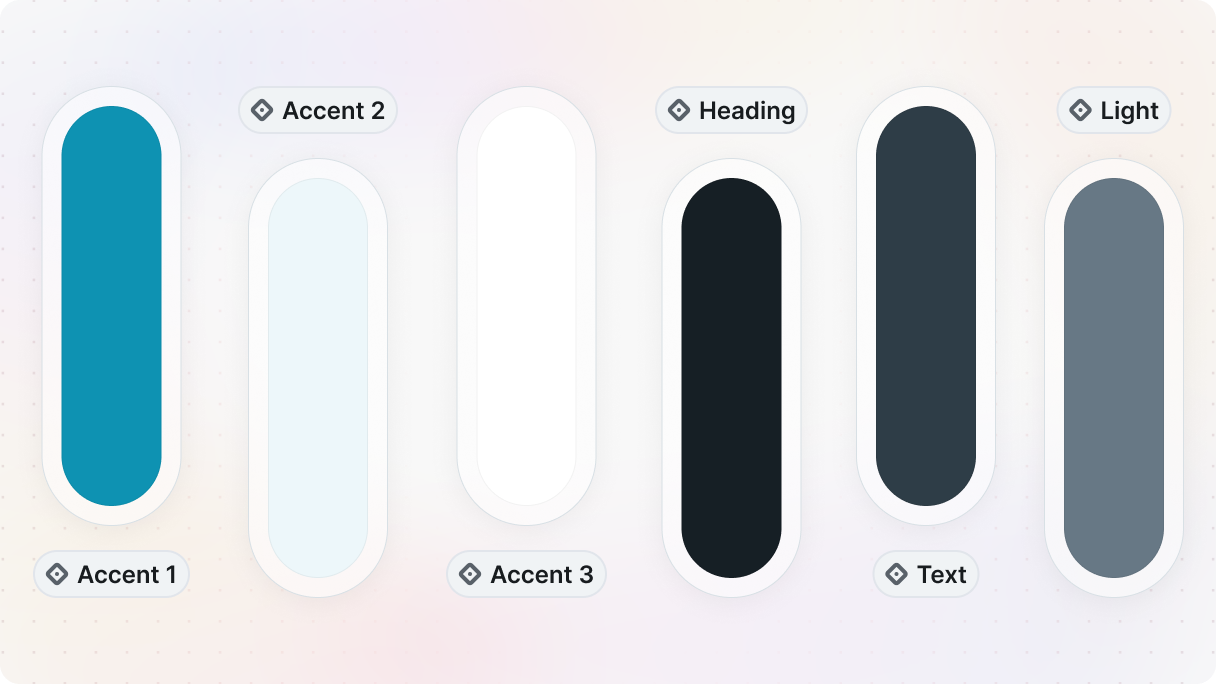
In fact, every design system should have at least the following core colors: Primary, Secondary, and Support. These colors will be the foundation of your design.
But it doesn’t stop there. Each of their colors should also have at least five variants: Dark, Default, Light, Lighter, and Lightest. This gives you a wide range of options to cover all the necessary states in your design.
Here’s a quick rundown:
- Primary: Usually your brand color.
- Secondary: Optional, should complement the primary color without competing for attention. Usually, elements of secondary importance.
- Support: Includes Success, Warning, Error, Information, and Link colors.
8. Typography, fonts
When you’re picking out fonts for your website, make sure you focus on readability and also keep your brand identity in mind. It’s super important to have a consistent set of font sizes, line heights, letter spacing, and font weights. And don’t forget to include guidelines on when and where to use them.
9. Consistent icons
Having a cohesive and well-thought-out icon system can really boost your brand’s identity and make your website more user-friendly. Just remember to keep your icons the same size and aligned properly. It’s also a good idea to gather all the icons you use on your website into one set for a consistent look in your design system.
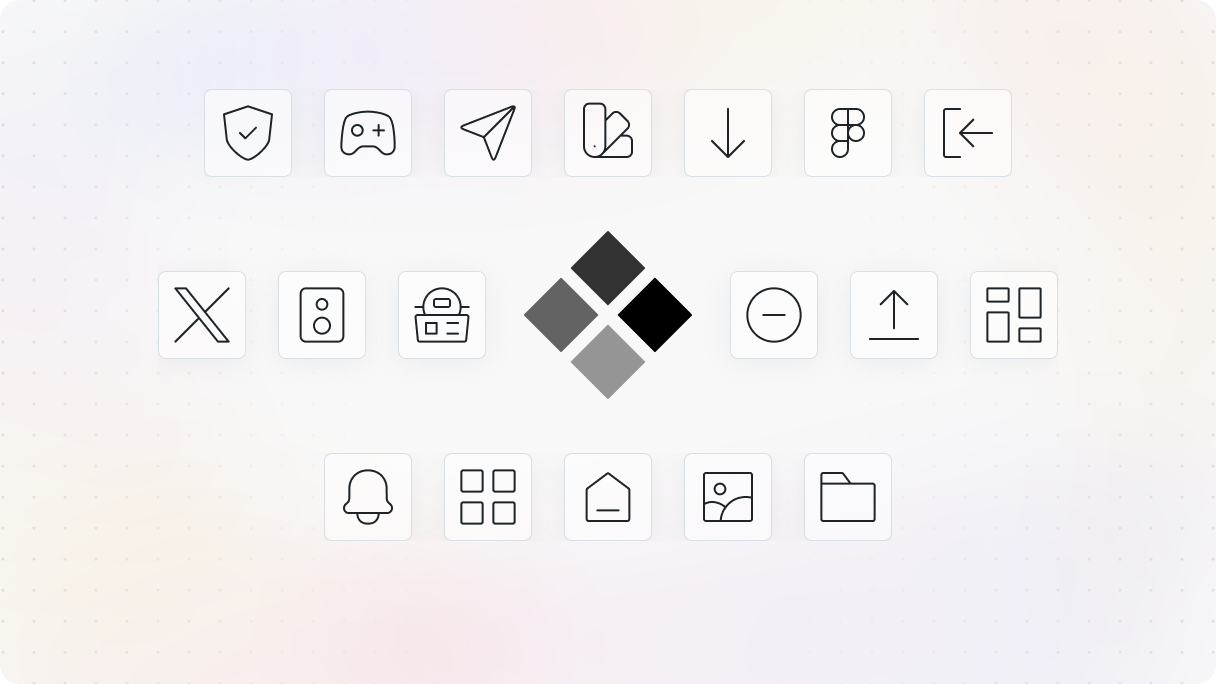
Icons serve a purpose beyond simple decoration. They play a crucial role in guiding your users by visually representing actions, emphasizing important information, and enhancing the overall intuitiveness of your content. Consider them as visual shortcuts that effortlessly assist users in navigating your website.
10. Visual harmony
Having a solid structure is key to achieving that modern, professional appearance that attracts visitors.
- First, layout grids. They’re like the backbone of your design, keeping everything organized and visually appealing, something you can clearly notice across strong website layouts.
- Next, let’s talk about spacing. It’s not only about giving your elements some space to breathe but also about achieving a sense of balance and flow on your page. When you maintain consistent spacing, everything looks neat and connected.
- And consider sizing, too. This is the perfect opportunity to experiment with proportions and capture your users’ interest. You can make a bold statement by going big, or choose a more understated approach with smaller elements. The key is to direct your viewers’ gaze toward the desired focal points, especially in sections like the hero, where hierarchy guides attention from the very beginning.
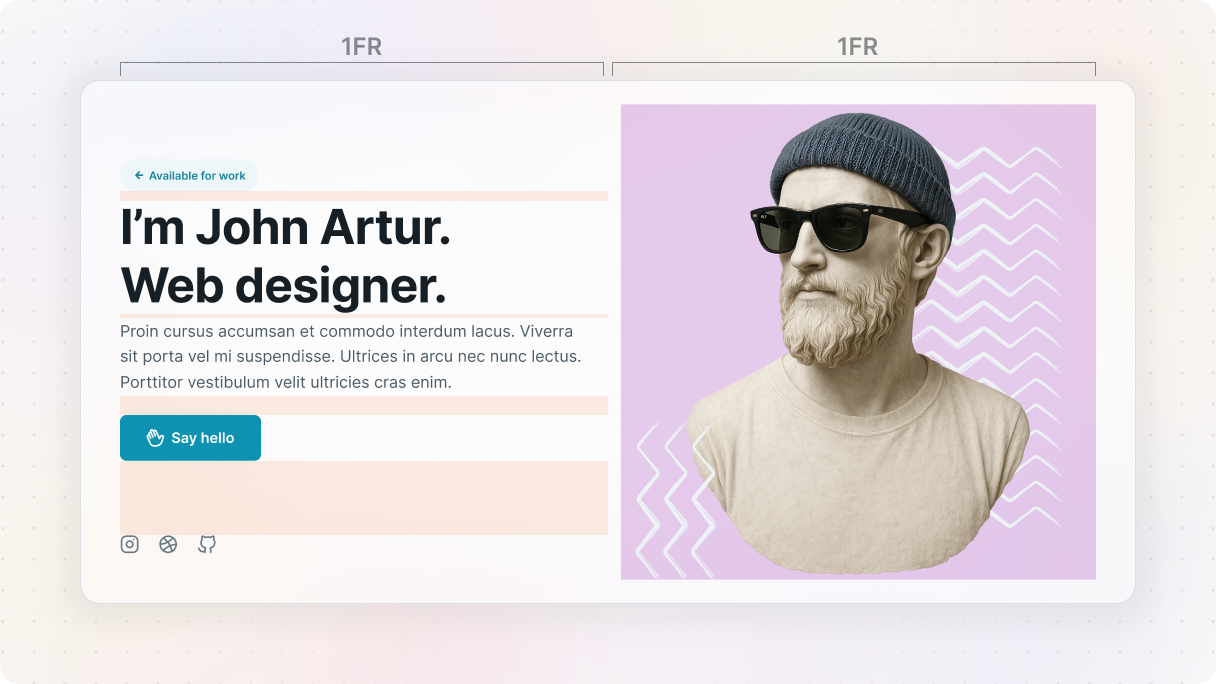
When you’re coming up with ideas for your design, make sure you always have your users and your brand aesthetic in mind.
11. Visual hierarchy – shadows
Have you ever thought about why some things on a website stand out so much, while others just fade into the background? It’s all about elevation and shadows. It’s what makes your design truly stand out.
However, you shouldn’t go overboard with shadows just to make your website look stylish. Overusing them can actually confuse your users, especially those with visual impairments.
12. Component library
Make sure you collect all the important design elements for your website. Then, try organizing your items into categories based on what they do. That way, whether it’s buttons, forms, or navigation menus, you’ll always know where to find what you’re searching for.
If you’re looking for ideas on how to structure things, you can see how we organize reusable layouts inside our page kit library.
Your design system should be like a living, evolving document that grows over time. So, don’t hesitate to make adjustments and improvements as your website expands and transforms.
13. Maintaining and evolving
Hang tight, we’re not done just yet. Think of a design system as a garden that needs constant care and attention to grow. So, even after you’ve set it up, there’s still work to be done.
It’s important to make a habit of scheduling regular check-ins with your design system. This way, you can ensure that it’s still meeting your goals effectively and adapting to the changing needs of your organization.
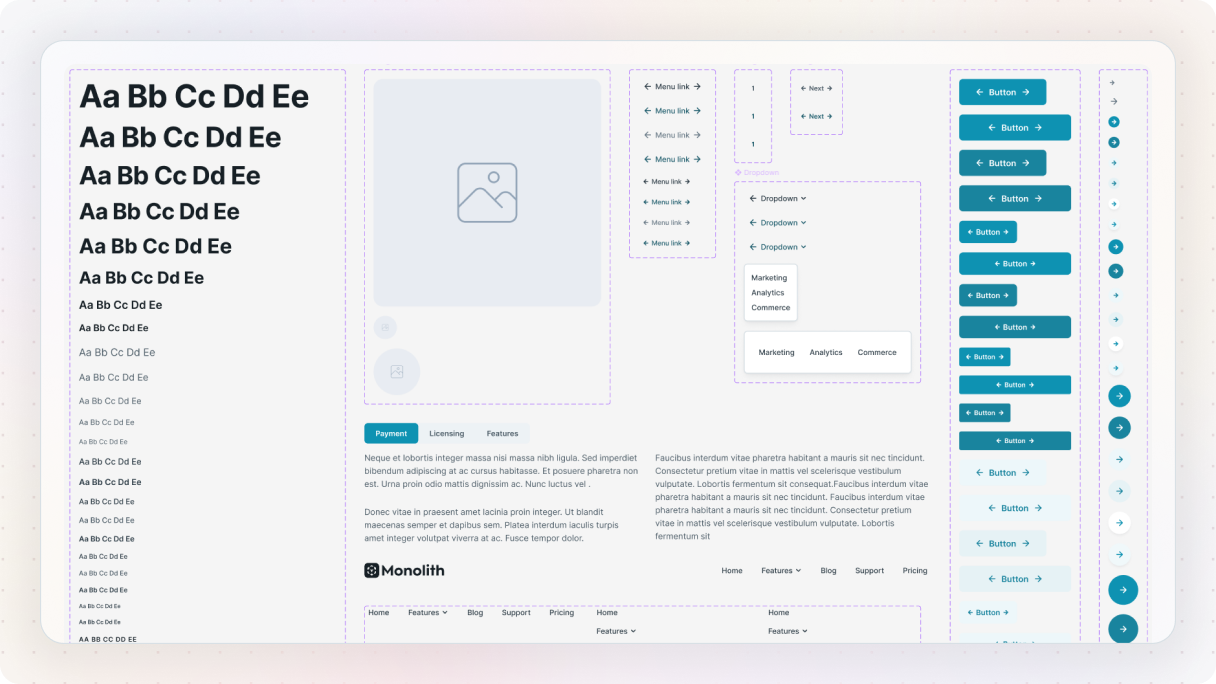
Though I wanted to give you a heads-up about something. If you don’t maintain your design system properly, it can easily get filled with old stuff that you don’t need anymore.
Trust me, nobody wants to spend time searching through a digital mess just to find what they’re looking for. So make sure you keep an eye on things and give your design system the care it deserves. Your users will appreciate it, and it’ll save you from going crazy, too.
What’s next?
Now that you’ve learned how to build a design system, you’re ready to apply it to your own project. With Mosaic, you can turn your design system into a structured, scalable workflow using variables, classes, and components, even if you’re only getting started with Mosaic.
Start small, stay consistent, and evolve it with your product.
Want to go deeper? Check out: What Is a Design System?


