
On click or hover
Open, close or toggle it from a click or hover on a button or any other element.
Tooltips, menus and notices that float above your WordPress pages without blocking them, so visitors can keep reading and clicking while one is open.
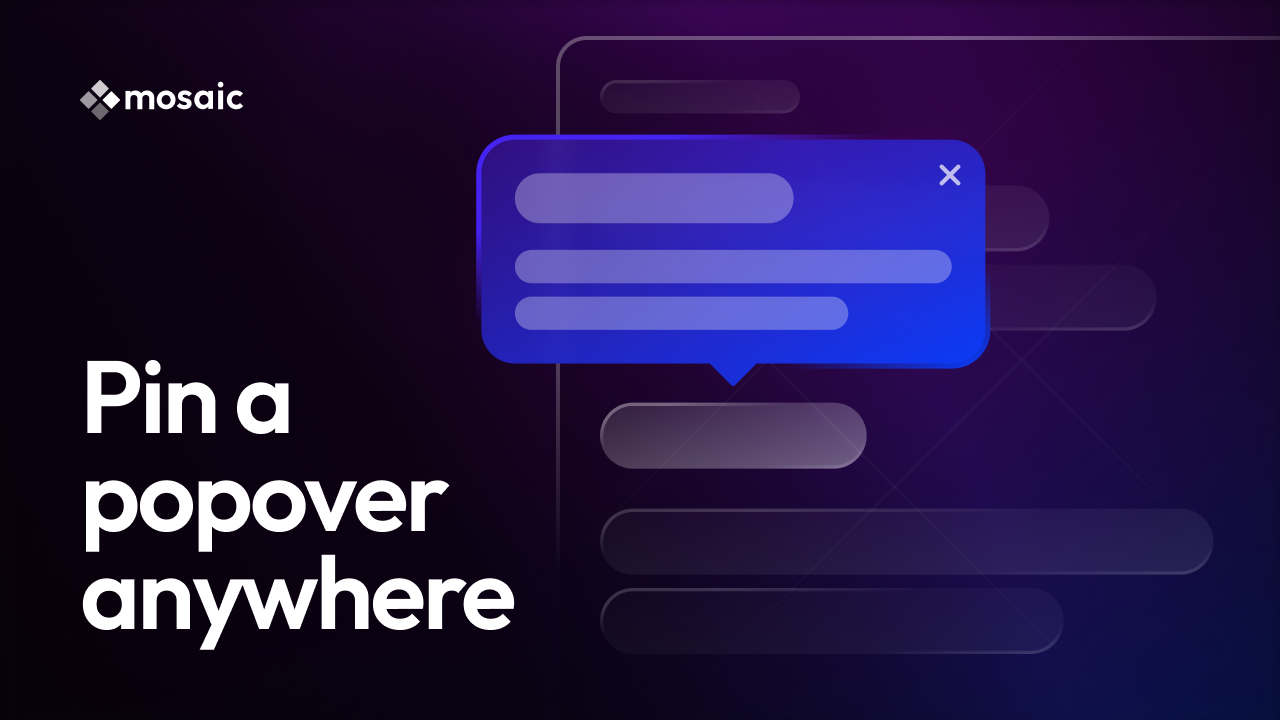
Add a ready-made popover from the library, open it on page load, scroll depth, exit intent or a click, then pin it to the screen or anchor it to a button and animate how it opens.
Blank, Monolith and Gibraltar each ship eleven popovers in their Parts library. Here are twelve of them, mixed across the three.
Six everyday jobs, each one a single Popover.
Click or hover the demo at the top of each card.
Tips for this screen, right where you need them.
A short tip that opens beside a help icon on hover and closes as the pointer moves on.
A visual builder for WordPress pages, styles and interactions.
Text and an image that open while the pointer rests on a link.
A whole contact form inside a popover, filled in without leaving the page.
The site stays up, the editor is offline for about two hours. Keep scrolling, this stays here.
A notice pinned to a corner of the screen that stays put while the page scrolls.
One setting, Position, decides it. Attach the popover when it is about one thing on the page, and pin it to the screen when it is about the page as a whole.
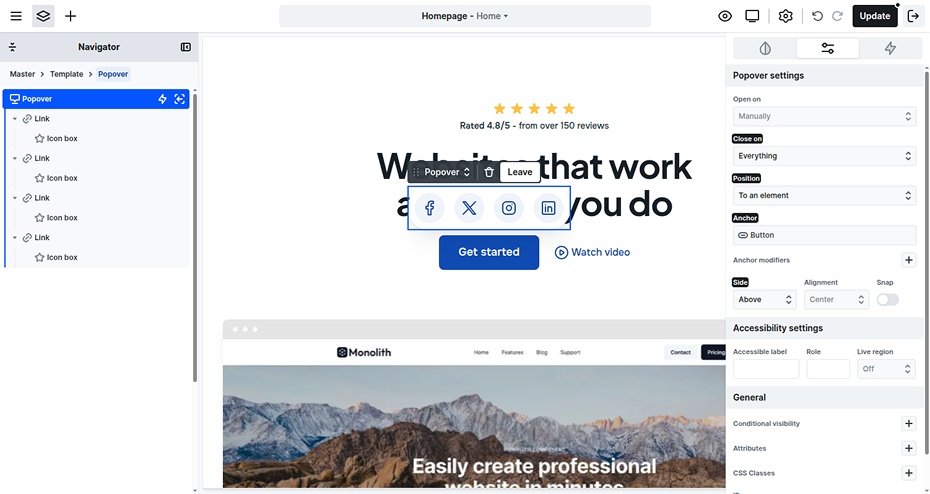
It opens right next to the field it explains, so a hint never drifts away from its input and visitors always know where it belongs.
Any element as the anchor, or the one that opened it
Above, below, start or end of the anchor
Snap flips it when it would leave the screen
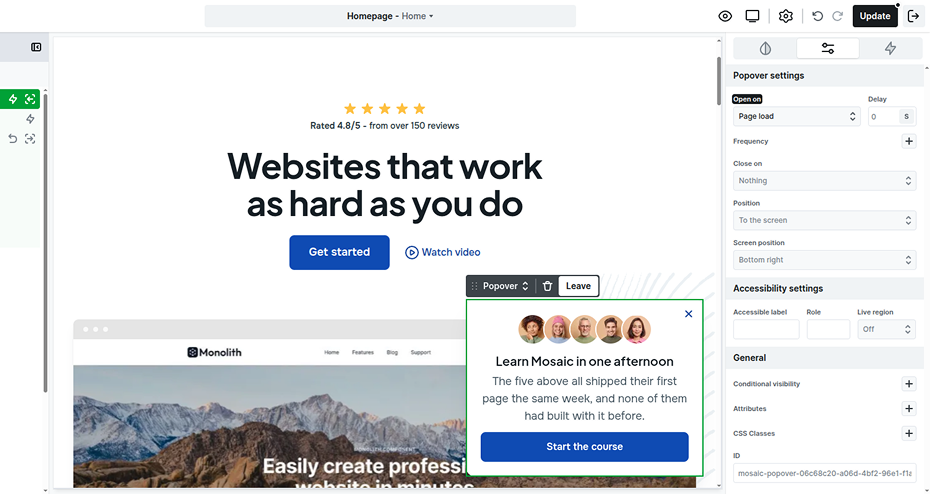
It stays fixed in one spot in the browser window, so a notice never leaves the screen, wherever visitors scroll.
Nine spots, from the corners to the center
Stays put while the page scrolls under it
Bottom right until you pick another spot
Let it open by itself or wire it to any click, then decide how often a visitor sees it and which of their moves can close it again, the outside click and the Esc key included.
Open, close or toggle it from a click or hover on a button or any other element.
It shows as soon as the page has finished loading, after a delay if you set one.
It holds back until the visitor has scrolled a set distance down the page.
It opens when the visitor looks ready to leave the page, on desktop screens.
Both float above the page and open on the same triggers. What sets them apart is whether the visitor can keep using the page while one is open, so that decides which you need.
The page behind it stays live, every link and button still works
The page dims, stops scrolling and ignores clicks until it closes
Choose the Popover whenever people should keep reading around it
Wherever you place it, so it can point straight at what it explains
Always the middle of the screen, no matter which button opened it
When its spot on the page tells people something, use a popover
Tab moves past it to the next thing on the page, nothing is trapped
Tab loops inside the window and stays there until the window closes
Only the Modal keeps keyboard focus until the visitor is finished
Its own close button, plus Esc and outside clicks once you turn them on
A click on the dimmed overlay or the Esc key, both on by default
Turn on Esc and outside clicks so small popovers are quick to dismiss
It grows and shrinks to fit exactly what you put inside it, nothing more
The window scrolls on its own once its content is taller than the screen
Keep popovers short, and give long reads a Modal of their own
When the visitor should be free to ignore it and simply carry on
When the visitor has to answer or decide something before going on
Ask whether the content can wait. If it can, make it a popover
A Popover is a container like a Div, so your classes, states and interactions all work on it, and the details visitors only notice when they are missing come built in.
Your classes style it, plus a Flipped state for when Snap moves it.
Show, Before close and After close, and the exit always finishes.
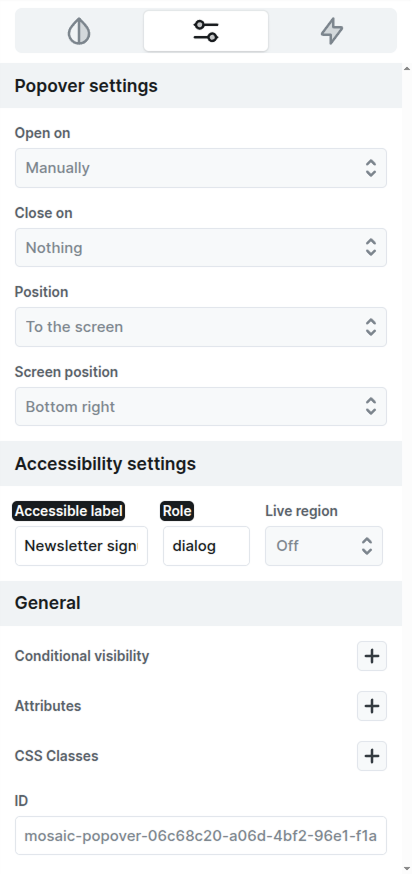
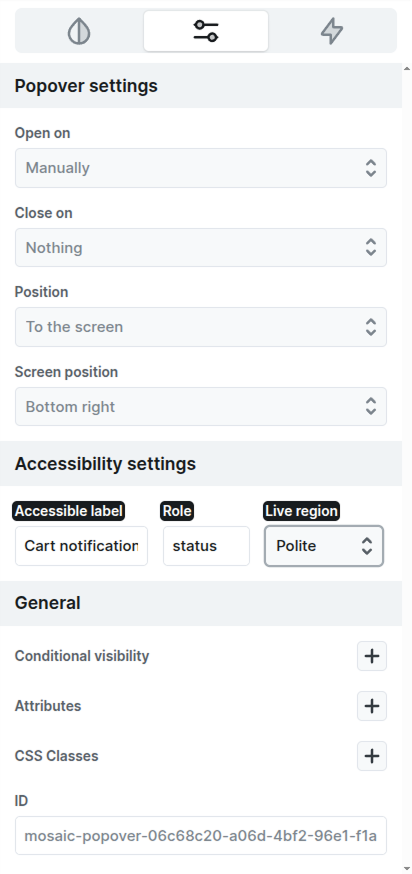
A label, a role and a live region that announces it as it opens.
You build it open on the canvas, so you style it right where it shows.
These are the elements a popover works best with, each one with its own guide.
The details that come up once you start building with it, from closing behavior to phones. The docs cover every setting, and our team answers anything that is still unclear.
Every plan. The Popover sits in the Add panel with every other element, on Personal, Creator and Agency alike, and nothing about it is held back for a higher plan or sold as an extra add on.
We use cookies to improve your experience, analyze traffic, and personalize content. By clicking "Accept all" you agree to storing them on your device. Read our privacy policy.