


Mosaic Builder, the WordPress theme builder and design system, now works with ACPT, the plugin for custom post types and custom fields. Your ACPT fields, option pages, and Custom Content Tables show up as dynamic data in your templates, the same way ACF, Secure Custom Fields, and Meta Box fields already do. This release also adds a random post redirect setting, so you can turn off the new /random/ address that WordPress 7.2 switches on for every site.
If you build with ACPT, showing your fields in a Mosaic template used to take extra work, because Mosaic didn’t recognize them. Now Mosaic reads ACPT directly, and there’s nothing to set up twice.
WordPress 7.2 brings a different kind of change. Every site gets a /random/ address that sends visitors to a random post, and WordPress only lets you turn it off with code. In Mosaic, it’s a switch.
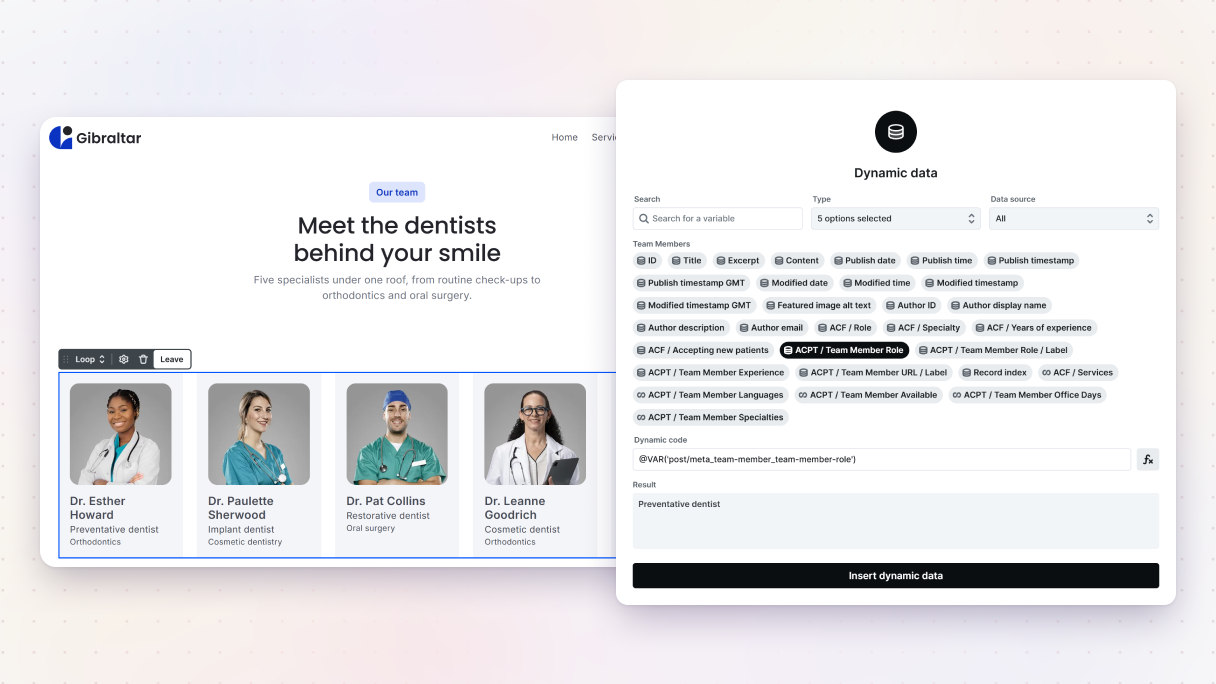
ACPT integration: custom fields, option pages, and tables as dynamic data
The ACPT integration lets Mosaic Builder read what you create in ACPT: custom post types, taxonomies, field groups, option pages, and Custom Content Tables. You pick an ACPT field from the dynamic data list in the editor and use it in text, images, links, and loops, without a shortcode or a template file.
ACPT keeps post types, taxonomies, fields, and option pages in one plugin, which makes it a popular choice for content-heavy sites. ACPT now joins ACF, Secure Custom Fields, and Meta Box as field plugins that Mosaic reads directly, and your fields stay exactly as they are in ACPT.
Some ideas for what you can build:
- A property listings page where each card shows the price from a Currency field, the city from an Address field, and a photo loop from a Gallery field.
- A team page with tap-to-call numbers. A Phone field gives you a ready-made phone link, so visitors on a phone can call with one tap.
- Site-wide details kept in one place. Put your opening hours, contact details, or a global banner on an ACPT option page, then show them in the header or footer of any template.
- An events list from a Custom Content Table, filtered and sorted by any column, with pagination.
- Related projects on a case study page, from a Relationship field that works from both sides of the connection.
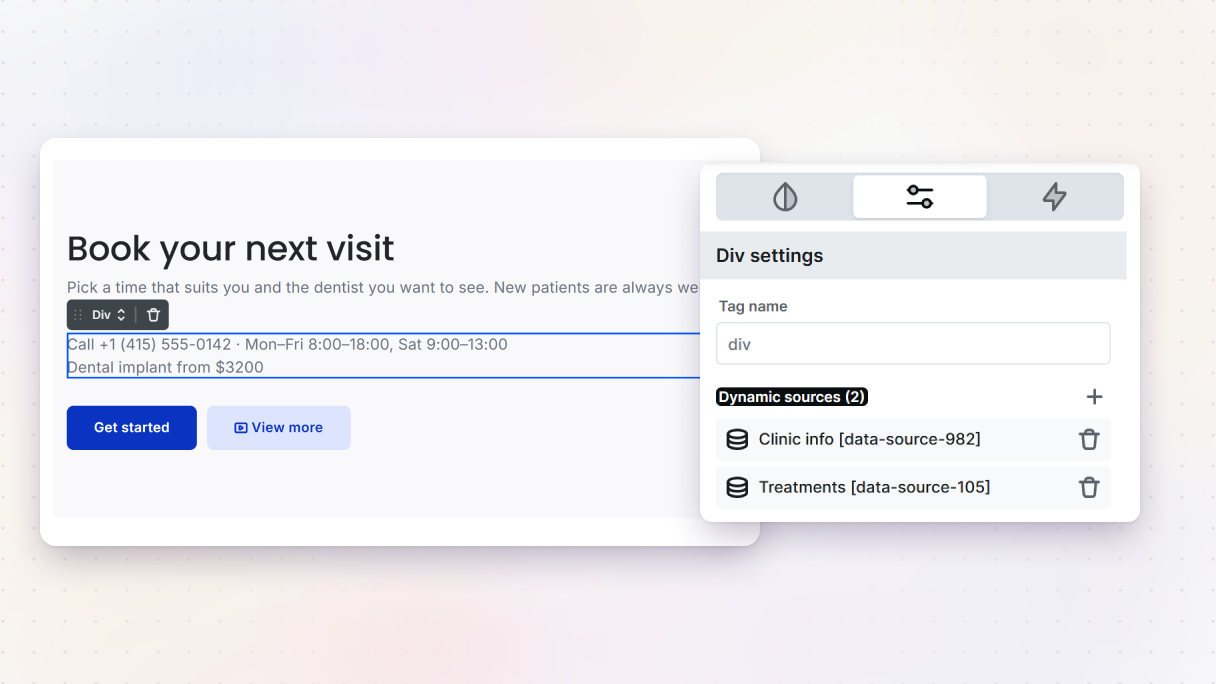
How ACPT fields show up in Mosaic
Every ACPT post type and taxonomy becomes a dynamic source, so you can build loops on them, then filter and sort them. A post type with an archive gets an archive template too.
Here’s how the fields themselves appear:
- Simple fields become one variable each. Text, Number, Email, Color, and similar fields appear in the list as ACPT / your field’s label.
- Fields with several parts give you every part. A Phone field gives you the number, the dial code, the country code, an international version, and a tel: link. A Currency field gives you the amount, the currency code, and its symbol.
- Fields with several values become loops. That includes Gallery, Checkbox, Select (multiple), Repeater, Flexible, and Relationship. A Repeater inside a Repeater becomes a loop inside a loop.
- Clone fields show their cloned fields under the Clone field’s label, each one keeping its original type.
- Option pages, child pages included, appear in a Div’s Dynamic sources under the ACPT option page.
- Custom Content Tables work in two ways. Their columns show up on the post, term, or user a record belongs to, and each table is also a source of its own for Loops and Divs.
The full list of ACPT field types and settings is in the docs.
Good to know: ACPT Lite, the free version on WordPress.org, works too, with its five field types. Option pages and Custom Content Tables need the full ACPT, and tables also need an active ACPT license and the Enable custom content type setting turned on. Password fields never become variables, so a password can’t end up on a page.
New to dynamic data in Mosaic?
Dynamic data means a design reads its content from WordPress instead of you typing it in. You design one card or one template, and every post, listing, or team member fills it in. When you add a new entry in WordPress, it appears everywhere that design is used.
In Mosaic, custom fields, post types, loops, and conditions come with every plan, with no add-on to buy. The dynamic content for WordPress pages shows the whole picture, from a field to a live page.
If you want to see it in action first, start with this walkthrough:
A few more places to learn:
- How to build a dynamic listings grid builds a listings grid from custom fields. The same build is written up step by step in the Meta Box tutorial, and the approach carries over to ACPT.
- Mosaic Builder support for dynamic data is David McCan’s review of what Mosaic can do with dynamic data.
- The data variables docs list every variable Mosaic offers and how each field plugin maps to them.
Random post redirect: turn off WordPress 7.2’s /random/ address
The random post redirect setting in Mosaic Builder turns off the /random/ address that WordPress 7.2 adds to every site. With the switch off, a visit to yoursite.com/random/ no longer sends anyone to a random post.
WordPress 7.2 adds /random/ to every site, plus versions that pick from one category, tag, author, or custom post type. It’s on by default. WordPress has no setting for it in the admin, and the official announcement offers a code filter as the only way to turn it off.
The announcement drew a long comment thread. Many developers asked for the feature to be off by default. Others pointed to the cost of picking a random post on very large sites, and to visitors landing on posts that were only “hidden” because nothing linked to them. WPTuts asks the same question: why is WordPress 7.2 turning this on for everyone?
For a blog with years of posts, /random/ can be a fun way to bring old writing back to life, so leave it on there. For a business site, or client sites you look after, you may not want it. Until now, that meant adding the same line of code to every site.
How it works
Go to Mosaic → Settings and turn off Random post redirect. Mosaic turns the feature off for you, and /random/ stops redirecting right away, with no need to re-save your permalinks. The random base field also disappears from Settings → Permalinks.
Good to know: the setting only appears on sites where WordPress has the /random/ feature, so on earlier WordPress versions you won’t see it.
Also new in this release
- Date filters for custom fields. Loop filters can now compare ACPT, ACF, and Meta Box date and time fields as real dates and times of day, so a list of “events after today” or “deadlines that haven’t passed yet” works without a workaround. Date fields also get an ISO date or a timestamp version to compare with.
You’ll find every fix and smaller change in the full changelog for 1.0.13.
How to get it
In WordPress, go to Dashboard → Updates or your Plugins list and update Mosaic. Then clear your site’s cache. Everything in this release is included in every plan.
Connect your ACPT fields, decide what /random/ should do on your sites, and tell us how it goes in the Facebook group or on Discord. If you have a question, email our support team.


