What are Data variables?
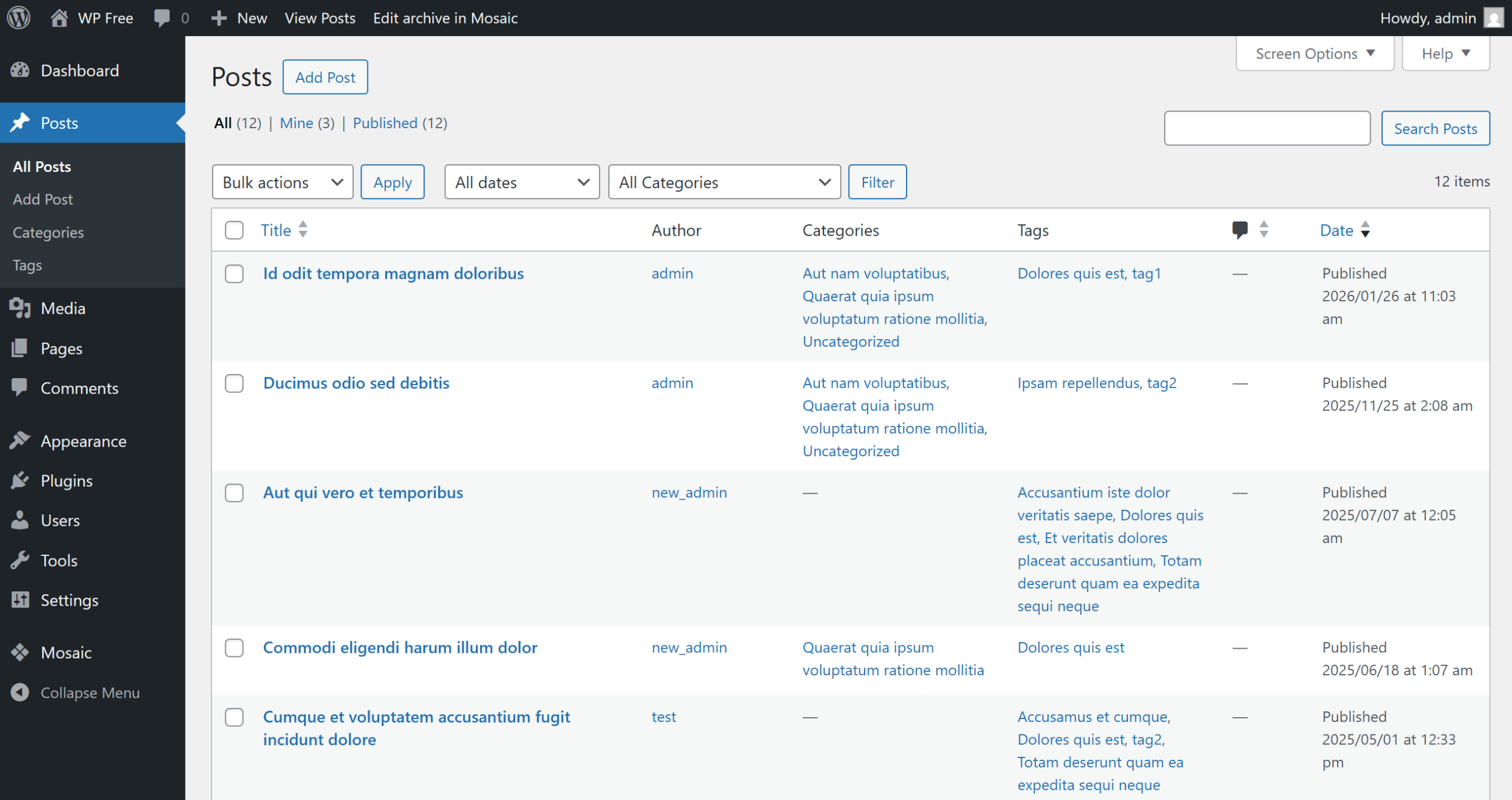
Data variables allow you to dynamically display content from different sources – such as Posts, Pages, Custom posts, Authors and Taxonomies (such as Categories or Tags) – inside your layouts.
Selecting the source
To get started with data variables, you first need to select the source of your data. If you want to create an entire page for that source, choose the appropriate Template type. If you only want a part of the page to display data from the source, use one of the available Element options.
Template type
When creating a new template, you can choose a Template type. Some template types are specifically designed to work with data variables; these are listed below.
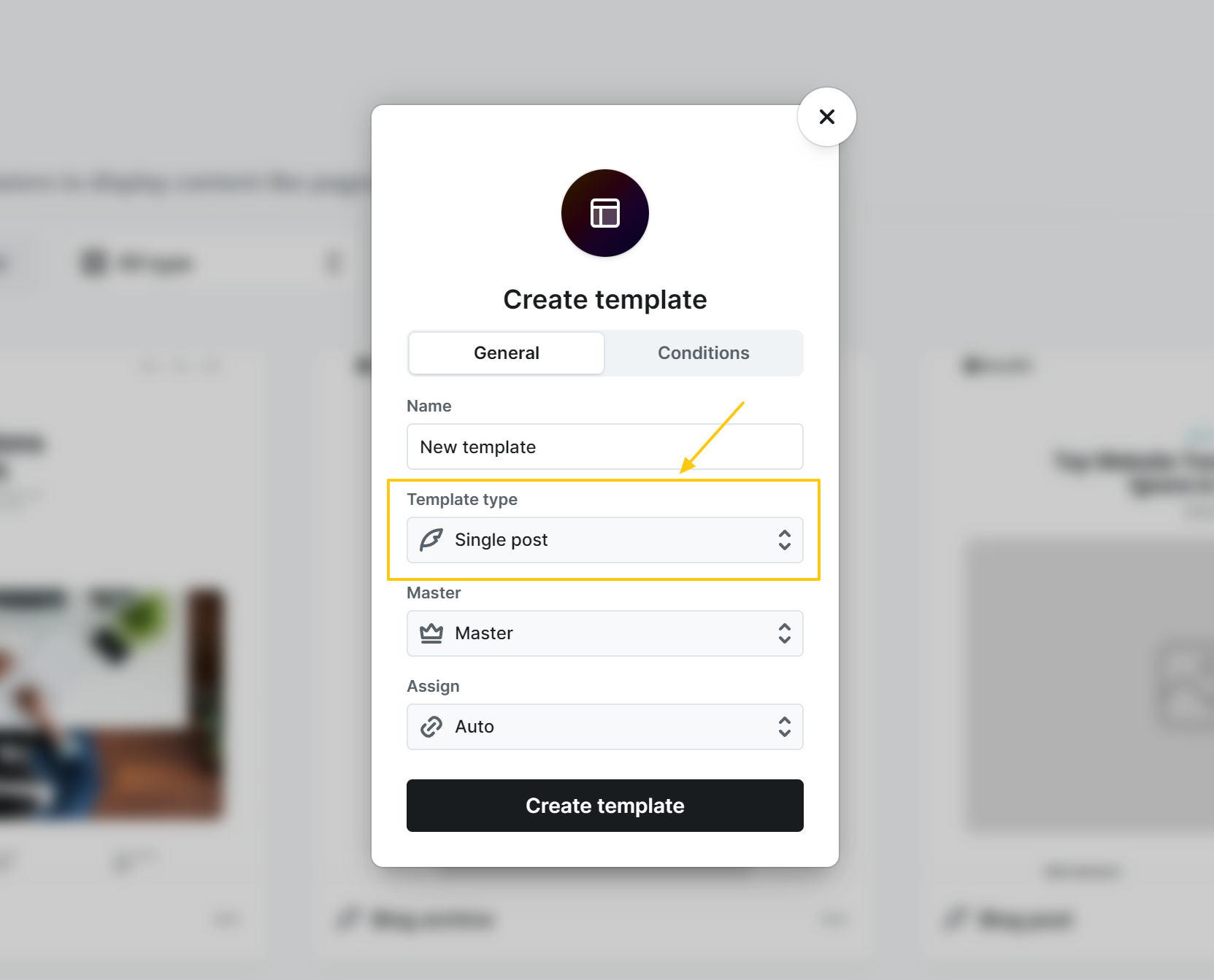
Single template types
“Single” template types, such as Single post, Single page, or any Single custom post type allows you to define a layout that controls how all items of the selected type – posts, pages, or custom posts – are displayed.
Archive template types
“Archive” template types, like Post archive, Categories archive, Tags archive, etc. are used to display multiple items on a page, such as your latest posts, list of your categories or tags.
Archive fallback
This template type serves as a fallback for Archive templates. For example, if you have multiple post or custom post types – such as news articles, blog posts, tutorials – and you don’t want to create a separate Archive template for each one, you can use the Archive fallback to define a common layout for all of them.
Element
Loop element
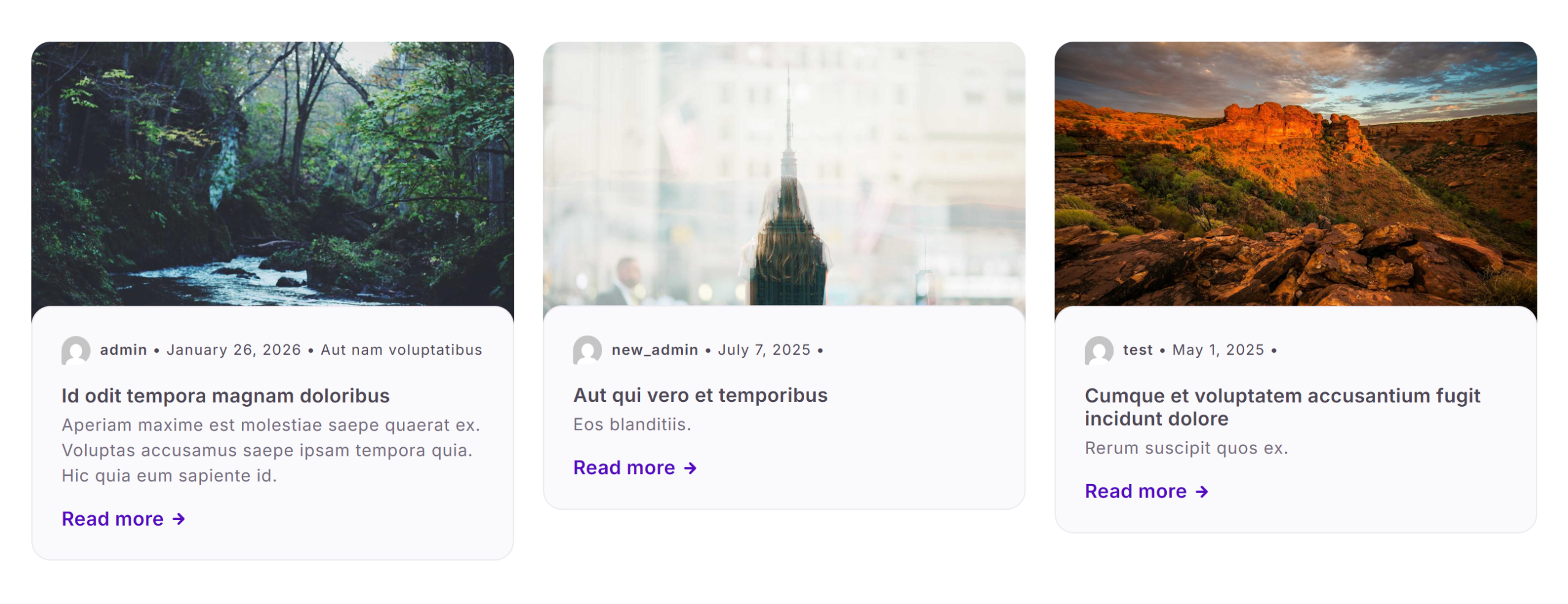
The Loop element allows you to select a source, like Filtered posts, categories or tags, and display multiple items next to each other. You can use a Loop element in any template type, and it can have its own source.
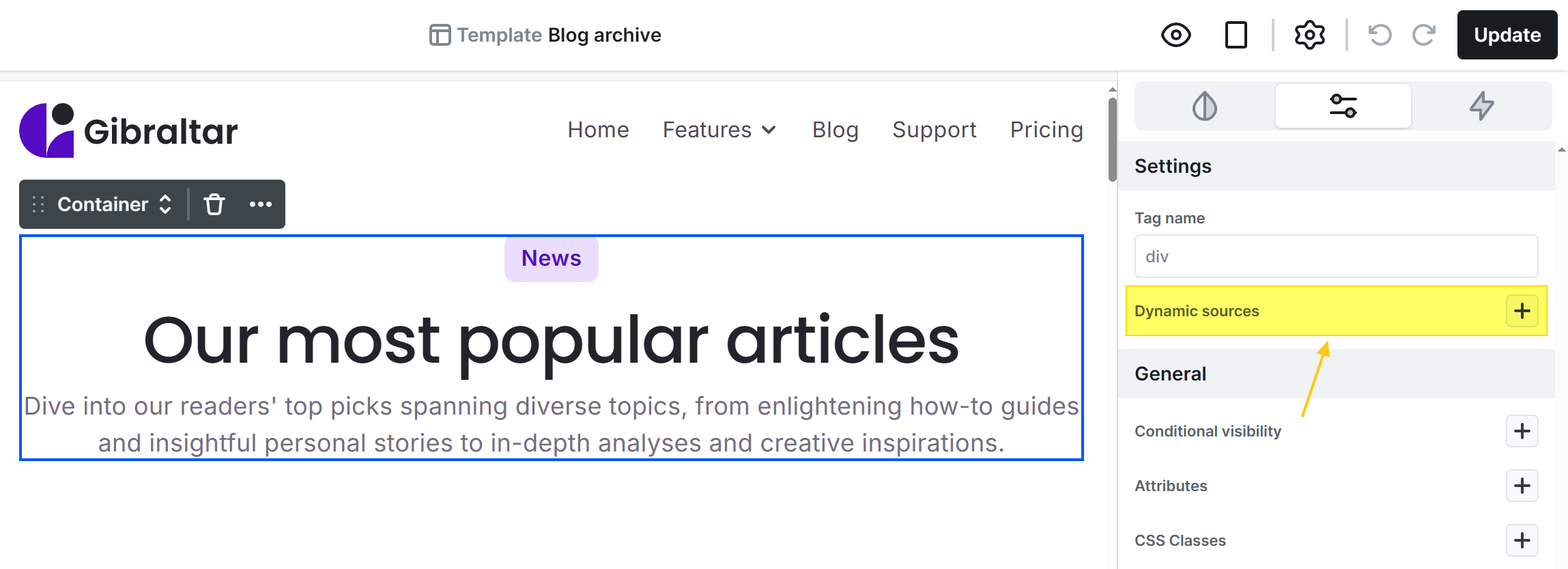
Div element
At the Settings of Div, Container, Rows, Columns, Grid elements you can find a Dynamic sources option. Here, you can select any source – such as a specific post, category, or tag. Once a source is selected, all elements inside the Div, Container, or other parent element will be able to use variables from that source.
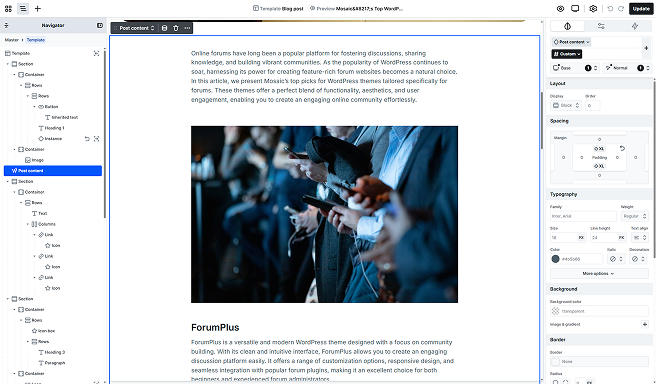
Post content element
The Post Content element is a special element, which was created to basically just hold the post’s Content variable. You can edit its design through the Gutenberg Styles.
Using variables
Many elements – such as Text, Image, or Video – and fields in the Style tab, like Background color or Background image, include a variable selector.
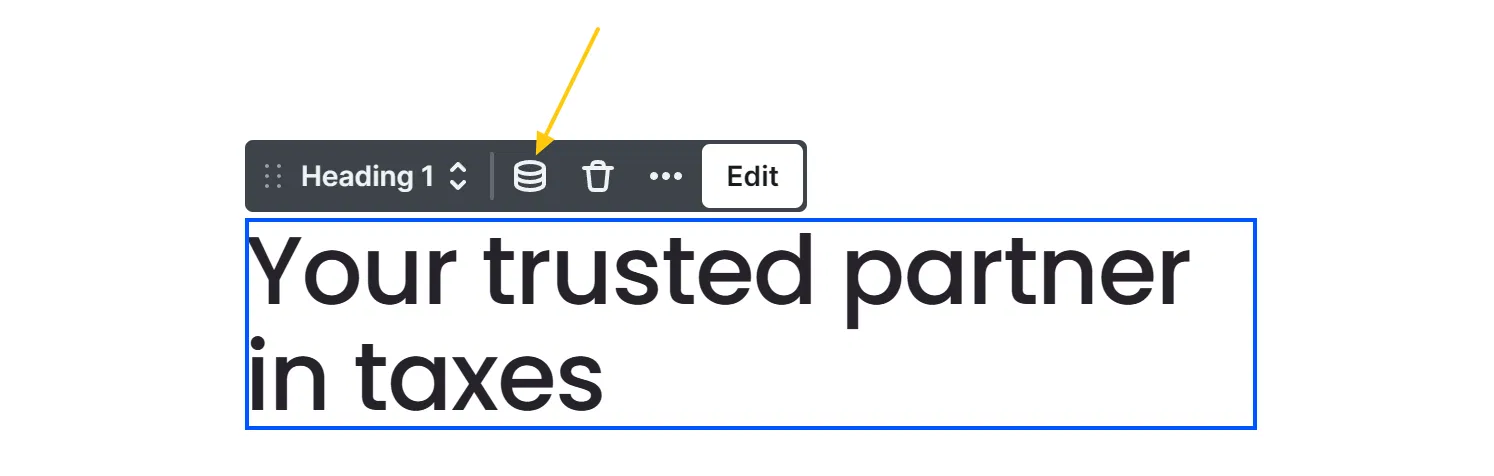
Based on your source, clicking this icon will bring up the available dynamic data variables, such as the Title or Content of a page/post.
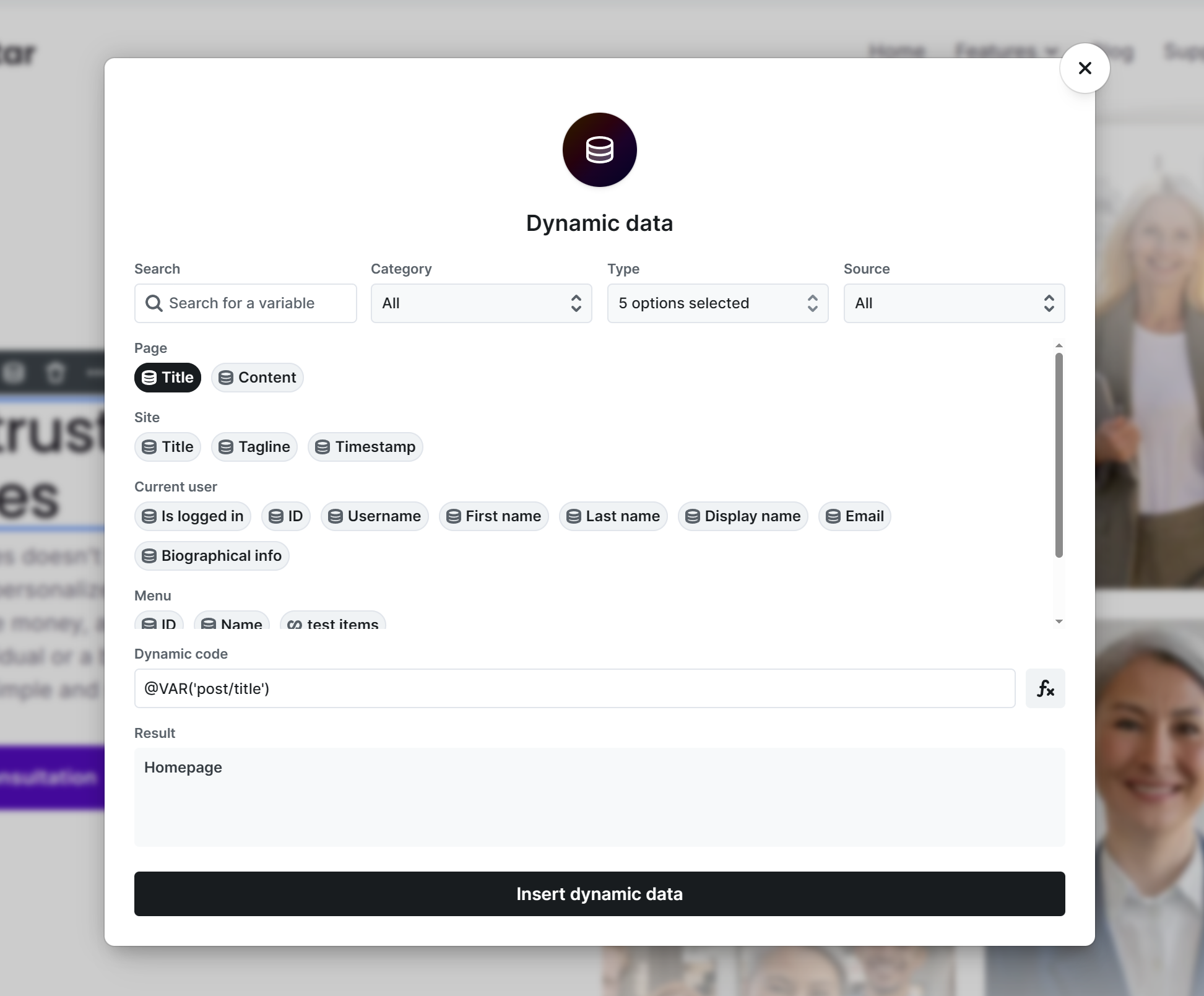
By default, only those Type options are selected that are most relevant to the current element. For example, in image-related fields, the post’s Featured image variable is available, while the Title variable is hidden.
However, when using functions such as “findimage” or “findurl”, you may want to access variables that are hidden by default. In these cases, make sure to enable the appropriate Type options to reveal all available variables.
Available post variables
You can use the following types of post based variables in your templates and elements:
- Post data – The default data of posts: id, title, content, featuredImage, permalink, excerpt, etc.
- Author data – The default data of authors: id, description, avatar, permalink, etc.
- Taxonomy data – The default data of taxonomies (categories, tags, other taxonomies): id, name, description, permalink, etc.
- Custom metadata – All metadata fields that do not start with an underscore (
_) character, including custom fields created with third-party plugins (see Custom fields).
Custom fields
Mosaic reads custom fields from popular third-party plugins and turns them into data variables you can use just like the built-in ones. See the dedicated guide for each:
Functions
The variable selector provides several functions for modifying variables. Each function includes a description explaining its behavior, but the most commonly used ones are listed below.
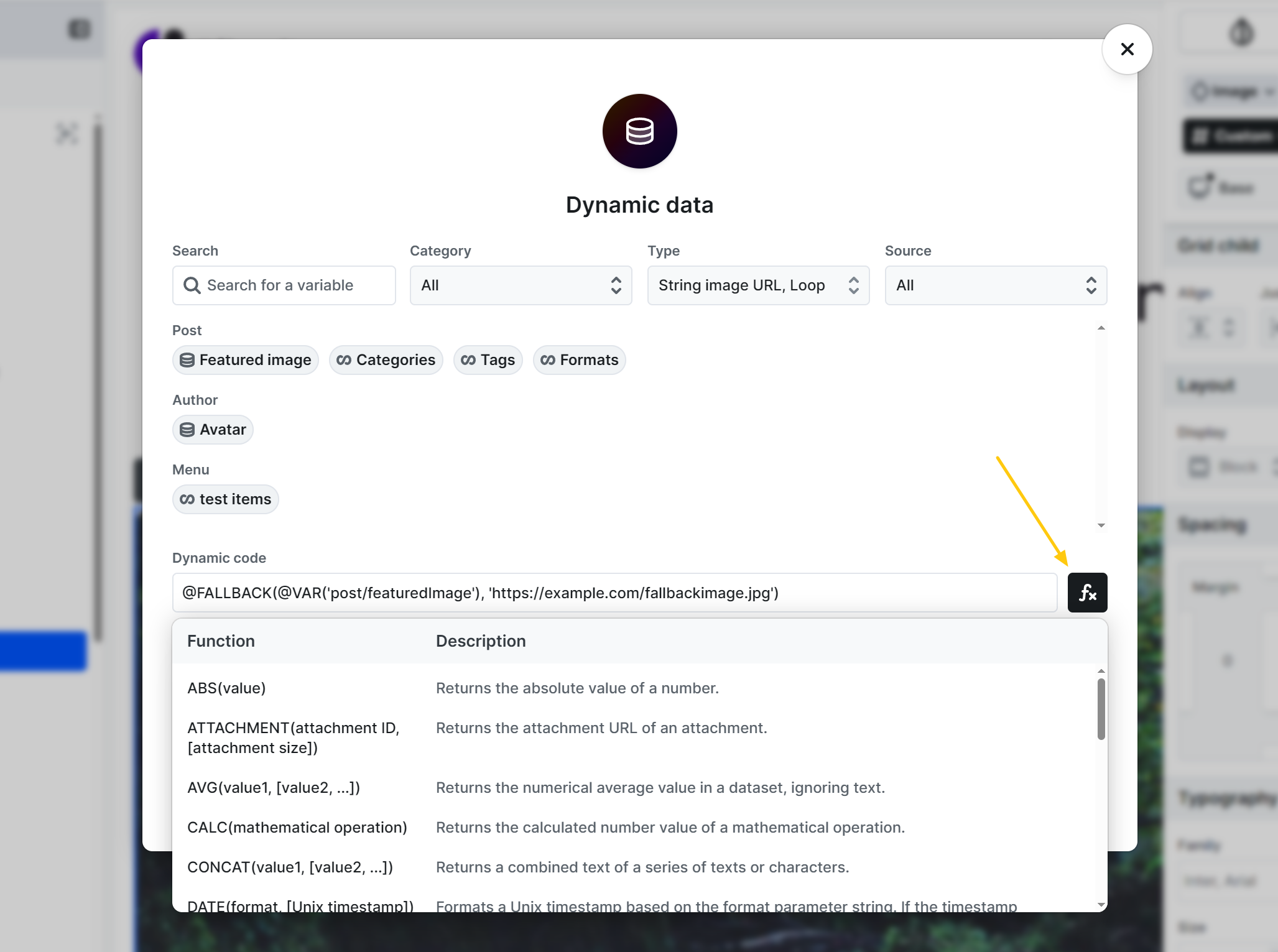
Fallback
Returns a fallback value if the given variable is empty. This is useful to ensure that an element always has content.
Example:
@FALLBACK(@VAR('post/featuredImage'), 'https://xy.com/fallback.jpg')Uses the post’s featured image if available; otherwise, it displays the specified fallback image URL.
Findimage
Searches for image URLs within a text-based variable and returns the specified match.
Example:
@FINDIMAGE(@VAR('post/content'), 1)Extracts the first image found in the post content.
Excerpt
Truncates text to a specified length, creating a shortened excerpt.
Example:
@EXCERPT(@VAR('post/content'), 100)Returns the first 100 characters of the post content.
Removehtml
Removes all HTML tags from the given variable, returning plain text only.
Example:
@REMOVEHTML(@VAR('post/content'))Strips HTML formatting from the post content.
Date
Formats a date using the specified format. If no timestamp is provided, the current date and time are used.
Examples:
@DATE('Y')Displays the current year.
@DATE('Y-m-d', @VAR('post/publish_timestamp'))Shows the post’s publish timestamp as a date with Year-month-date format.
Attachment
Returns the URL of a WordPress media attachment based on its ID. Optionally, you can request a specific registered image size.
Examples:
@ATTACHMENT(@VAR('post/meta_my_image_id'))Returns the full-size image URL of the given attachment.
@ATTACHMENT(@VAR('post/meta_my_image_id'), 'thumbnail')Returns the thumbnail-sized version of the image.
Mixing functions
Functions can be nested to combine their effects.
Example:
@EXCERPT(@REMOVEHTML(@VAR('post/content')), 100)Removes HTML tags from the post content, then creates a 100-character excerpt from the cleaned text.
How to insert variables from the next/previous post?
At Single template types if you want to display variables (title, featured image, date, etc.) from the previous or next post, you can build the source directly in Mosaic. The idea is to point a Div element at a single post — the previous or next one — and then use that post’s variables inside the Div.
Previous post
- Add a Div element.
- On its Settings tab, click the + icon in the Dynamic sources field to define a context (source) for the contents of the Div.
- For the source, select your post type (e.g. “Posts”, or your custom post type).
- Add a Filter rule for the Post variable type:
- Post variable key: Published date GMT
- Operator: less than
- Value: click the Dynamic data icon next to the Value field, then insert the date variable into Dynamic code:
@DATE('Y-m-d H:i:s', @VAR('post/publish_timestamp'))- Apply the filter.
- Add an Order by rule:
- Order by: Publish date
- Order: Descending
- Now if you insert any element inside this Div, and select a variable for it, that will give back the previous post’s data.
Next post
Follow the same steps as above, with two differences:
- In the Filter rule, set the Operator to greater than.
- In the Order by rule, set the Order to Ascending.
The “Post variable” filter compares against the raw values stored in the WordPress wp_posts table. This is why the date uses the Y-m-d H:i:s format — the post_date_gmt column stores dates in exactly that format, and that is what the filter compares against.
Hide navigation when there is no previous/next post
You can hide the elements inside the Divs when no previous or next post exists by adding a Conditional visibility rule — for example, by checking whether the post ID from the source defined by your Div is greater than 0.