

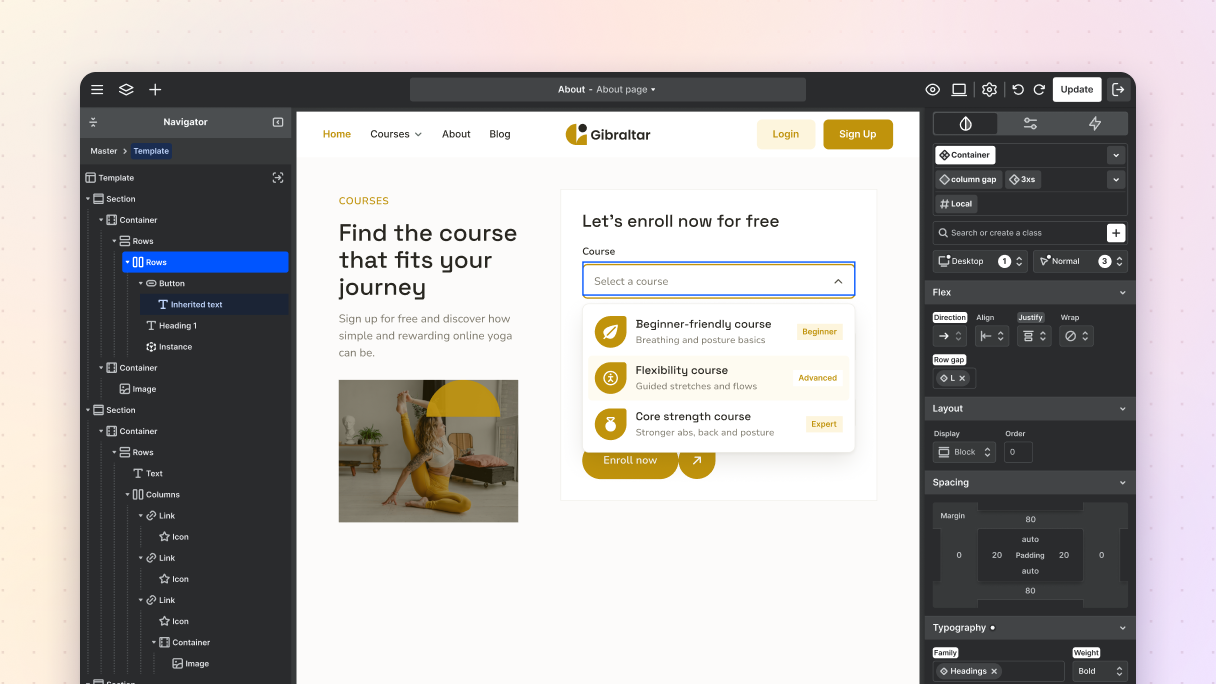
Mosaic Builder, the WordPress theme builder and design system, has three big additions in this release. The editor now has a dark mode. There’s a new custom select element, a dropdown where you design every option yourself. And the library now has ready-made off-canvas panels and panels you can drop into your site. SureRank now works with Mosaic too, and updates take care of their background work on their own.
Until now, a few everyday things in Mosaic were either out of your hands or took a lot of work. The editor was always light. When you added a dropdown to a form, the browser decided how its list of options looked, so it could look a little different in Chrome, Firefox, and Safari. And anything that slides in from the side, like a mobile menu or a contact form, had to be built from scratch.
This release takes care of all three.
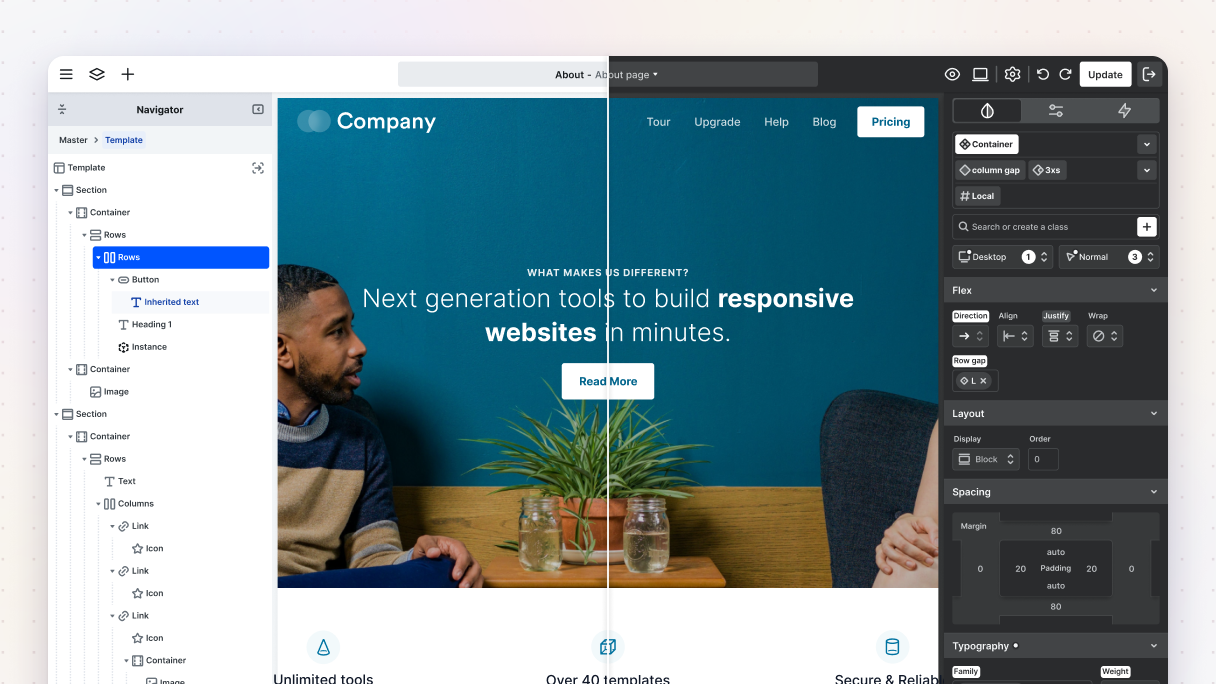
Editor dark mode, for the editor and Live Preview
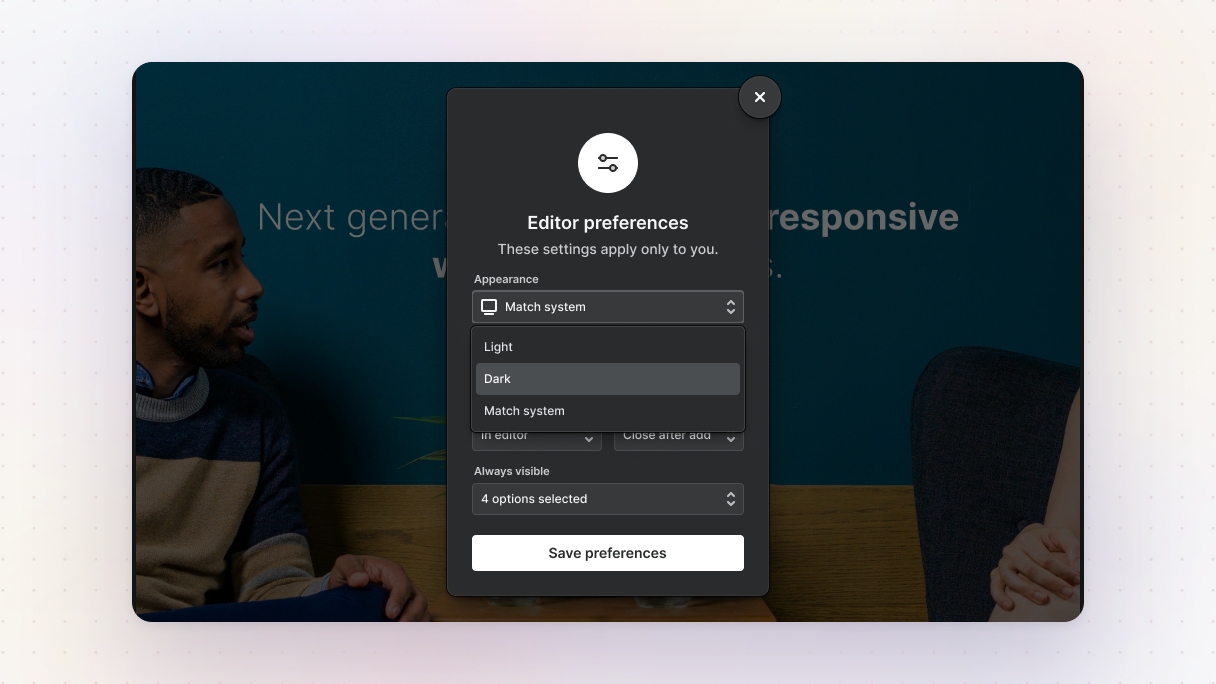
Editor dark mode gives the Mosaic Builder editor a dark look. Go to Editor preferences, then under Appearance, pick Light, Dark, or Match system, then click Save preferences. It only changes the editor, so your website looks exactly the same to your visitors.
People have asked for this for a long time. If you often build in the evening, or you use dark mode in your other apps, the editor now fits right in.
Here’s what changes when you turn it on:
- The editor goes dark. That includes the panels, the Navigator (the list of elements on your page), and the style settings. The Live Preview window goes dark too.
- Your page keeps its own colors. The dark look is only around your page, not on it, so you still see your design the way visitors will.
- Match system copies your computer. If your computer is set to dark mode, the editor is dark. If it’s set to light, the editor is light.
- Light mode got a refresh too. Even if you never switch, you’ll notice updated colors.
Mosaic now remembers your editor settings, like this one, for each site. They stay the same across all your open tabs and browsers.
Good to know: this only changes the Mosaic editor and Live Preview. The rest of your WordPress dashboard stays light.
Want a dark mode for your visitors instead?
Editor dark mode only changes what you see while you build. If you want visitors to switch your site between light and dark, you can build that too, without any code. The dark/light mode switcher tutorial shows you how, step by step.
Custom select: dropdowns you design option by option
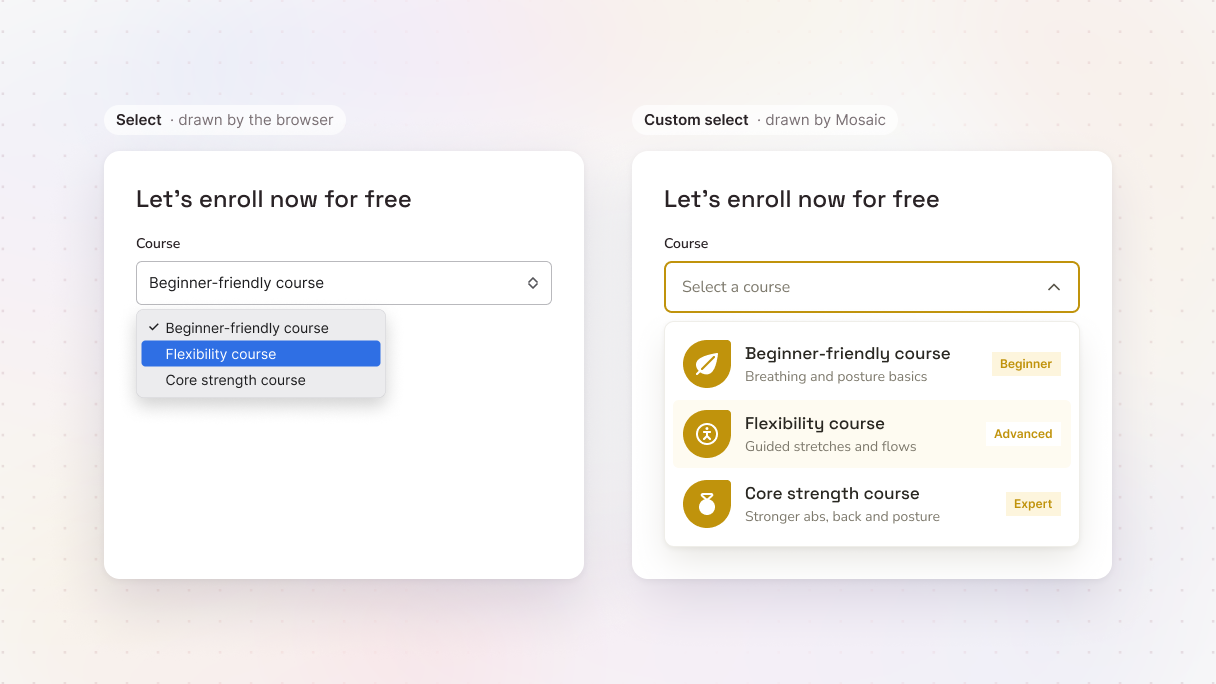
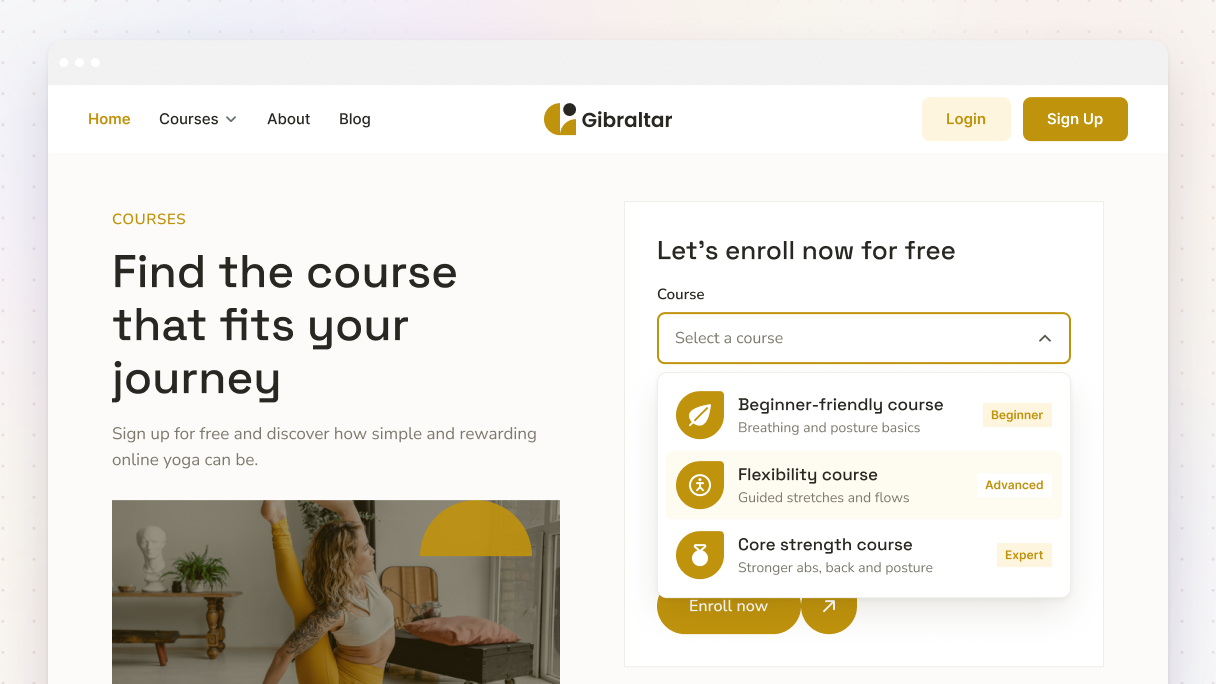
The custom select is a new Mosaic Builder element for dropdown menus. Each option in the list is like a small box you can design: add an icon, a title, a short description, or other elements. You can style the open list too.
Mosaic’s earlier Select field uses the dropdown built into your visitor’s browser. It’s simple and works everywhere, but the browser draws the list, not Mosaic. That’s why the same dropdown can look a little different from one browser to another. Safari, for example, draws it its own way, so a dropdown can look right in Chrome and different in Safari.
With the custom select, Mosaic draws the whole dropdown. It uses your own styles, so it looks the way you designed it in every browser.
Some ideas for what you can build:
- A plan picker where each option shows the plan name, who it’s for, and the price.
- A booking form with an icon next to each service, so “Haircut”, “Color”, and “Styling” are easy to tell apart.
- A country or language picker with a flag next to each name.
- A “How did you hear about us?” question with a small icon and a short line under each answer.
How it works
Each option shows up as its own item in the Navigator. You design it like anything else in Mosaic: drop in an icon, add text, and arrange it how you like. Save your design as a class, and every dropdown that uses that class updates when you change it.
Good to know: visitors can pick only one option in a custom select. If they need to pick more than one, use checkboxes, or a Listbox with its Multiple setting turned on.
Off-canvas panels, ready to drop in from the library
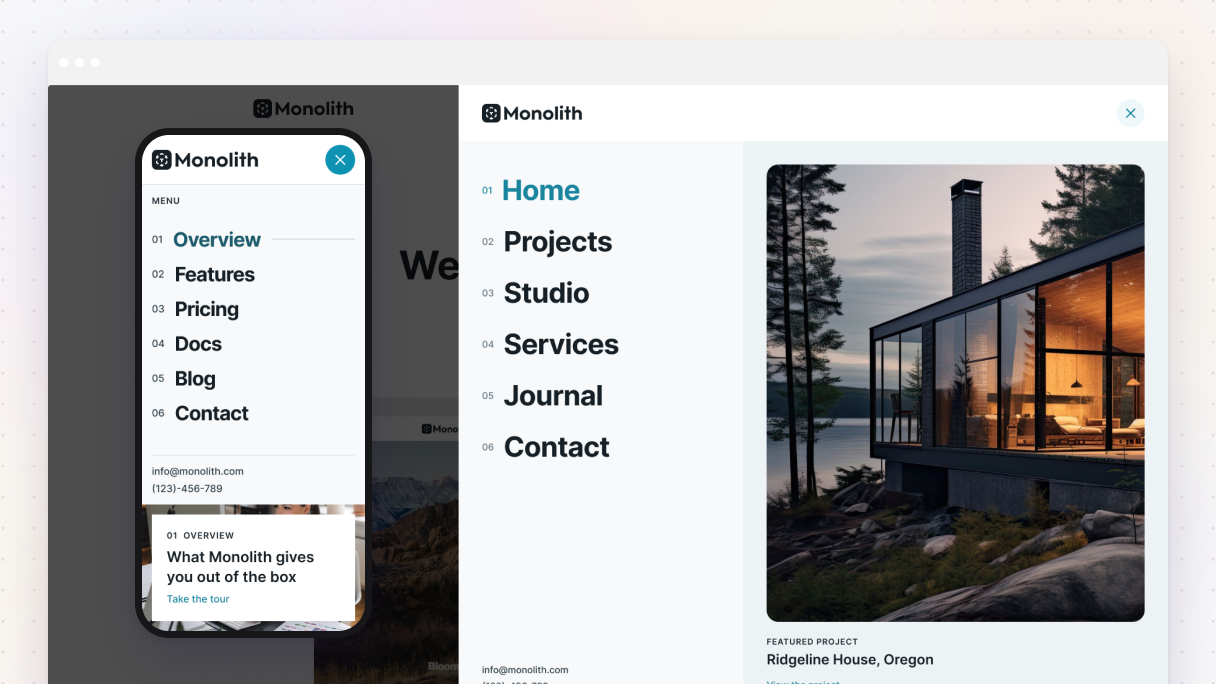
An off-canvas panel is a panel that slides in from the side of the screen when someone taps a button. The best-known example is the mobile menu, but the same idea works for a contact form, a search box, or an FAQ.
This release adds a new Off-canvas category to the Mosaic library, with ready-made designs you can insert and make your own: 20 in Monolith, 16 in Gibraltar, and 13 in Blank.
Many visitors only ever see your site on a phone, so the mobile menu is often the first thing they use. Until now, an off-canvas panel had to be built from scratch, piece by piece. The library designs give you a finished starting point instead, so you spend your time on the content and the look, not the setup.
What you’ll find in the new category:
- Menus in different styles, from a compact menu with an icon next to each link to big numbered links, and a full-screen menu that shows a picture as you hover over a link.
- Menus with extras, like your address and email at the bottom, or a featured article.
- A full-screen search with a list of popular links under the search box.
- A contact form that slides in, asking for a name, email, project details, and budget.
- Help and location panels with your email, phone, and help center, or your address, opening hours, and a “Get directions” button.
- An FAQ panel with questions that open and close.
- A team profile with a photo, role, short bio, and social links.
- A downloads panel that lists files like a company profile or a service guide.
Panels can slide in from the left or the right, and some open full screen.
How it works
Open the library from the Add panel, go to Parts, then Off-canvas, and insert the design you like. Then change the links, colors, and layout like anything else in Mosaic.
Also new in this release
- SureRank support. If you use the SureRank SEO plugin, its SEO checks now see the content you built with Mosaic, just like Yoast SEO, Rank Math, and SEOPress already do. Someone asked for this in a YouTube comment, so we added it. Our SEO guide explains how Mosaic works with SEO plugins.
- Smoother updates. After you update Mosaic, the behind-the-scenes data work now runs on its own in the background, and your forms keep working the whole time. Importing, exporting, and creating thumbnails are more reliable too.
- Mouse move on phones and tablets. Animations that follow the mouse cursor now follow a finger on touch screens.
- Open Mosaic in a new tab. In the WordPress block editor, Ctrl/Cmd+click or middle-click the Edit in Mosaic button to open it in a new tab.
You’ll find every fix and smaller change in the full changelog for 1.0.12.
How to get it
In WordPress, go to Dashboard → Updates or your Plugins list and update Mosaic. Then clear your site’s cache. Everything in this release is included in every plan.
Try dark mode, build a dropdown, drop in an off-canvas panel, and let us know what you think in the Facebook group or on Discord. If you have a question, email our support team.


