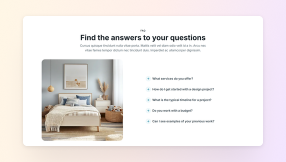

One at a time
Single open mode closes the open item as soon as a visitor opens the next one.

Long FAQs, course outlines and detail-heavy sections folded into WordPress accordion items you style to match your site, so visitors open only what they need and pages stay short and easy to scan.
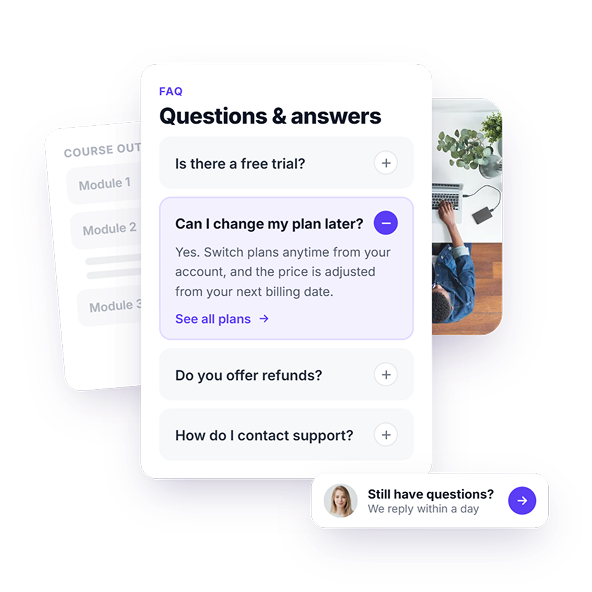
Start from an FAQ that already looks like the rest of your site. Every theme ships accordion blocks in its own style, so all you change is the text and the photos. Here are twelve.
Six ideas built with the Accordion element and the rest of Mosaic. Open and close the items in every demo the way a visitor would on your own site.
Opening the next step closes the one before, so visitors don't lose their place.
Students open as many modules as they like, each listing its lessons and times.
One accordion per topic, each under its own heading, so a long FAQ stays easy to scan.
Loop items repeat one designed item per post in a category, so new posts add questions.
Three sizes cover most pages.
Fewer colors, used with care.
An Accordion in a posts Loop folds away the rest of each post and reads Hide once open.
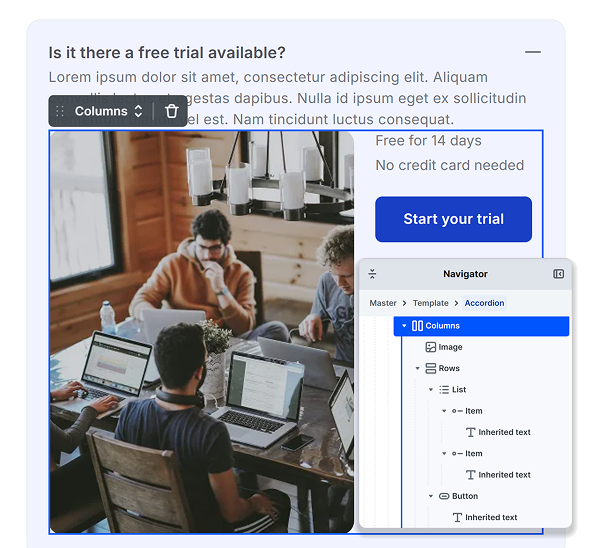
Each answer holds an image, a list and a button, built from your page's own elements.
Each item's title and answer are built from the same elements as the rest of your page, so an accordion can hold far more than a question and a short paragraph.
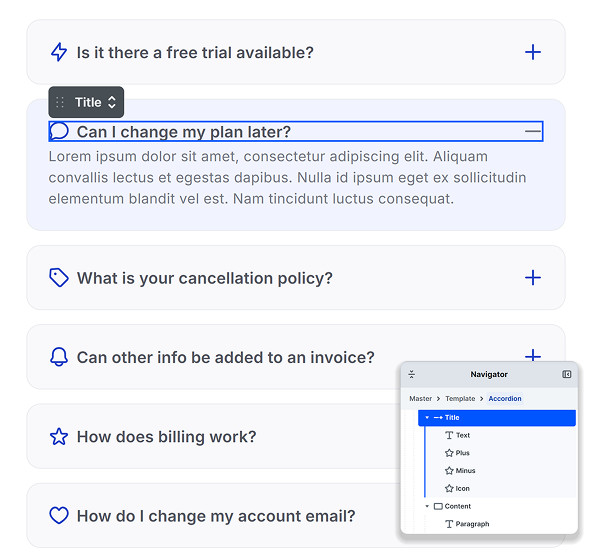
A title starts as a heading with plus and minus icons, and you can add a number, an icon, a photo or a short note under it.
Add a new item to the Accordion with the toolbar's Add icon
Swap the plus and minus for any other icons you like
Add, remove or rearrange the elements inside any title
An answer starts as a paragraph, and you can build it into images, lists, buttons and columns from the Add panel.
Lay out an answer with its own rows and columns
Put a link or a button right where an answer ends
Save the finished accordion as a component and reuse it
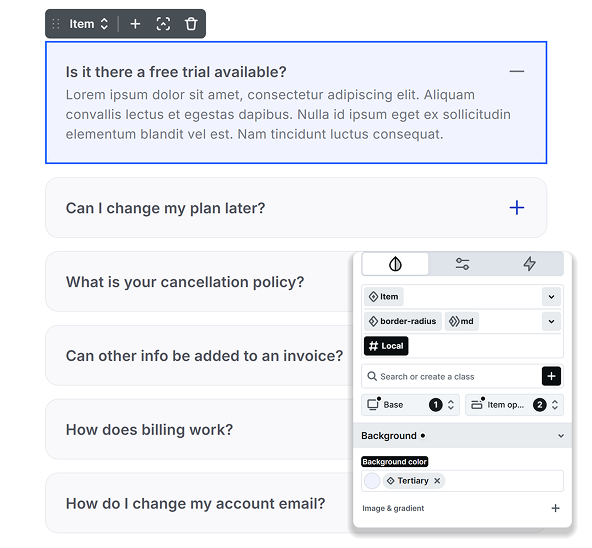
Style the opening and opened states of an item and the elements inside it, from a tinted card to a bolder title.
Turn an icon as its item opens with an Accordion item change
Set the states for each breakpoint, like roomier items on phones
Color the open state with your own style variables
A few settings decide how your accordion behaves for visitors, from how many items stay open to whether the first one starts open and how every item moves.
Single open mode closes the open item as soon as a visitor opens the next one.
Multiple open mode lets visitors keep open every item they want to compare.
Open the first item by default, either always open or only on initial load.
Slide each item open and closed, or turn the animation off entirely.
Every Accordion element ships with keyboard support and screen reader attributes built in, so the answers you write reach visitors who use a keyboard or a screen reader.
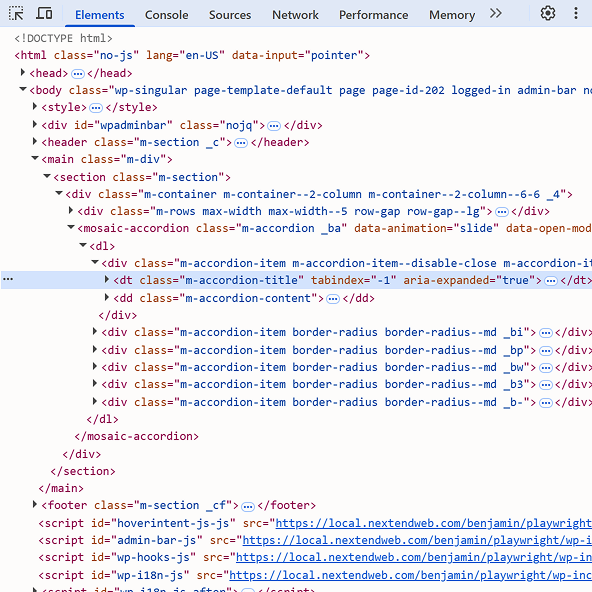
Visitors reach an item with Tab and open it with Enter or Space.
Each title tells screen readers whether its item is open right now.
Items are built as a definition list, each title paired with its answer.
Add a role or any other ARIA attribute in an element's Settings.
An accordion rarely sits on a page alone. These are the elements you'll reach for around it and inside its items, each with its own guide to the settings it offers.
Quick answers to what people usually ask before they build their first accordion in Mosaic, so you know exactly what to expect before you start.
Personal, Creator, and Agency all include it, each with all Pro features, so the Accordion and Loop items are never a paid add-on.
We use cookies to improve your experience, analyze traffic, and personalize content. By clicking "Accept all" you agree to storing them on your device. Read our privacy policy.