Mosaic loads as fast as possible, but the speed of your pages largely depends on your content. To ensure your pages are fully optimized, follow this guide.
Creating an optimized website
Images
Image elements should use optimized files in both file format and pixel size. For a standard website, images larger than Full HD (1920*1080px) are usually unnecessary.
WebP or AVIF image formats are recommended for optimal performance, but JPEG is also acceptable if your pages do not contain a large number of images.
You can use for example Squoosh (by Google) to optimize your images.
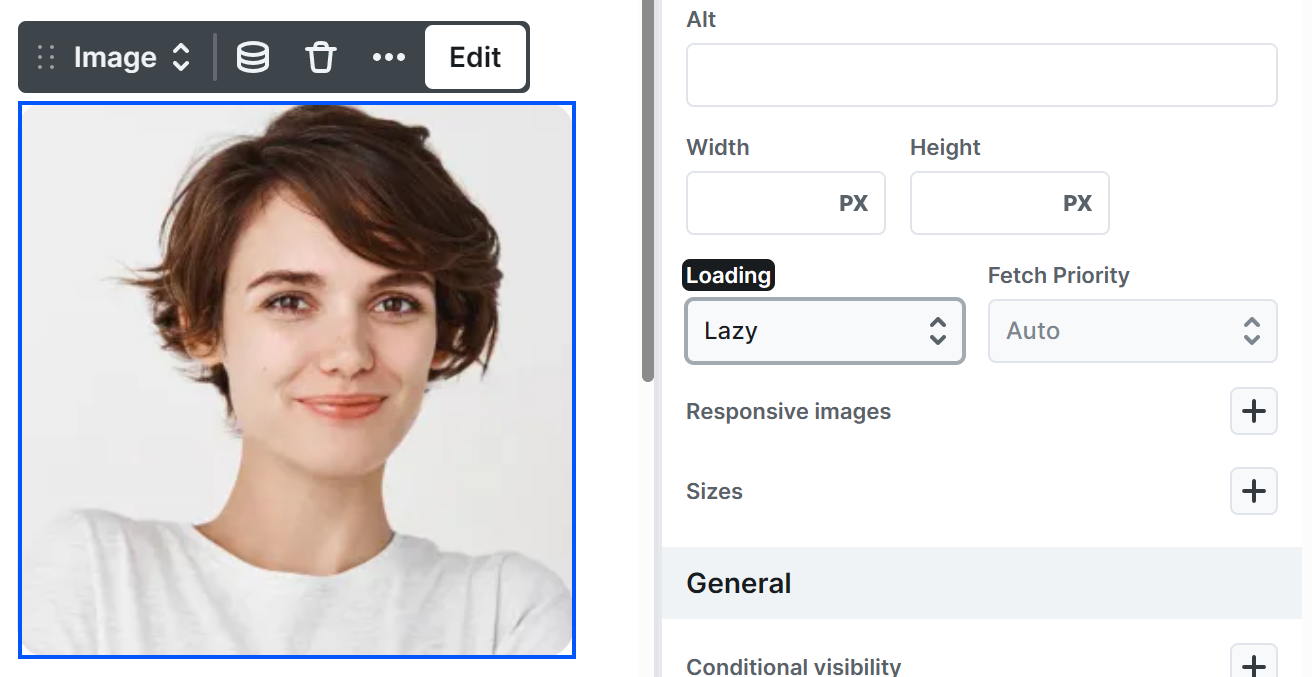
At the settings of Image elements, use Loading – Lazy, to delay the loading of images to when they become visible.
Videos
Avoid loading big files, like videos. But if you really want to load those elements as well, make sure the files have optimized sizes.
At the Preload setting of videos, use Metadata or None, so the video would only start loading once it is actually started. This can optimize the page’s initial loading time.
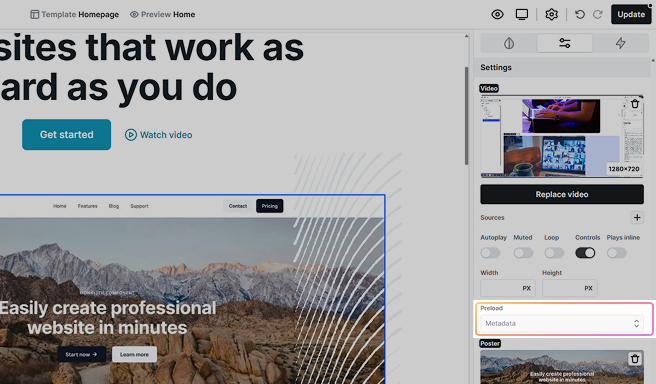
The preload attribute in video html elements is just a hint for browsers. They may override it to improve user experience, so even with none value, a video might load with the page.
Length of pages
Don’t have too much content on your pages. Google recommends having maximum 1500 DOM element on a single page. Depending on the types of elements you use, this usually means about 8–10 sections per page.
Figure out why a page is slow
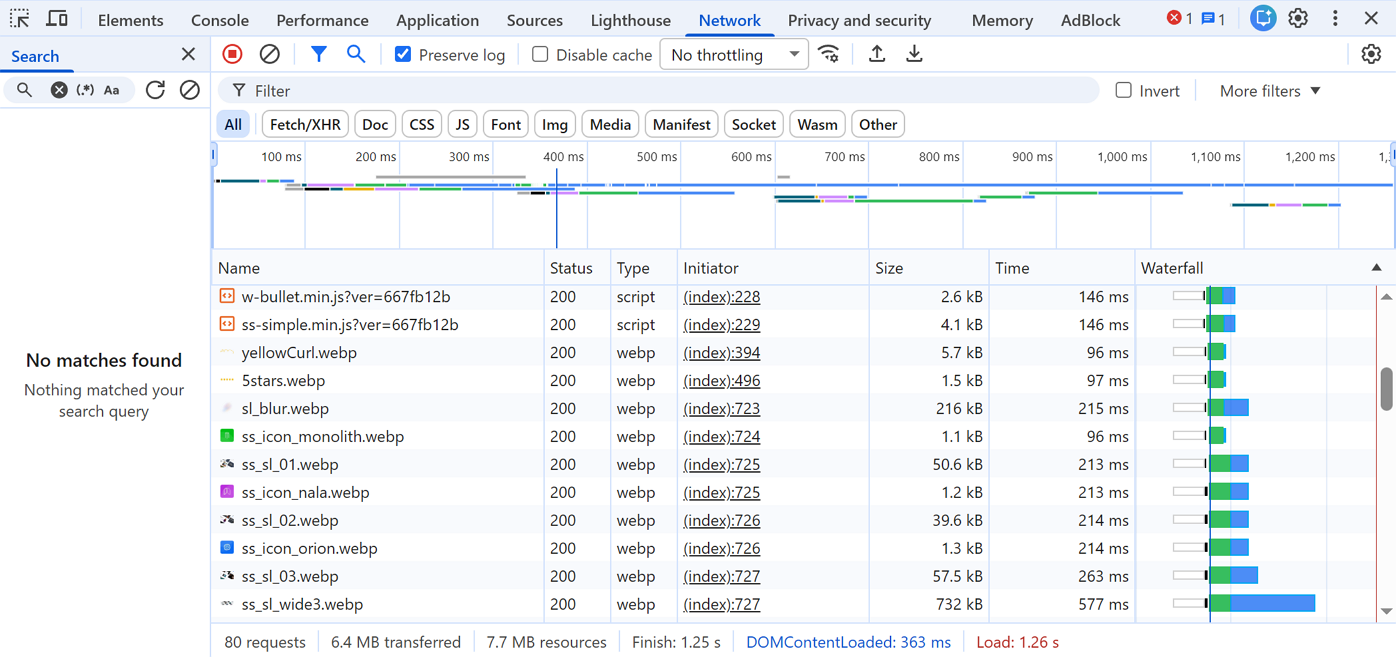
In case you see your pages loading slowly, and you cannot figure out what is the cause of it, use Chrome for debugging. Go to a page where the problem happens -> press F12 -> click on Network tab -> refresh the page. Here you can see what is loading for how long, so for example if you accidentally used a very big image somewhere, this will help you identify it.
Lighthouse / Google PageSpeed Insights
Lighthouse / Google PageSpeed Insights provides improvement suggestions for your pages. Check this documentation to understand what each suggestion means and how to address it effectively.
FCP (First Contentful Paint)
First Contentful Paint (FCP) is the point at which the first visible content appears on the page. Server performance has the biggest impact on this metric, while plugins may increase processing time and delay the initial render.

How to improve the server’s response time?
Use server cache, like CDN. Get in touch with your server host about the possibilities, if you are interested in this!
LCP (Largest Contentful Paint)
Largest Contentful Paint (LCP) indicates when the largest visible content element becomes visible.

As with FCP, this metric is primarily affected by server response time, which can be slowed down by plugins.
In Mosaic, avoid using loading animations on these elements to ensure the fastest possible rendering.

How to improve the server’s response time?
Use server cache, like CDN. Get in touch with your server host about the possibilities, if you are interested in this!
Font display
Description
Consider setting font-display to swap or optional to ensure text is consistently visible. swap can be further optimized to mitigate layout shifts with font metric overrides.
Solution
By default we use font-display: block to render font families. This means, that the text won’t be visible until the font family loaded, and then it appears with that font family.
The suggestion of Lighthouse / Google PageSpeed Insights is, that instead of block, you should use swap or optional as value:
- swap: text appears with fallback font family and once the real font family loaded, the text will change to that family.
- optional: same as swap, but if the font family loads for long, the browser won’t replace the family of the text. So it is possible, that the fallback font remains as the family even after the real font loaded.
If you would like to change the font-display value, go to the Global settings, to the Google fonts section and there you can find a Font display option.
Forced reflow
Description
A forced reflow occurs when JavaScript queries geometric properties (such as offsetWidth) after styles have been invalidated by a change to the DOM state. This can result in poor performance. Learn more about forced reflows and possible mitigations.
Solution
This suggestion tells, that you shouldn’t use animations.
Use efficient cache lifetimes
Description
A long cache lifetime can speed up repeat visits to your page.
Solution
Google suggests you to use server cache, like CDN. Get in touch with your server host about the possibilities, if you are interested in this!
Improve image delivery
Description
Reducing the download time of images can improve the perceived load time of the page and LCP.
Solution
For your images, you should use optimized file formats, like WebP or AVIF, to reduce file size and improve their load times. You can use for example Squoosh (by Google) to optimize your images.
At Image elements, set the loading attribute to lazy for offscreen images, while for LCP images it should be eager so the largest visible content appears as quickly as possible.
Optimize DOM size
Description
A large DOM can increase the duration of style calculations and layout reflows, impacting page responsiveness. A large DOM will also increase memory usage.
Solution
Lighthouse / Google PageSpeed Insights flags pages with large DOM trees:
- Warning: The body element contains more than ~800 nodes.
- Error: The body element contains more than ~1,400 to 1,500 nodes.
Depending on the types of elements you use, this usually means:
So the suggestion is, that you should use less elements.