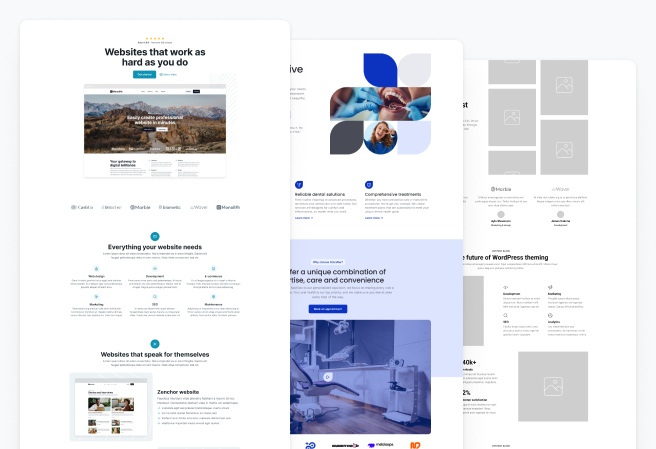
A theme holds your site’s whole design. It includes these resources:
Together, they decide how your site looks: its colors, fonts, page layouts, and the reusable parts you build with. Your content isn’t part of the theme; it stays in WordPress. See What belongs to a theme.
The included themes
Mosaic includes four themes, and all of them come with the plugin. Each one is a complete design system with its own variables, classes, and Library of ready-made designs.
- Gibraltar and Monolith are full frameworks. Both include extensive Libraries of finished pages, blocks, and parts, plus industry page kits, so you can assemble a professional site quickly and adapt it to suit you.
- Blank is a minimal starting point with a plain Library, useful when you want ready-made structure but intend to apply your own design.
- Empty comes with no predefined resources or Library designs at all. Choose it when you want to build everything, including your class and variable structure, from scratch.
These are starting points, not fixed products. When you set one up, its resources are brought into your site as a theme of your own: you can rename or delete its classes and variables, restructure them, and add your own. Nothing you change affects the original, and your theme won’t be altered underneath you.
Activate theme
You can have several themes, but only one theme can be live at a time. The live theme is what visitors see on your website.
Open Mosaic and select Themes in the Left menu.
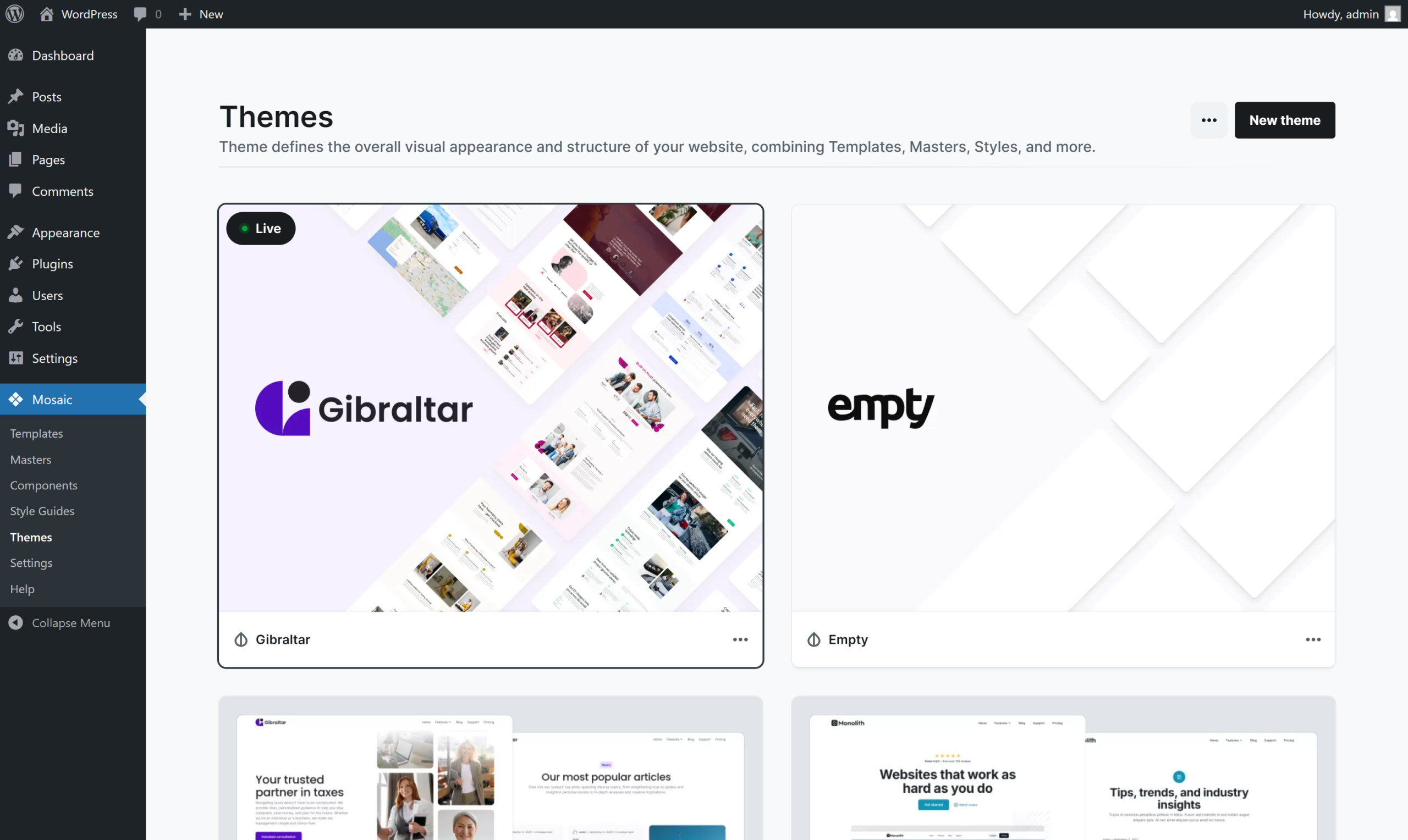
Click a theme in the list to choose how to activate it:
- Activate in live mode
- Activate in test mode
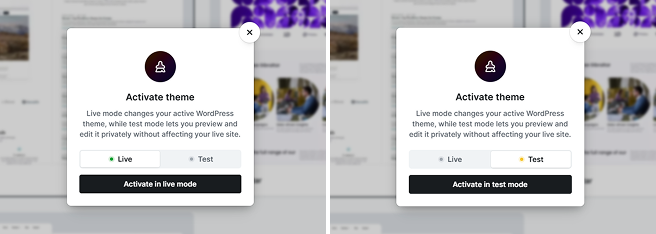
Live mode
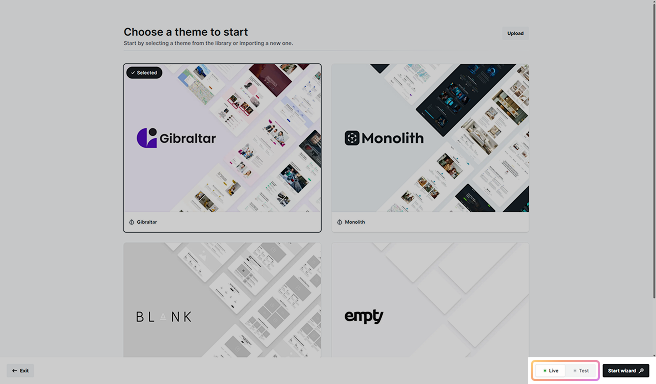
Live mode makes the theme your active WordPress theme, the one visitors see on your website.
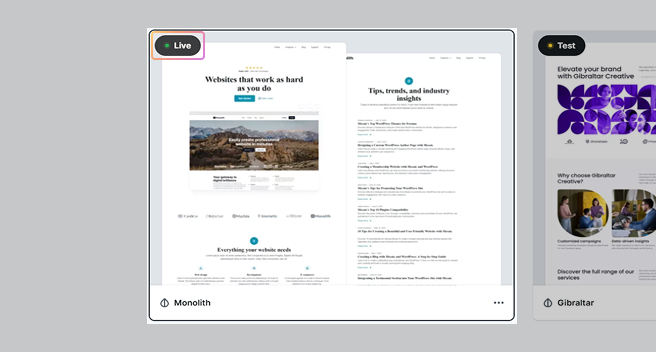
Test mode
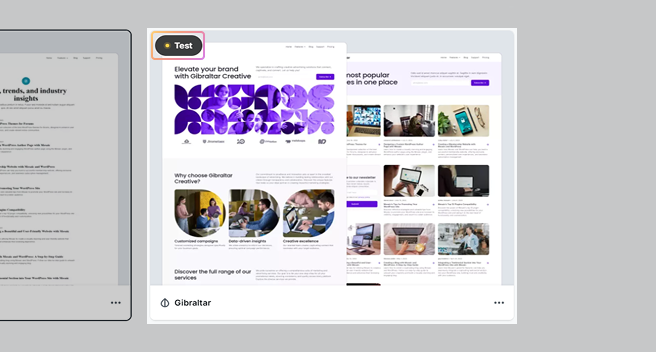
Test mode lets you preview and edit a theme privately, without affecting your live site. Only you see the site with this theme; other users and logged-out visitors still see the live theme.
It’s the safest way to try a theme before you commit to it. Since Templates belong to the theme they’re built in, it’s worth building a page or two in test mode before making the theme live.
When you click a theme that’s in test mode, you can switch it to live mode or choose Exit test mode. The live theme opens the same popup, so you can put it in test mode too.
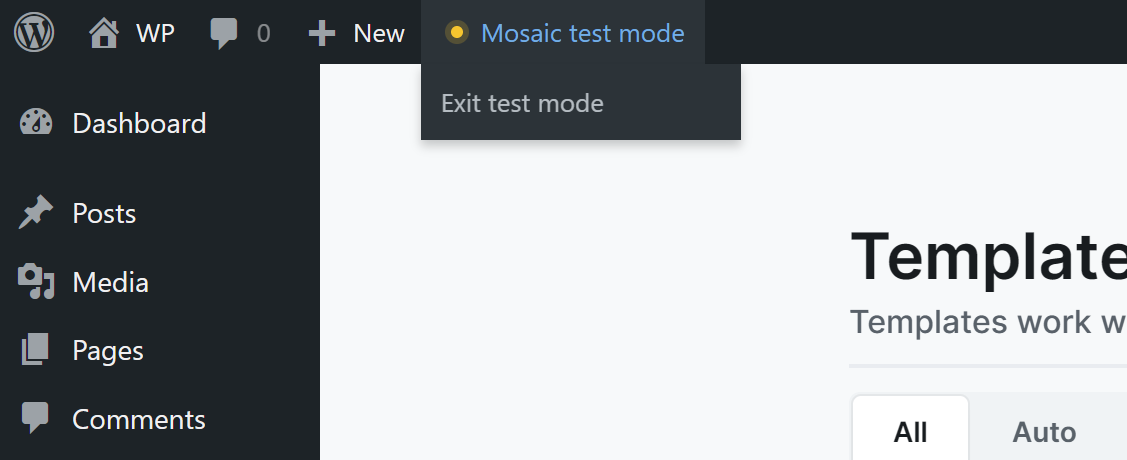
While test mode is on, the WordPress admin toolbar shows a Mosaic test mode label. Use its dropdown to exit test mode at any time and return to your live theme.
You can also activate a theme under Appearance → Themes in WordPress. This always activates it in live mode.
Managing themes
The Themes interface lists all your themes, and you can create a new one here.
For more options, open the three-dot Context menu on a theme:
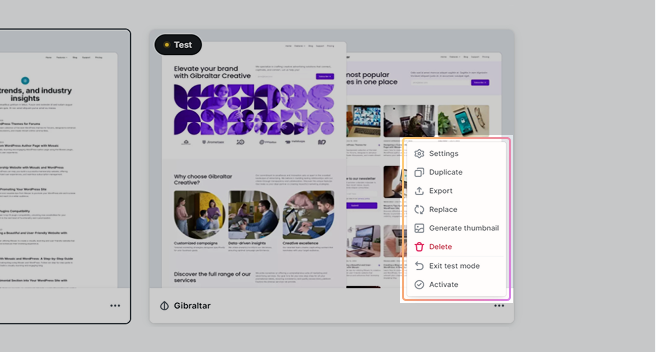
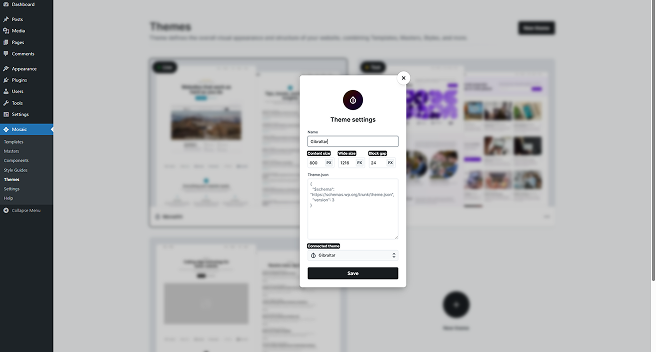
- Settings: the theme’s name, layout sizes, and advanced options.
- Name: how the theme appears in your theme list.
- Content size, Wide size, Block gap: the theme’s layout sizes: the content width, the width of wide blocks, and the spacing between blocks.
- Theme.json: the configuration that defines the theme’s global styles and settings.
- Connected theme: another theme whose Library you want to build from. Once connected, you can insert that theme’s Library items while working in your own theme. The result isn’t a copy of the other theme’s design; see Bringing a layout in from another theme for what carries over.
- Duplicate: creates a copy of the theme, with all of its settings, design, and Templates.
- Export: saves the theme as a .zip file that you can import later. Our support team may also ask for this file when you need help.
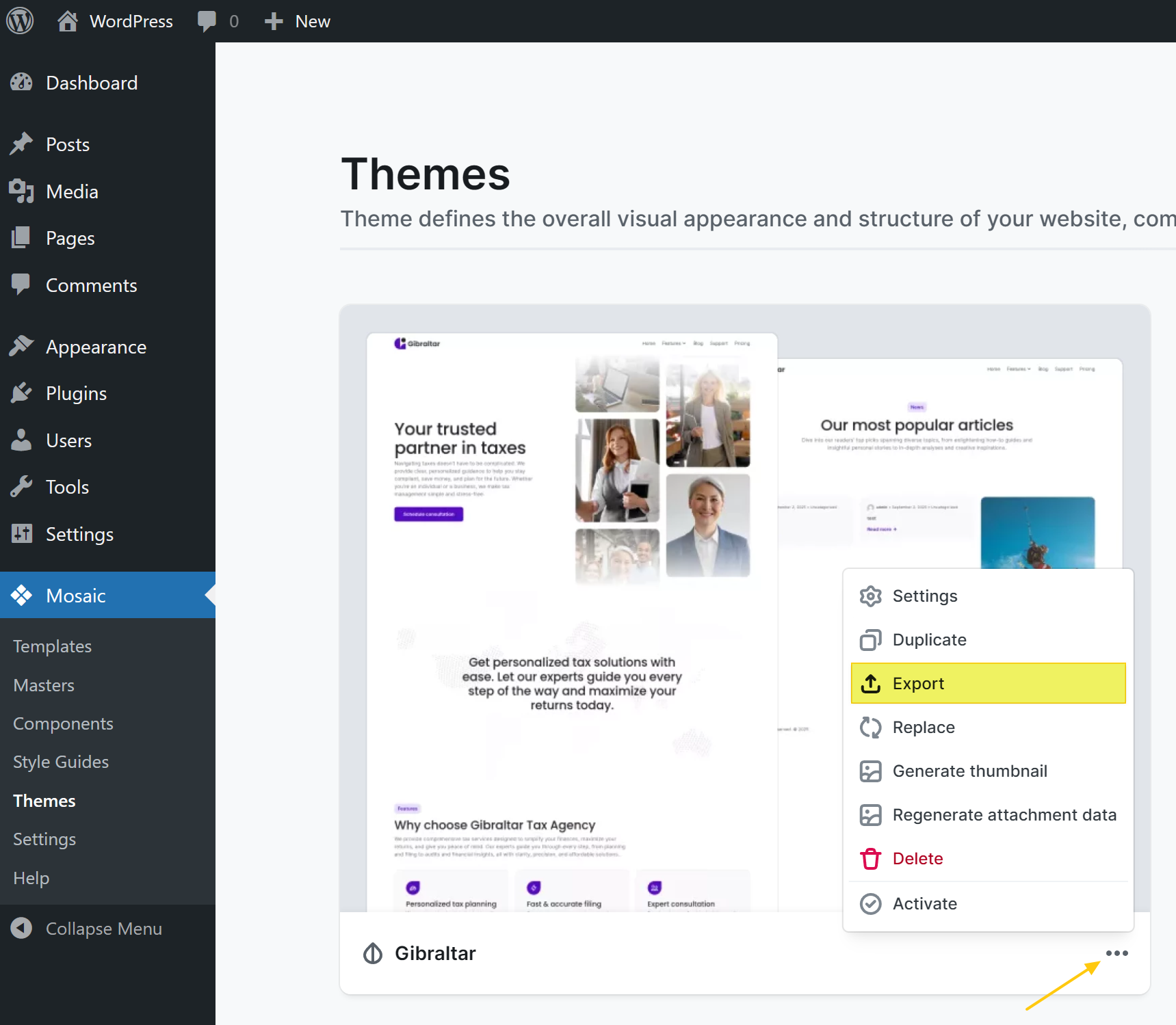
- Replace: overwrites the theme with another one, either from the library or from a theme you exported. See Replace theme.
- Generate thumbnail: creates a small preview image of the theme, so you can tell themes apart at a glance. Helpful when you have many, or similarly named, themes.
- Regenerate thumbnails: creates fresh preview images for everything in the theme, such as its Masters, Templates, and Components.
- Regenerate attachment data: rebuilds the theme’s stored paths to your media files.
- Delete: deletes the theme permanently. This can’t be undone. The live theme can’t be deleted.
- Exit test mode: takes the theme out of test mode. Only shown for a theme in test mode.
- Activate: opens the activation popup, so you can make the theme live or put it in test mode. Not shown for the live theme.
What belongs to a theme
A theme owns your site’s design: its variables, classes, Masters, Components, and Templates. Your content is separate. Posts, pages, text, and media are stored in WordPress and don’t belong to any theme, so switching themes never changes or removes your content.
Because a Template’s design is built from its theme’s variables and classes, Templates belong to the theme they were created in. When you switch to a different theme, the previous theme’s Templates stay with it. They aren’t deleted: switch back, and they’re there exactly as you left them.
This also means a Template can’t be moved to another theme and come out looking like that theme’s design. To adopt a different design, build your Templates in a theme based on that design. To rework a design you’ve already built, Duplicate the theme: you get a copy with all of its Templates, and you can redesign it freely without touching the original.
That’s why it’s worth deciding on a theme early. Use test mode to try one properly before you commit real work to it.
Bringing a layout in from another theme
There are two ways to reuse a layout from another theme: copy elements from one of its Templates, or set a Connected theme and insert items from its Library. Both work the same way:
- Your theme’s variants stay as they are. Element-level styling follows the theme you’re working in, not the theme the layout came from.
- The sub classes, classes, and variables the layout relies on are added to your theme.
- Mosaic tracks resources separately for each theme, so a resource is added even when your theme already has one with the same name. You can end up with two entries sharing a name.
The result is a layout styled partly by your own theme and partly by the resources that came with it, in a theme that has gained resources you didn’t create yourself. That’s useful when you want a structure and plan to style it to fit your design. It isn’t a way to give existing work a different theme’s look.
New theme
When you create a new theme, you pick one from the library, including the Empty theme if you want to start from scratch.
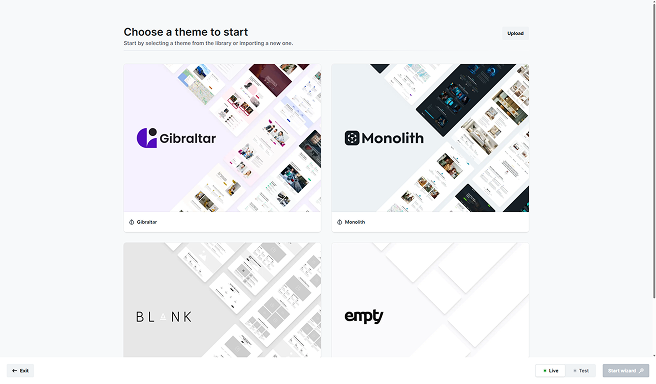
Next, choose whether to activate the theme in Live or Test mode, then click Start wizard. The Wizard sets up the basics and guides you through the next steps. You can also choose Skip wizard, or go back and pick a different theme.
Wizard
The Wizard runs once, as part of the initial setup. Nothing it sets is permanent: you can change or add anything later.
1. Settings
The first step covers your site’s basic settings.
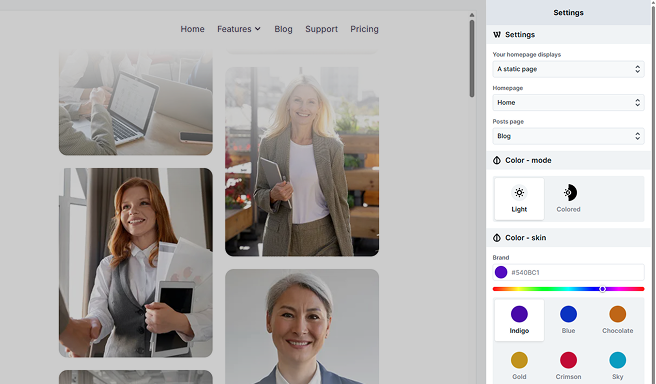
- Your homepage displays: choose Your latest posts or A static page. The next two settings only appear for a static page.
- Homepage: the page to use as your homepage.
- Posts page: the page that lists your blog posts.
- Color – mode: Light or Dark.
- Color – skin: pick a color option, or enter your own hex code. Not available for the Blank theme.
- Font – skin: pick a font combination. Not available for the Blank theme.
2. Master
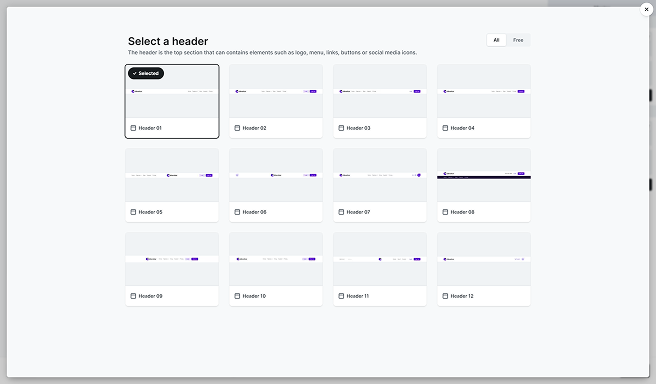
Choose the Header and Footer for your pages from the options this theme offers, or remove them.
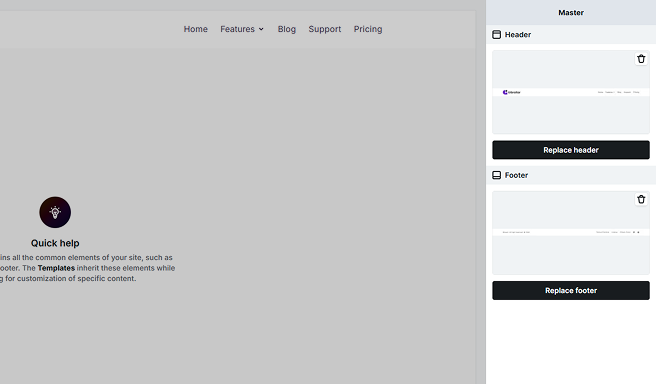
- Replace header/footer: browse all the available header and footer layouts and pick the one you like. You can edit it later.
3. Templates
Choose your Homepage, Blog, Post, and 404 page templates. Each one offers alternatives you can swap in. If your homepage shows your latest posts, there’s no separate Homepage template to choose.
- Posts per page: when you choose your Blog template, you can set how many posts it shows per page. You can change this later.
4. Pages
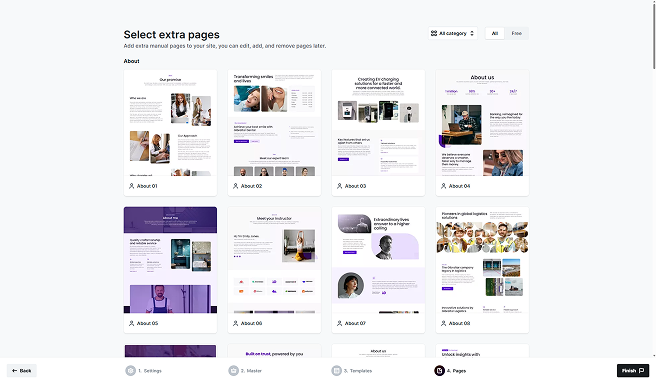
Finally, pick any additional pages you need. You can filter the available designs by page category.
If you picked pages, continue with Next step. If you didn’t, click Finish wizard to create your theme.
You can skip the Wizard at any time. Pages can be added, edited, and removed later too.
Import theme
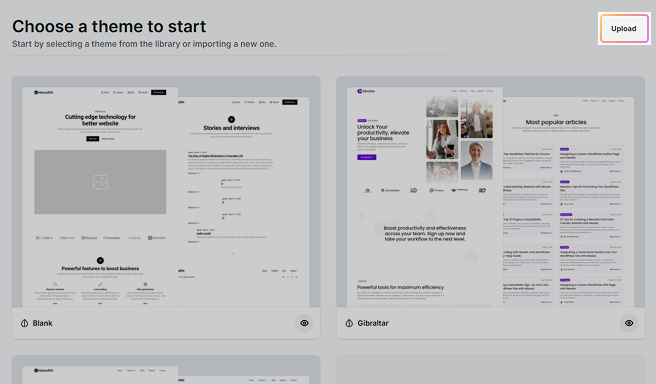
To bring in a theme you exported earlier, click New theme, then the Import button in the upper right, and select the exported .zip file.
Replace theme
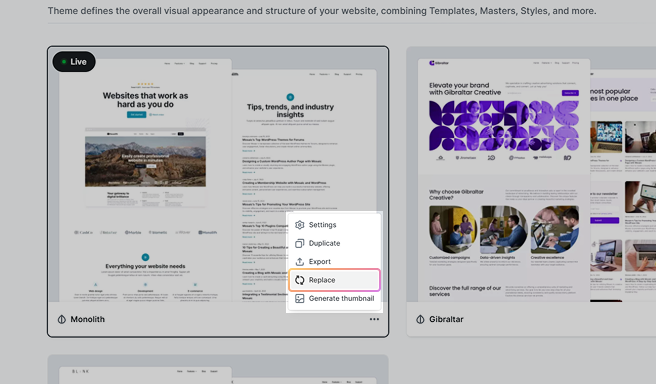
Replace swaps your current theme for another one. You can pick a theme from the library, or import a theme you exported earlier.
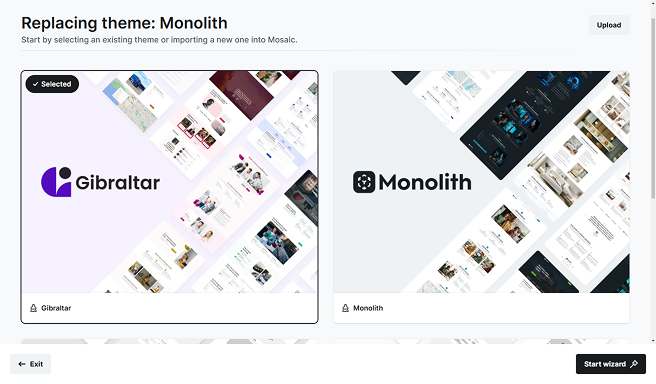
Replacing a theme can’t be undone. The current theme is permanently overwritten by the new one. To keep a copy, export or duplicate it first.