The global Settings of Mosaic can be found in the Left menu. These options affect all your pages.
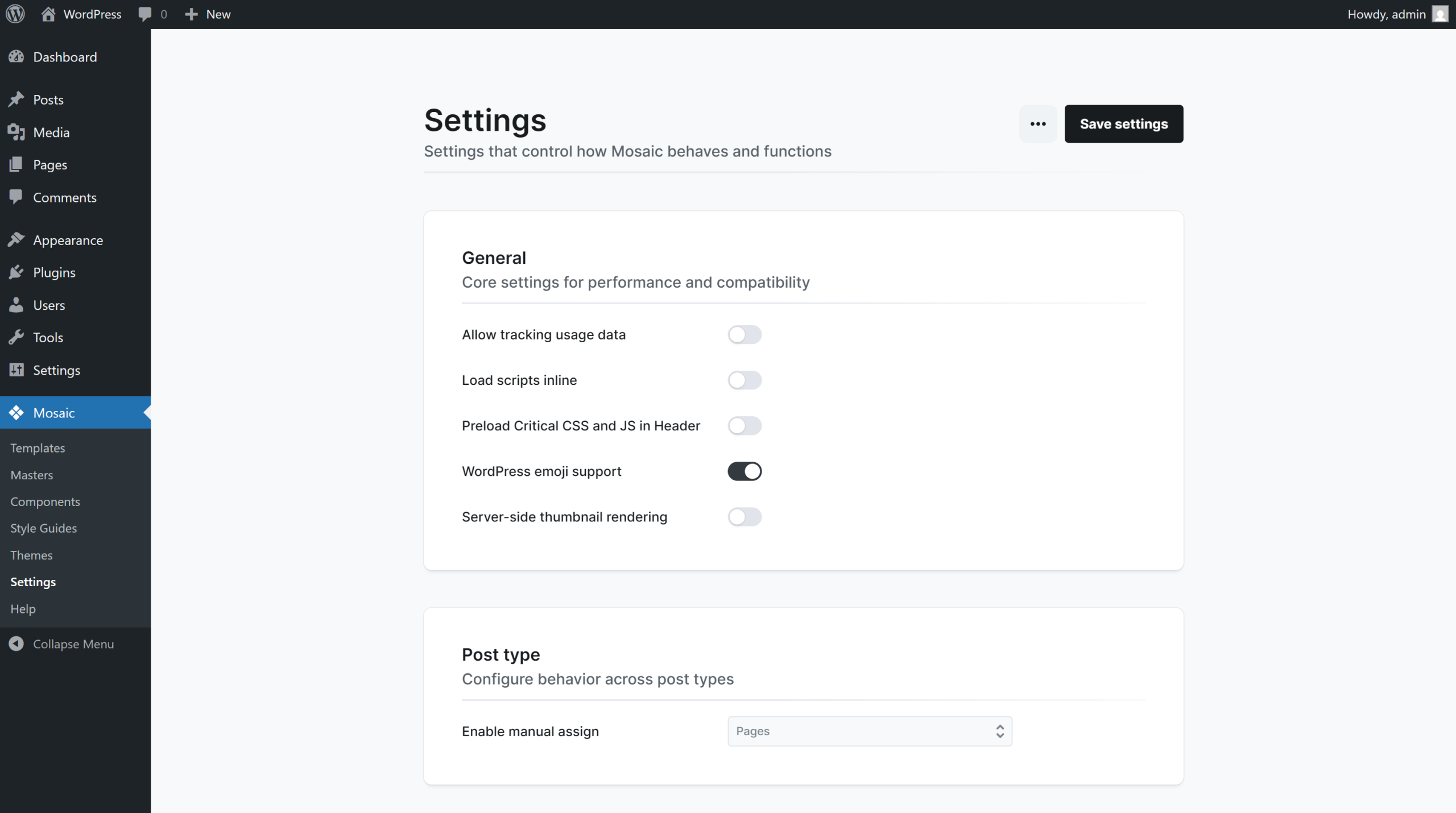
Mosaic gives you control over key preferences that affect privacy, performance, workflow, and font handling.
General
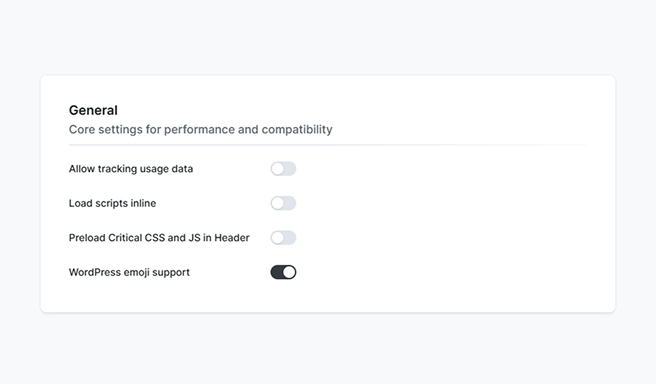
- Allow tracking usage data: Collects anonymous usage info to help improve Mosaic. No personal data is tracked.
- Load scripts inline: Embeds JavaScript in the page HTML instead of separate files.
- Preload critical CSS and JS in Header: Loads key styles and scripts earlier by controlling fetch priority in the HTTP header. Enable it to load Mosaic’s layout faster and render the page sooner. Disable it if you’re using plugins that should load early, like a header slider, to keep a better Largest Contentful Paint (LCP) score.
- WordPress emoji support: Enables WordPress’s built-in emoji script, ensuring emojis display consistently across all browsers and devices.
- Server-side thumbnail rendering: Generates thumbnails on the server with Chrome headless for sharper, faster previews.
Post type
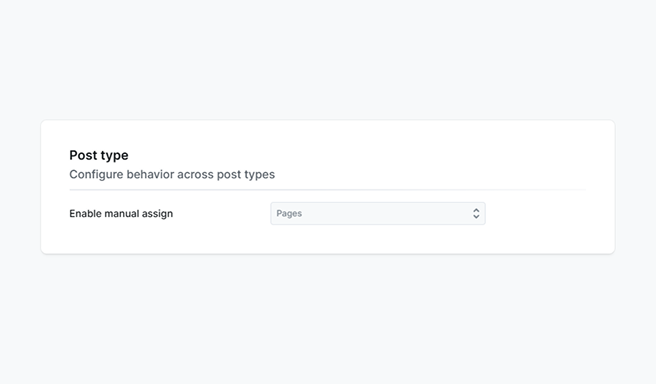
- Enable manual assign: Lets you manually control which content this applies to. You can enable it for All, or limit assignment to Posts, Pages, or Media.
Editor
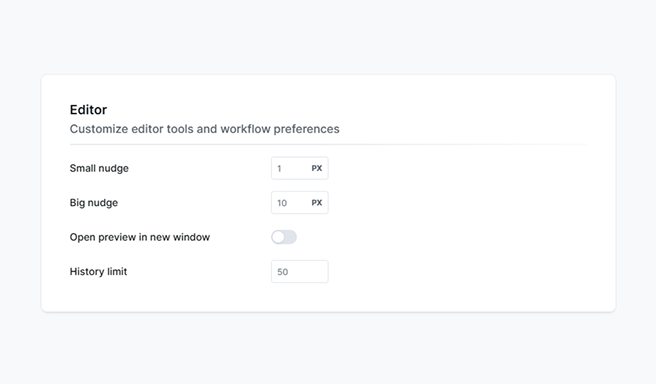
- Small nudge: Sets how many pixels spacing values adjust when you drag them in the editor.
- Big nudge: Sets how many pixels spacing values adjust when you drag them in the editor while holding Shift.
- Open preview in new window: Opens the preview in a separate browser window.
- History limit: Sets how many undo and redo steps the editor remembers.
Google fonts
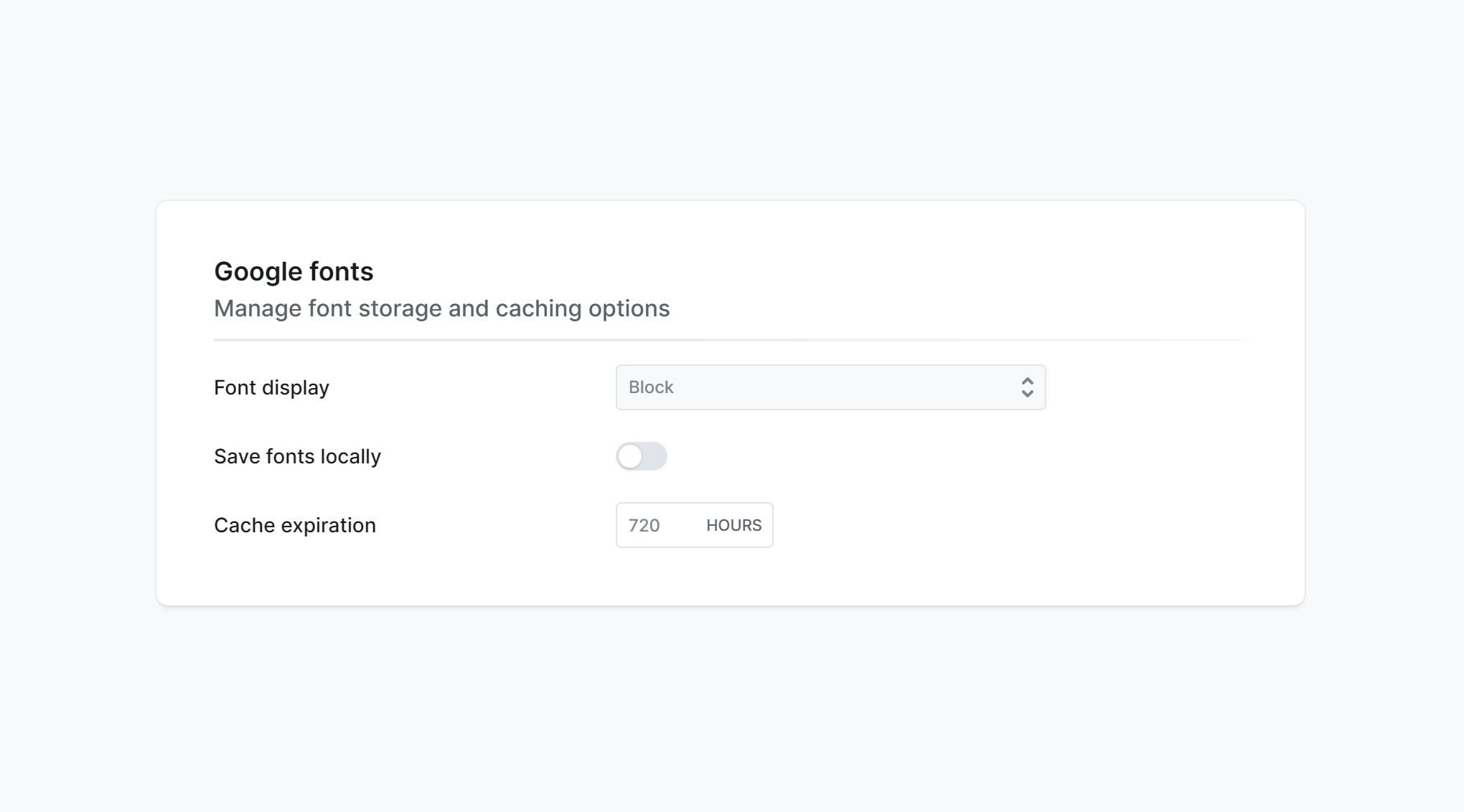
- Font display: Set the font-display CSS value of your fonts.
- Save fonts locally: Stores Google fonts on your server instead of loading them from Google’s servers, improving privacy and performance.
- Cache expiration: Controls how long browsers keep cached fonts before checking for updates.
Notice
Ensuring GDPR compliance is the responsibility of the website creator. While Mosaic provides tools to support GDPR-related requirements, you must verify that all relevant settings are correctly configured and working as expected.
Integrations
The Integrations section is where you connect third-party services to Mosaic with an API key. Each key is stored once, at the account level, and reused everywhere that service is used — so you only set it up once. Keys are stored as password fields and are never shown back in full.
- Google Maps API key — Used by the Google Map element to show maps on your pages. Mosaic uses Google’s Maps Embed API, which is free with unlimited usage, but Google still requires a Cloud project with billing enabled to issue a key. Get your key by following this guide, then paste it here.
- MailerLite API key — Used by the Form element’s MailerLite action to subscribe people to MailerLite when they submit a form. Create a token by following our guide, then paste it here.
- Mailchimp API key — Used by the Form element’s Mailchimp action to subscribe people to a Mailchimp audience when they submit a form. Create a key by following our guide, then paste it here. The Mailchimp key ends with a datacenter suffix (the
-us21-style part) — copy the whole key, suffix included.