Error notice
In Mosaic, issues may occur if there is a problem with a PHP code of the website or with the server’s configuration. When this happens, messages could appear on the top-right corner of the screen:
- An unexpected PHP exception has occurred on the server. See console for more details.
- An unknown error has occurred. See console for more details.
- Something went wrong!
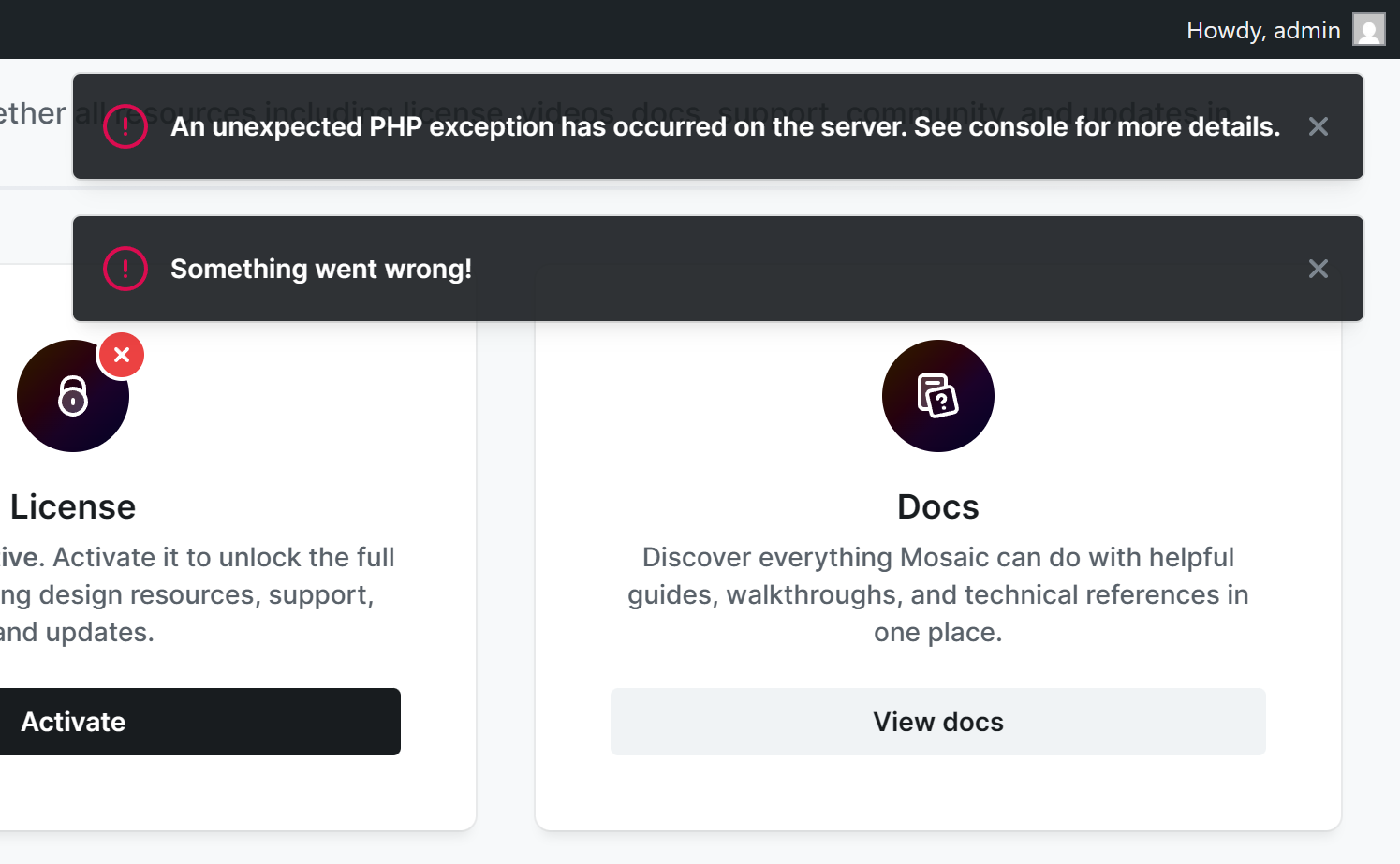
Checking the browser’s console
To identify the cause of the problem, you need to open the browser’s developer console. We recommend using Chrome for this:
- Go to the page where the issue happens.
- Press F12. This will open the developer tools.
- Open the Console tab.
- Refresh the page.
- Repeat the action that triggered the error.
You should see some error message(s) appearing within the Console.
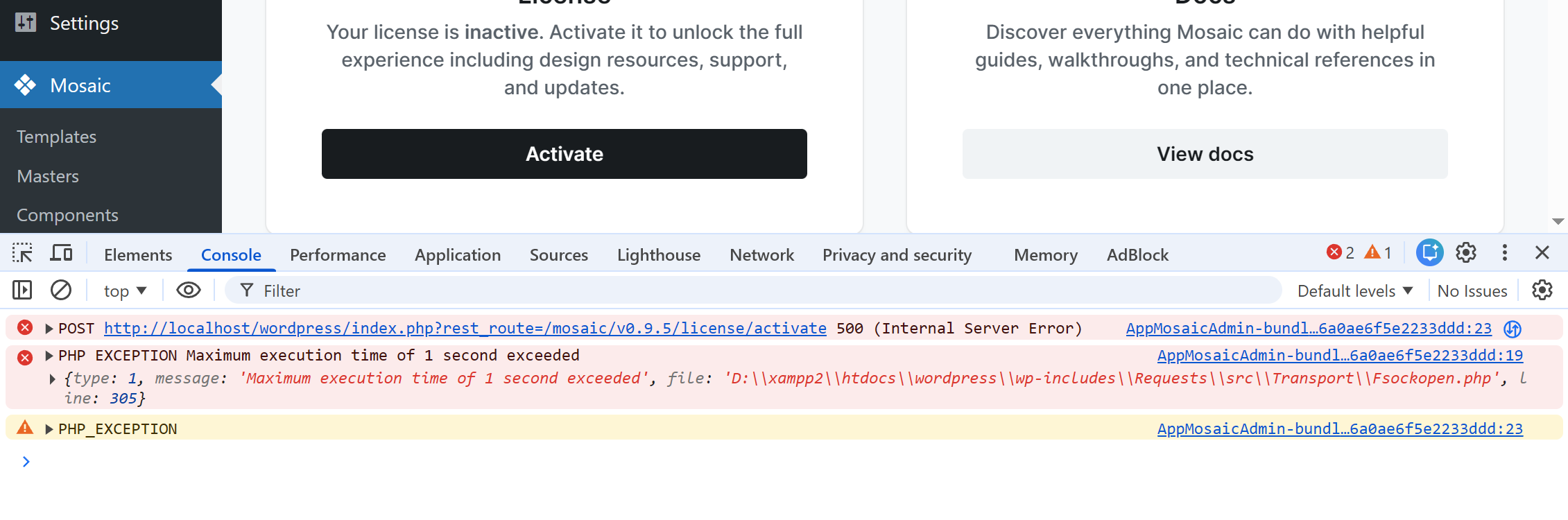
In this example the cause of the error is “PHP EXCEPTION Maximum execution time of 1 second exceeded”. If you wouldn’t see your error message clearly, use the little left arrows to unfold the error log. That could display the issue better.

If you identified the error message, you could use for example chatGPT to ask what that error means, as most often a server limitation/misconfiguration causes the issue. In case you see that the server’s configuration has to be modified, get in touch with your server host and ask them to fix the issue for you!
If you see “There has been a critical error on this website. Learn more about troubleshooting WordPress.” error message appearing, enable PHP error reporting on your website, to see the real error message.
In case you think the problem you see is caused by Mosaic, get in touch with us with a screenshot of your Console messages!
Safari
Follow these steps, to see the browser’s console in Safari.
- Enable developer features:
- At the macOS menu bar go to Safari.
- Select the Settings menupoint.
- Go to the Advanced tab.
- Check in Show features for web developers.
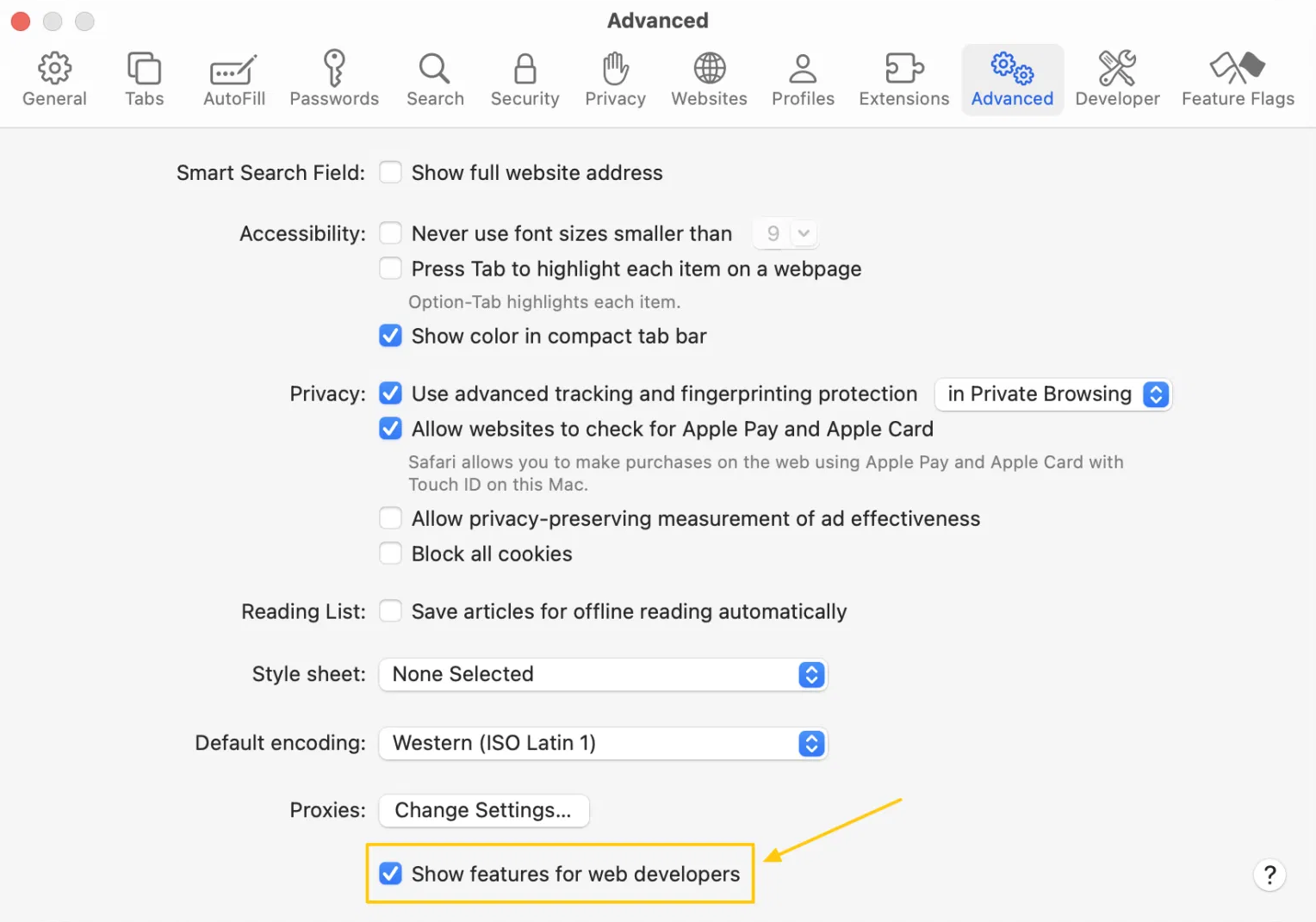
- Right click anywhere on your page, and choose Inspect Element.
- Now you can follow the previous instructions from step 3.
Checking plugins
If you think the problem might be caused by a plugin, but aren’t sure, debug the plugins of your website. Go to the Plugins list, and deactivate all plugins besides Mosaic. Then check the error again. If it won’t occur anymore, try to turn on your plugins one-by-one, to figure out which one causes the issue.
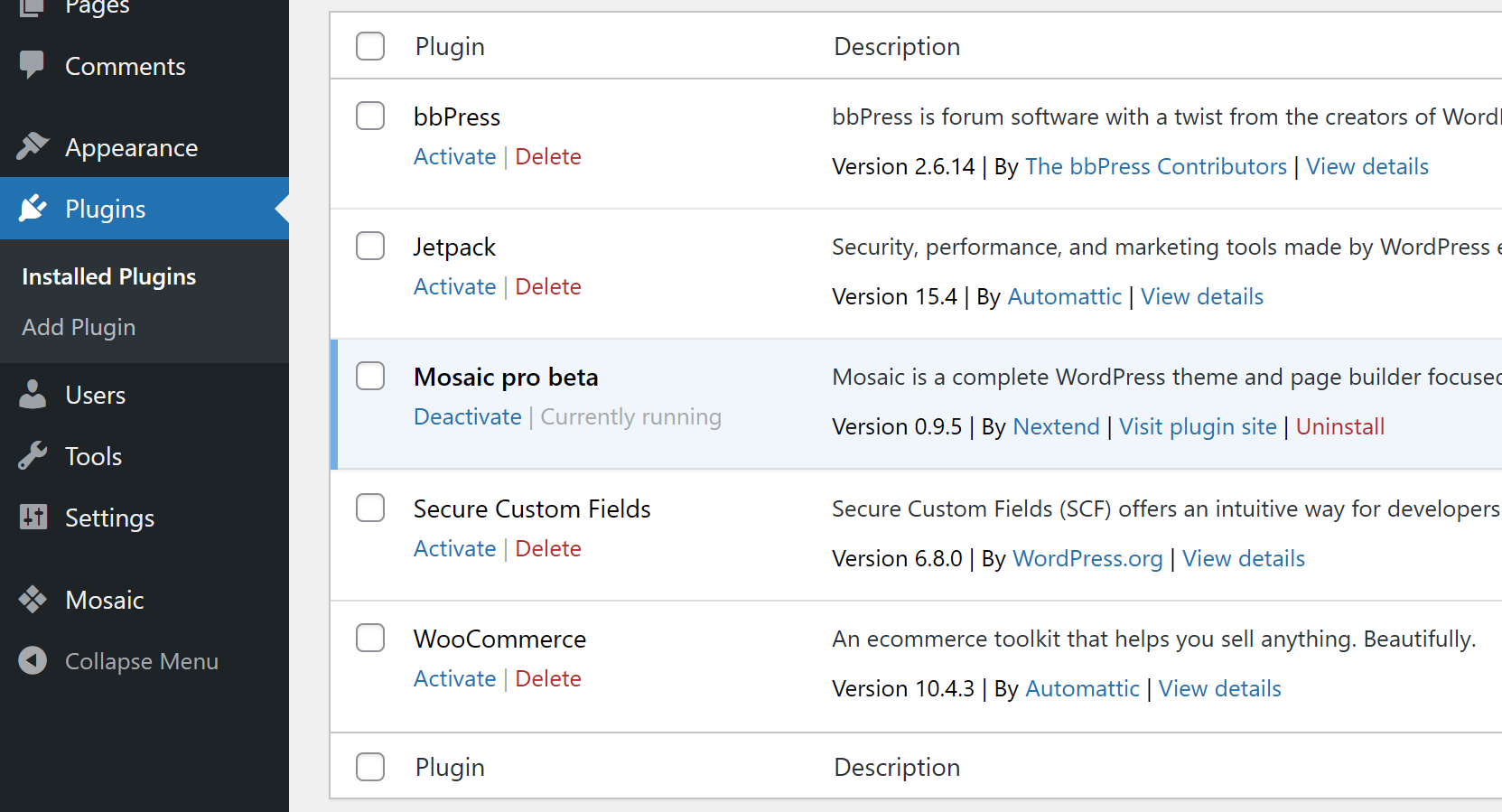
How to address a problematic plugin?
- Update the plugin, if there is a new version.
- Check wordpress.org to see if the plugin is still kept updated. Deactivate it, in case it was abandoned by its developer.
- If you don’t need the plugin, deactivate it.
- Check the plugin’s configuration, in case some setting seems to be wrong. For example an essential configuration field was left empty or an option with a bug was used.
- Get in touch with the plugin’s developers.