PHP errors can occur in many forms:
- Blank pages.
- “There has been a critical error on this website.” error message.
- Part of your page is missing.
If you see either issue, enable error reporting as you see in this documentation.
Enabling error reporting through PHP
Write this code inside your wp-config.php file right under the <?php part:
error_reporting(E_ALL);
ini_set('display_errors', 1);
ini_set("log_errors", 1);
ini_set("error_log", dirname(__FILE__)."/php-error.log");
Then take a look on your messed up website. Probably the error will be written out, but if not, php-error.log file should also appear in the root folder of your site (https://example.com/php-error.log).
You should look for Fatal errors, and you will see if the issue comes from a plugin or the server. You could use for example chatGPT to ask what that error means, to get guidance on how to proceed:
- With server errors, get in touch with your server host.
- With plugin errors follow this guide.
Enabling error reporting through WordPress
Open up your wp-config.php file and change the WP_DEBUG value to true.
Define new constants (if they don’t already exist in your file) for WP_DEBUG_LOG and WP_DEBUG_DISPLAY with true values too:
define( 'WP_DEBUG', true );

define( 'WP_DEBUG_LOG', true );
define( 'WP_DEBUG_DISPLAY', true );
If you go to the page, where you see the “There has been a critical error on your website.” message, WordPress should create a log file containing the error message:/wp-content/debug.log
You should look for Fatal errors, and you will see, if the issue comes from a plugin or the server. You could use for example chatGPT to ask what that error means, to get guidance on how to proceed:
- With server errors, get in touch with your server host.
- With plugin errors follow this guide.
Testing plugins
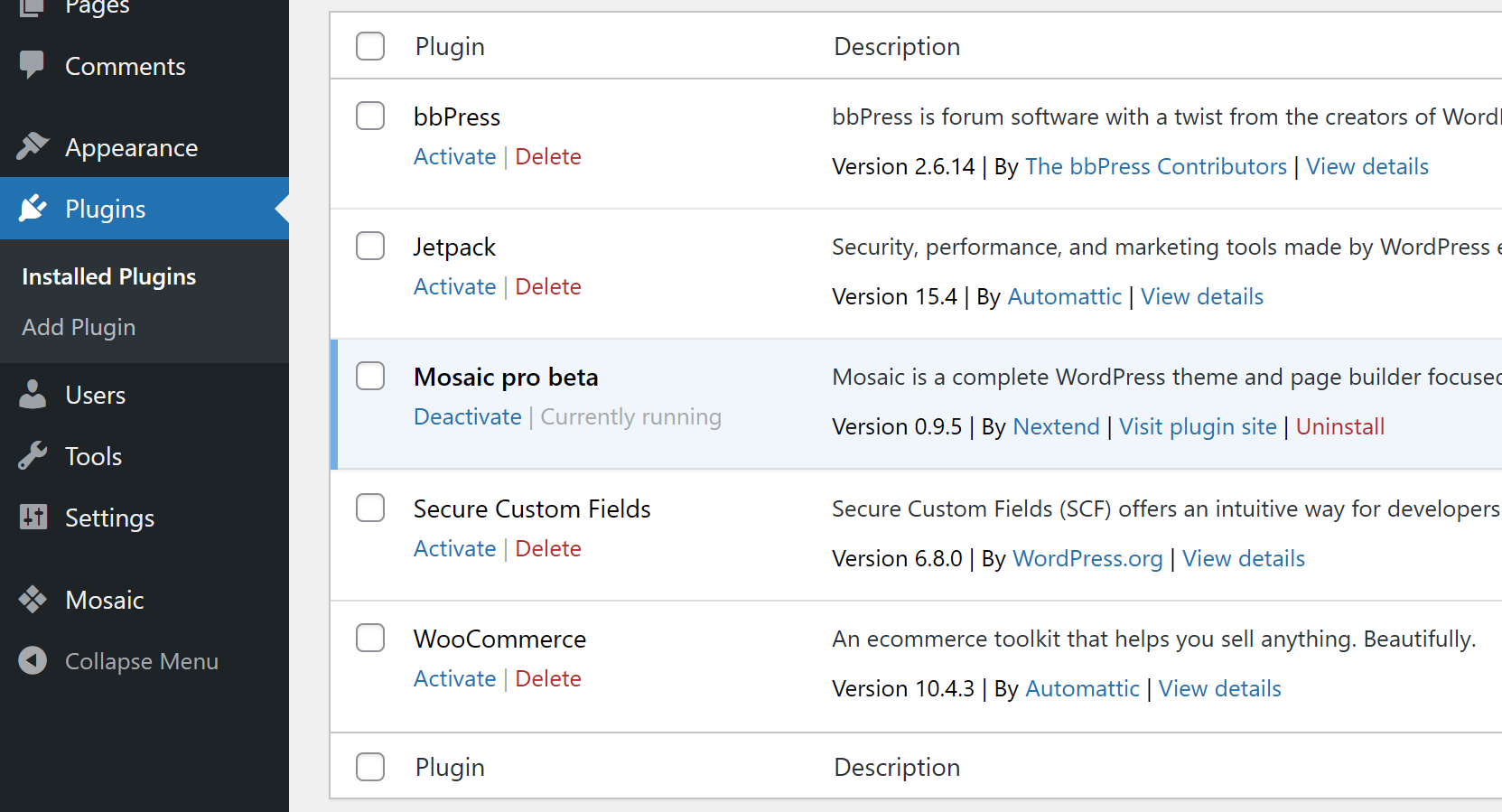
When the server’s configuration is fine, most commonly plugins are creating PHP errors. Go to the Plugins list, and deactivate all plugins besides Mosaic. Then check the error again. If it won’t occure anymore, try to turn on your plugins one-by-one, to figure out which one causes the issue.
How to address a problematic plugin?
- Update the plugin, if there is a new version.
- Check wordpress.org to see if the plugin is still kept updated. Deactivate it, in case it was abandoned by its developer.
- If you don’t need the plugin, deactivate it.
- Check the plugin’s configuration, in case some setting seems to be wrong. For example an essential configuration field was left empty or an option with a bug was used, which runs through the entire code of your website.
- Get in touch with the plugin’s developers.