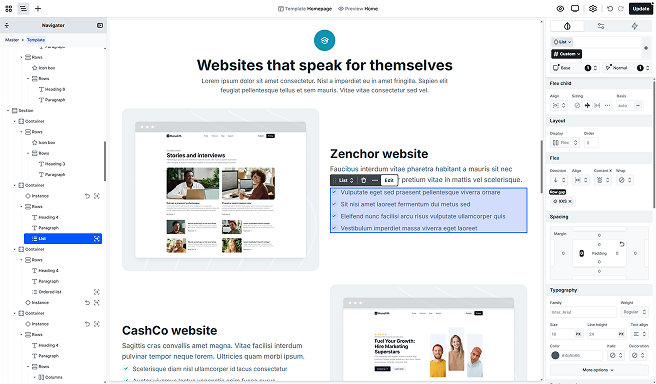
The List element allows you to display structured content in a familiar, list–based format. It works similarly to native HTML lists, but gives you flexibility over layout, styling, and dynamic content through loops.
Element classes
You can select the following element classes:
- List
- Horizontal list
- Unordered list
- Ordered list
Structure
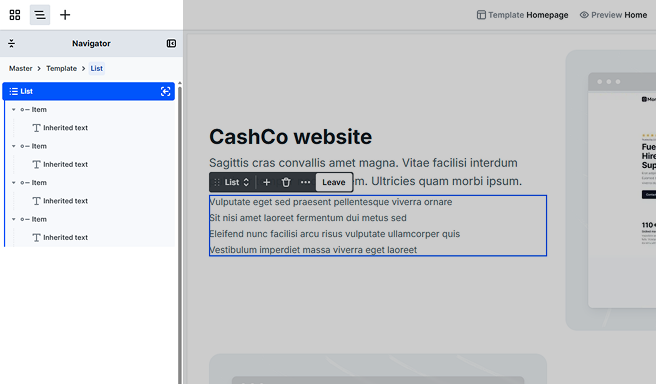
By default, the List element is made up of one main element.
Item
The Item represents a single item inside the list and renders as a standard ‘li’ html element.
List items don’t add any extra behavior by default. Their content can be fully customized by adding elements from the Add panel, allowing you to build anything from simple text lists to complex layouts inside each item.
Toolbar actions
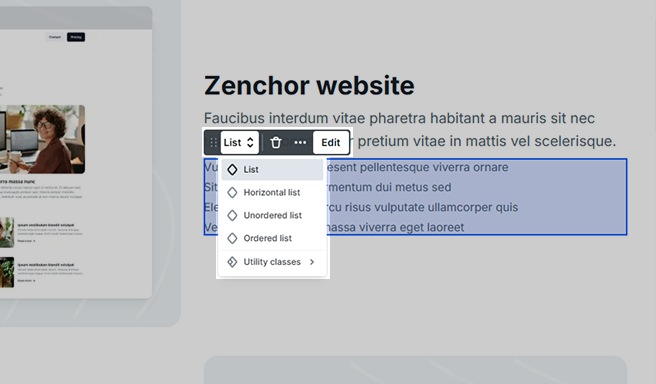
- Class selector: Switch between the element classes.
- Add icon: You can add a new List item to the List element.
- Leave: You can leave the scope of the List element.
Settings tab
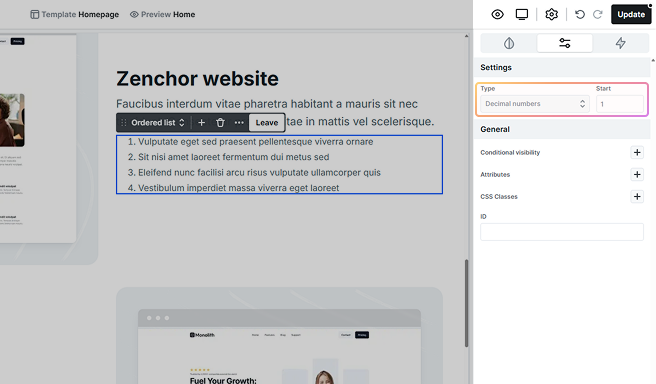
Only the Ordered list element class contains unique settings.
- Type: In the Settings tab, you’ll find the Type option, which lets you define the list marker style (for example, numbers, letters, or Roman numerals).
- Start: The Start field allows you to modify the starting number/letter.
Style tab
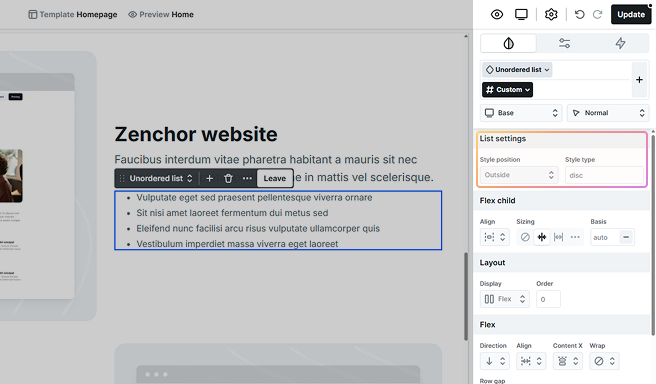
The Ordered list and Unordered list element classes provide additional options on the Style tab.
- Style position: Defines whether the list markers are placed inside or outside the list item.
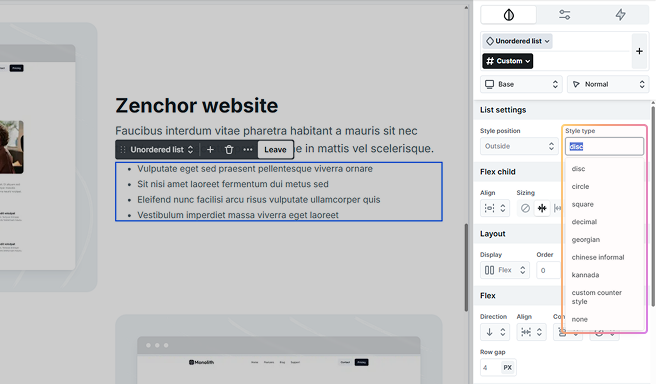
- Style type: Controls the visual style of the list markers/bullets. This setting overwrites the Setting tab‘s Type option.
Additional elements
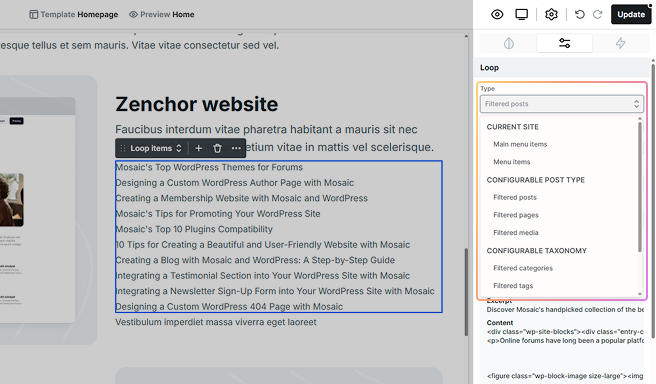
Loop items
To create loop items, press the Add loop items button on the element’s toolbar.
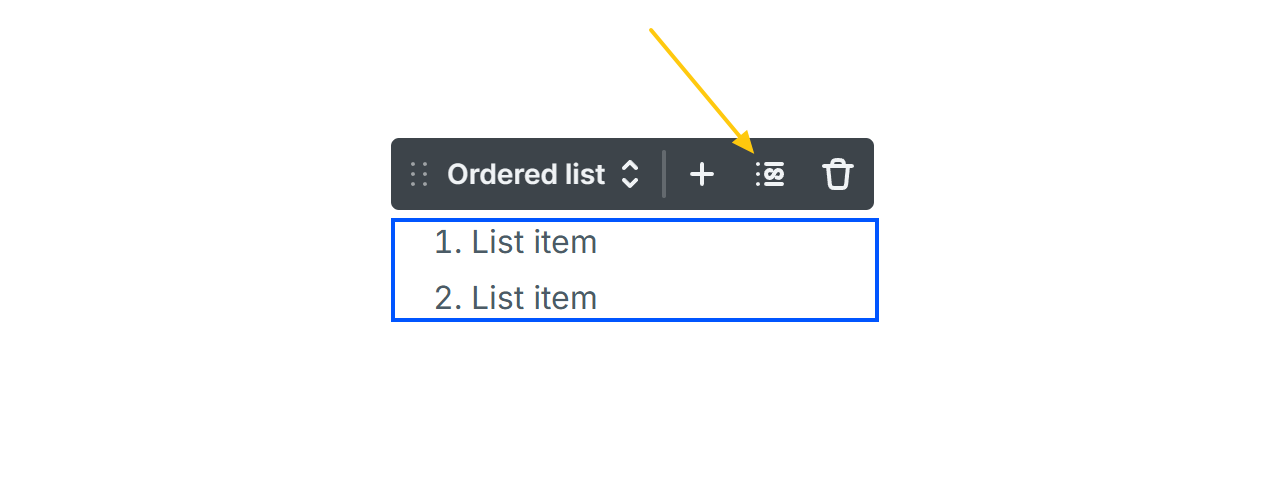
It allows you to pull data dynamically, automatically updating your content. You’ll define a single Item that acts as the template, and all subsequent items will be generated based on this template.
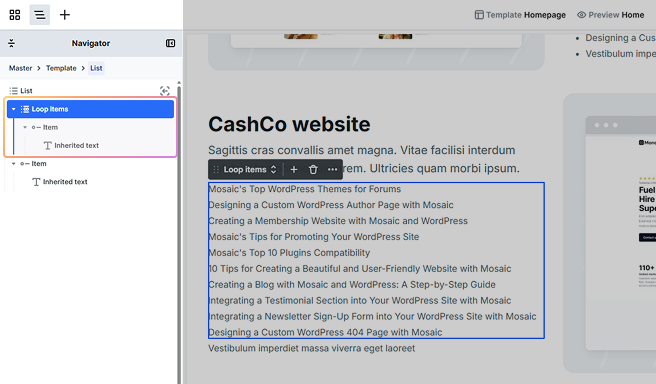
Once you have selected a source, make sure you will use variables on the inner elements!