Managing your Mosaic subscription is simple and fully accessible from your account page. Here you can review your billing details, check upcoming payments, and manage your subscription settings at any time.
Next charge
To check your upcoming payment, go to your account page and open the Billing history dropdown. The Next charge field shows the date of your next billing.
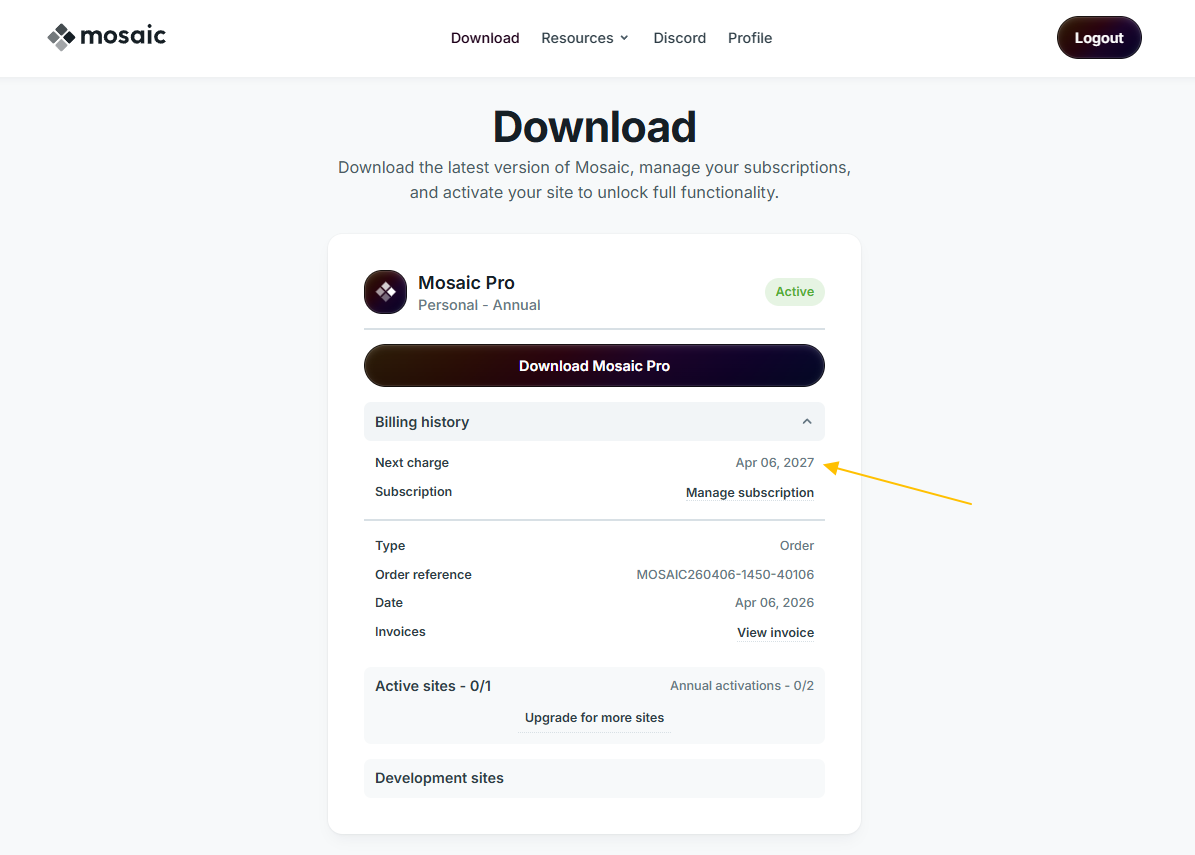
To see the exact amount of the upcoming charge, which is based on our pricing, press Manage subscription.
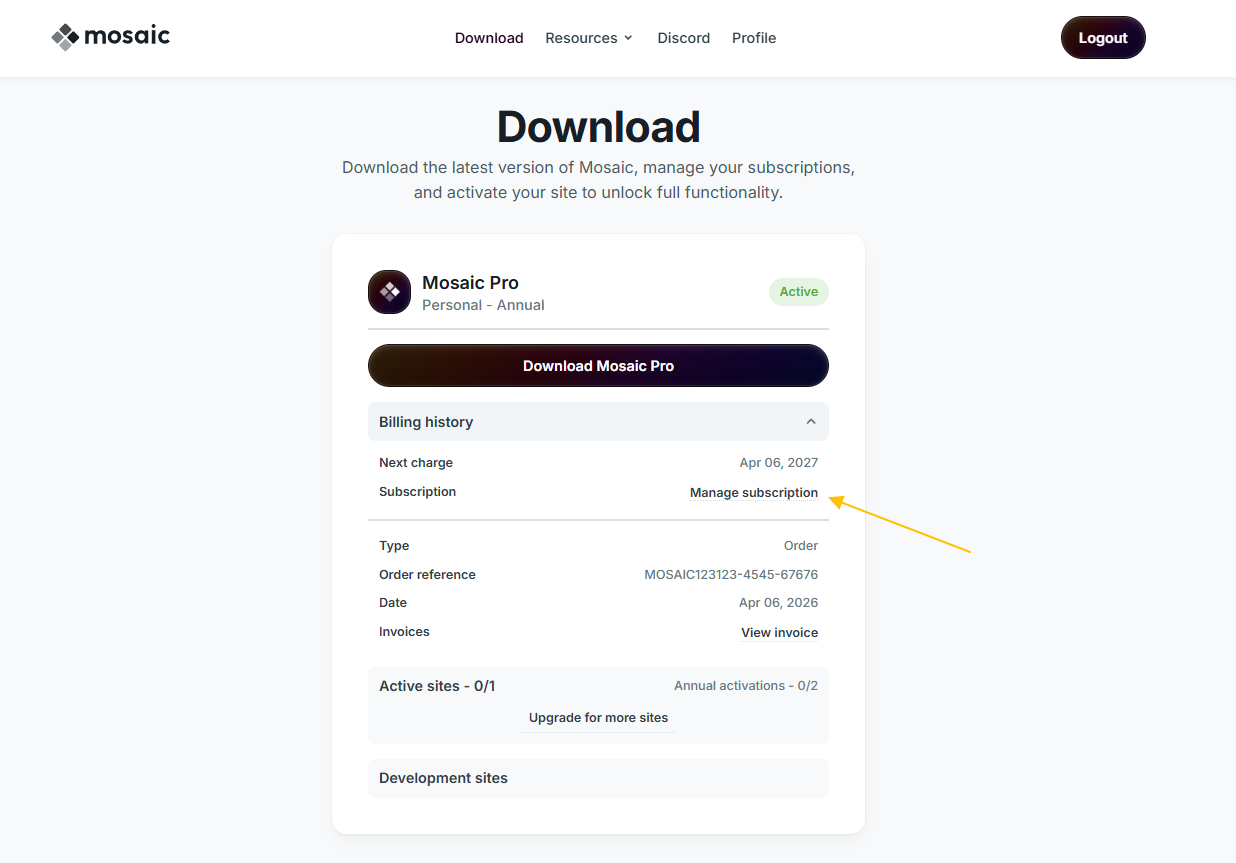
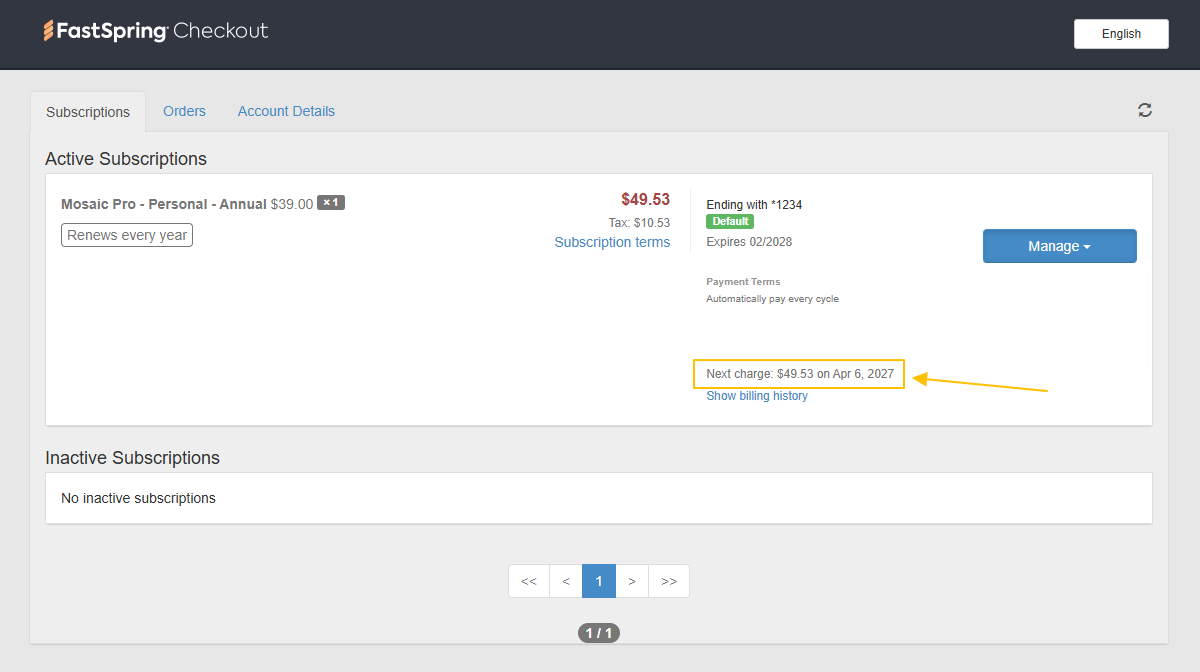
This redirects to FastSpring, where the Next charge is visible.
Cancel subscription
If you would like to cancel your subscription, so you wouldn’t have to pay anymore, go to your account page. Open the Billing history dropdown, and click Manage subscription.
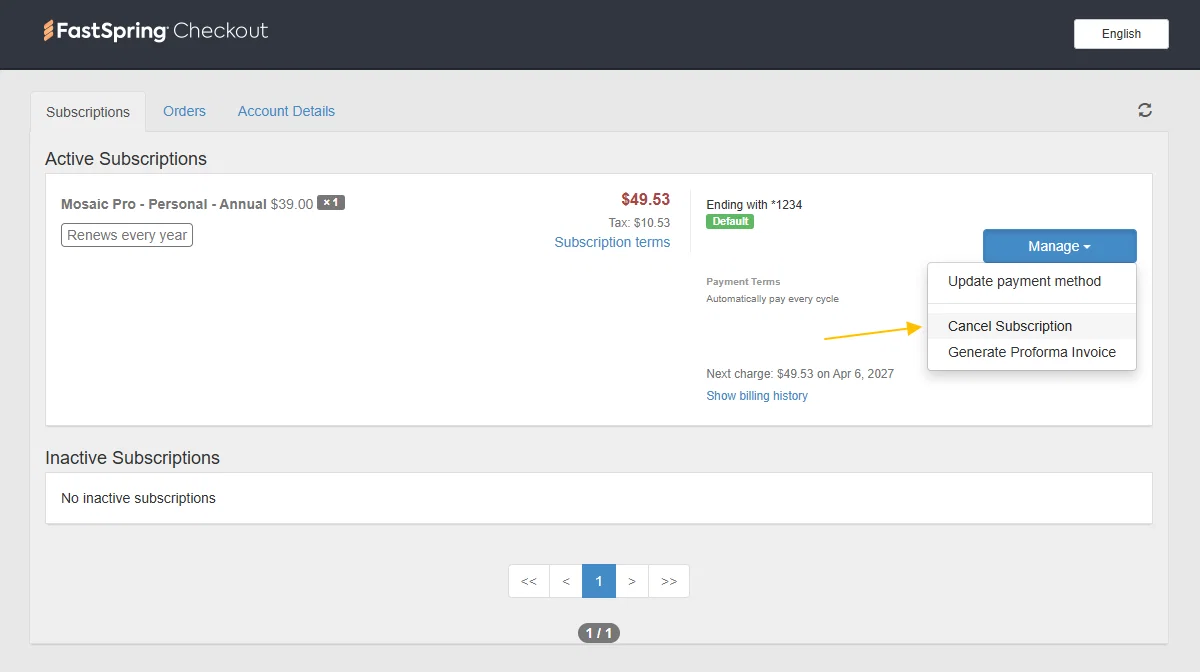
You will be redirected to the FastSpring portal. There, navigate to Manage → Cancel subscription and confirm your cancellation.
After cancelling, at your account page you will see Not scheduled at the Next charge field, confirming that your subscription has been successfully cancelled.
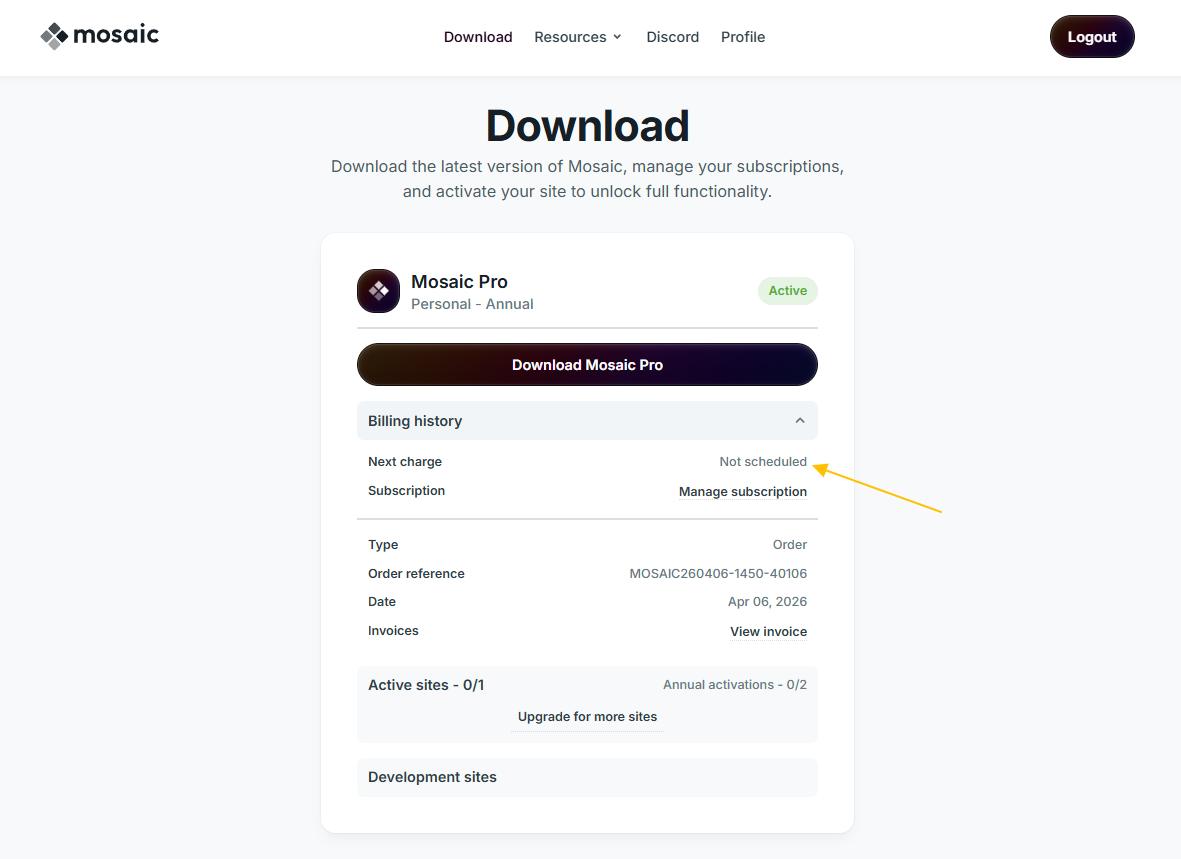
Cancelling your subscription stops all future payments. However, your Mosaic license will remain active until the end of the current billing period (the date your next charge would have occurred).
Upgrade plan
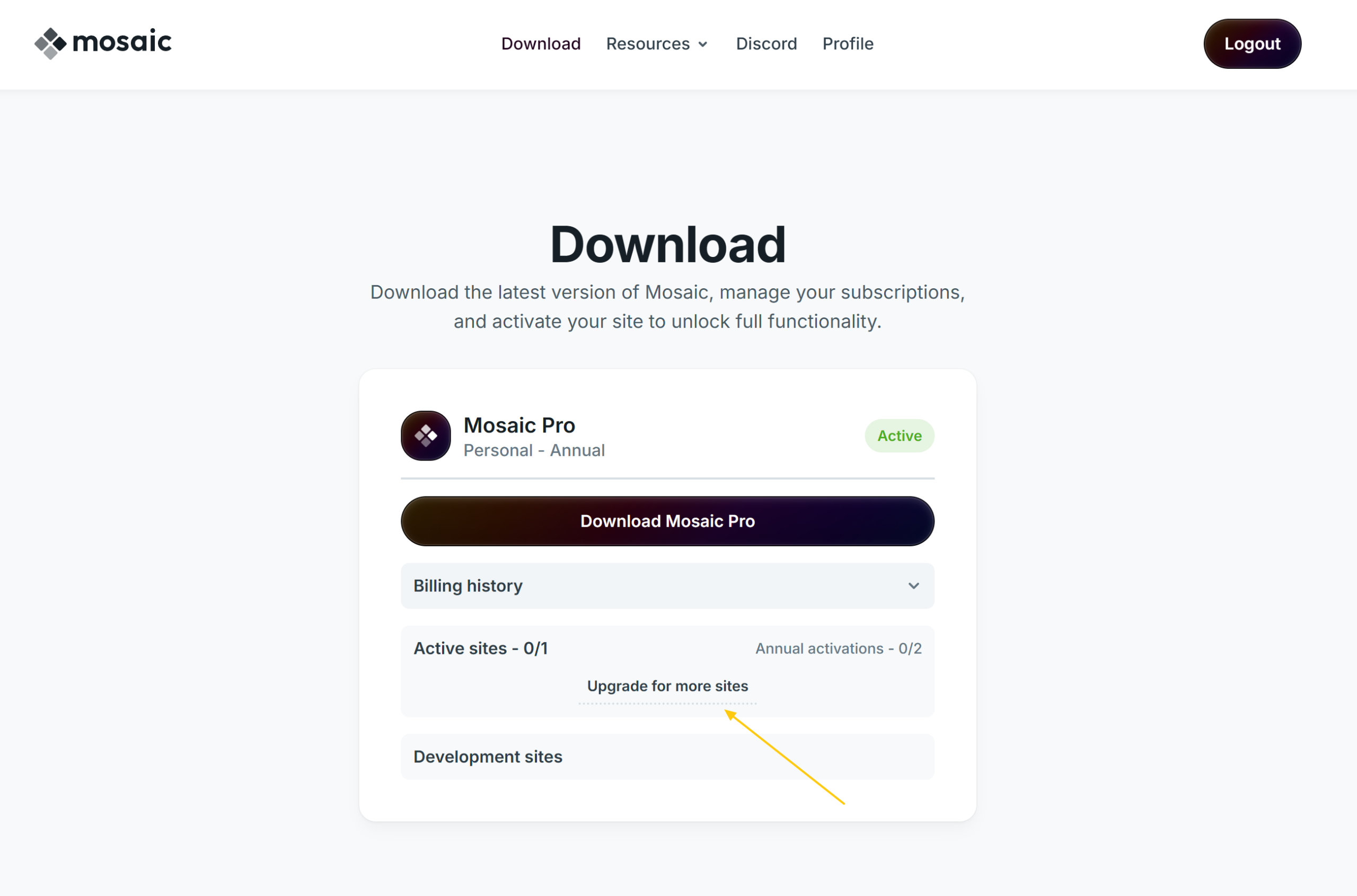
To upgrade your plan to a higher package, you should go to your Account page and press Upgrade for more sites.
Choose the plan you would like to have, and pay/save the details.
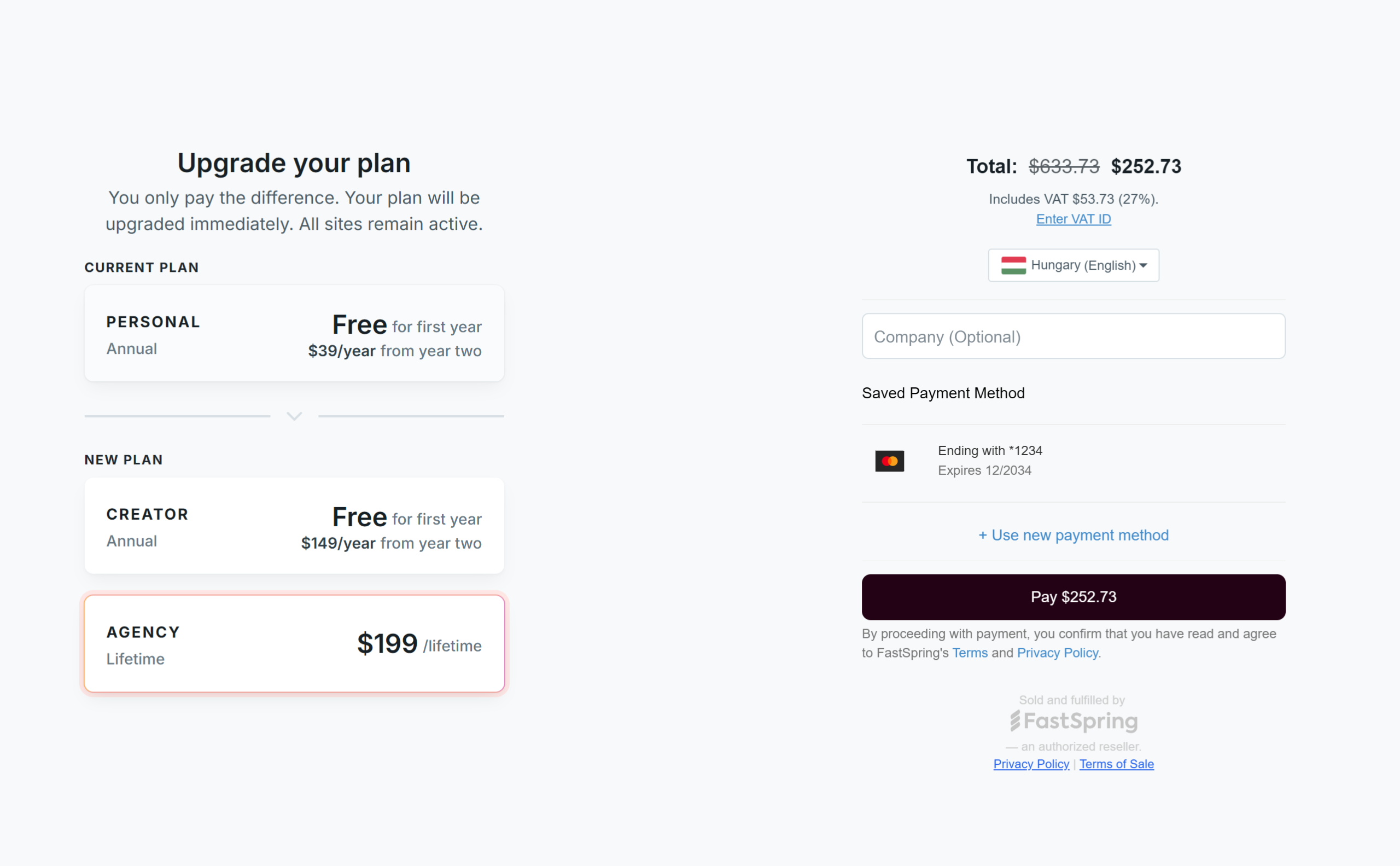
That’s it! Your previous plan automatically gets cancelled, and the new plan will take over its place.
All previously activated websites will automatically get connected to this new plan’s license, so you don’t have to do anything with the already activated sites.