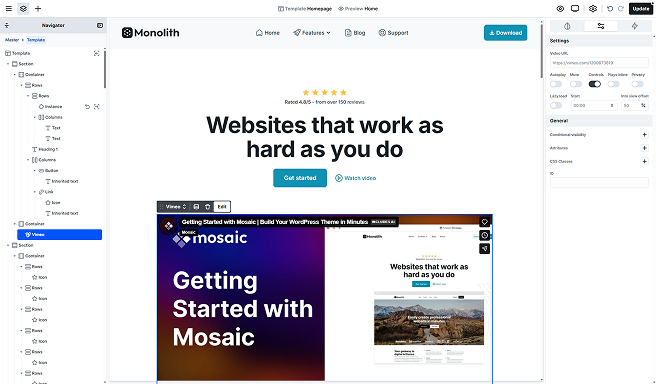
The Vimeo element lets you embed a video via a Vimeo URL and access Vimeo’s embed options, including setting a start time, toggling controls, and more.
You can add or replace the video URL by double-clicking the element, using the toolbar’s Edit option, or accessing the settings in the Settings tab.
Settings tab
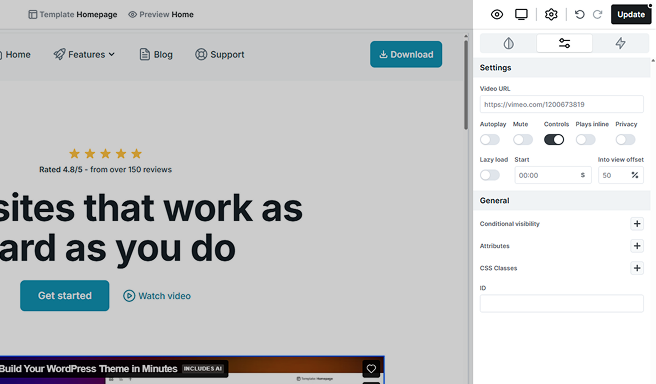
Control how your video behaves and appears. Here’s what each option does:
- Video URL: Paste your Vimeo URL, and the video will load on the page. Standard links (vimeo.com/…), unlisted links with a privacy hash (vimeo.com/{id}/{hash}), and player.vimeo.com links are all supported.
- Autoplay: When enabled, the video will try to start playing as soon as the page loads. Most browsers require videos to be muted for autoplay, so the Muted option is automatically applied. Learn the details.
- Mute: Silences the video by default. This setting is required for autoplay to work in most browsers. When Autoplay is enabled, the Muted option is automatically applied and hidden.
- Controls: Uncheck to hide the player controls. By default, controls appear when the video is playing or paused.
- Plays inline: Keeps the video inside the page layout on mobile devices instead of launching full screen.
- Privacy: Enable this option to turn on Vimeo’s Do Not Track mode, so the player doesn’t track the viewing session for analytics or ad targeting. Vimeo applies this on the same player.vimeo.com host — there is no separate cookie-free domain. If you want to completely avoid third-party requests, use the Video element with a self-hosted MP4 file instead.
- Lazy load: Delay the player to improve page speed. Shows a preview, loads fully on click or when in view.
- Start: Begin playback at a specific time. Enter as mm:ss.
- Into view offset: When a Vimeo element is playing and scrolls out of view, it automatically pauses. Once the element is visible again, playback resumes. This setting determines what percentage of the element must be visible for playback to start or stop. For example, if set to 30, at least 30% of the video must be in view for it to play.
FAQ
Can I embed an unlisted (private) Vimeo video?
Yes. For unlisted videos, paste the full link including the privacy hash (for example, vimeo.com/123456789/abcdef123). The hash is required — without it, the embed won’t load.
Can I create a background video from a Vimeo element?
Not directly from the Vimeo element. If you have a Vimeo Pro account, you can use a Vimeo video as a background through the Video element:
- In your Vimeo account, open the video you want to use.
- Open the dropdown next to the video’s title, choose Video file links, and copy the MP4 file link.
- Add a Video element in Mosaic and paste that MP4 link as its video source.
On a free Vimeo account these MP4 file links aren’t available, so you’ll need to use a self-hosted MP4 file with the Video element instead.
Why doesn’t the video play inside the editor?
Embedded players often don’t load or play inside the editor because of browser security in the editor context. This is normal — the video plays correctly on your live site.