The Google Map element is built on Google’s Maps Embed API, so it needs a Google Maps API key (set once in Mosaic’s global settings). The key is free to obtain, though Google requires a Cloud account with billing enabled.
If you don’t want to set up a billing account, or you don’t want to create an API, using a Code element is a really simple alternative.
Before you start: get a Google Maps API key
The Google Map element won’t display anything until you provide a Google Maps API key. The Maps Embed API is free with unlimited usage, but Google still requires a Cloud project with billing enabled to issue the key.
Here’s the full process.
1. Sign in to the Google Cloud Console
Go to console.cloud.google.com and sign in with your Google account. If it’s your first time, accept the Terms of Service when prompted.
2. Create a project
- In the top bar, click the project selector (the drop-down next to the “Google Cloud” logo).
- Click New Project.
- Give it a name (for example,
My Website Maps) and click Create. - Once it’s created, make sure that project is selected in the top bar.
3. Set up a billing account
- In the left navigation menu (☰), go to Billing.
- Click Link a billing account, then Create billing account, and follow the prompts to add your details and a payment method.
Billing is required by Google even though Maps Embed API usage is free. You won’t be charged for the map embeds this element uses.
If you don’t want to set up a billing account, use a Code element instead.
4. Enable the Maps Embed API
- In the left navigation menu (☰), go to APIs & Services → Library.
- In the search box, type Maps Embed API and click the result.
- Click Enable.
5. Create the API key
- Go to APIs & Services → Credentials.
- Click + Create credentials at the top, then choose API key.
- Google generates the key and shows it in a pop-up. Click the copy icon to copy it — you’ll paste it into Mosaic in the next step.
6. (Recommended) Restrict the key
Restricting the key prevents other sites from using it. In the key’s settings (APIs & Services → Credentials → your key):
- Under Application restrictions, choose Websites and add your domain (for example,
*.yourdomain.com/*). - Under API restrictions, choose Restrict key and select Maps Embed API from the list.
- Click Save.
7. Add the key to Mosaic
Paste the key into Mosaic → Global Settings. It’s stored once at the account level and reused by every Google Map element — it’s never saved into the individual element or its revisions.
With no key set: the element is skipped entirely on the frontend (visitors never see a broken or empty box). In the editor you’ll see a setup notice prompting you to add the key.
Adding a map
Drop the Google Map element onto your page, then open its Settings panel to configure it.
| Setting | What it does | Default |
|---|---|---|
| Address / place | The location to show. Accepts a street address, a place name, raw lat,lng coordinates, a plus code, or a place_id: value. This field supports dynamic data, so you can pull the location from a custom field or other source. | Times Square, New York, USA (sample) |
| Zoom | How close the map is zoomed in, from 0 (whole world) to 21 (individual buildings). Around 15 is street level. | 15 |
| Map type | Roadmap (standard street map) or Satellite (aerial imagery). | Roadmap |
| Language | Optional. Forces the map’s labels into a specific language (e.g. en, hu). Leave empty to follow the visitor’s own locale. | empty |
| Region | Optional. Biases results toward a country using a region code (e.g. US, HU), which can affect how an ambiguous address resolves. Leave empty for Google’s default. | empty |
| Lazy load | When on, the map only loads as the visitor scrolls near it, which helps page speed. | On |
Tips
- Pinning an exact spot: if an address is ambiguous, paste
lat,lngcoordinates (for example47.6875,17.6504) straight into the Address / place field to pin the precise point. - Sizing: the map fills its container width and uses a 4:3 height by default. You can restyle it like any other element.
- Special characters in an address (
#,&,+) are handled automatically — the map renders correctly.
Good to know
- The map may not appear inside the editor. This is normal — browser iframe and referrer rules can block the preview in the editor context. It renders correctly on the live page. (If your API key has HTTP-referrer restrictions, you may need to allow the editor’s origin for the in-editor preview to show.)
- Minimum size for the embed is 200×200px (a Google requirement).
- Ads: Google may occasionally show ads on the embedded map. That’s controlled by Google, not Mosaic.
- Privacy/GDPR: the map loads directly from Google when the page renders, which means the visitor’s IP and Google cookies are involved. Lazy loading is a performance feature, not a consent mechanism — keep that in mind if you need consent-gated embeds.
Want a map without an API key?
If you’d rather not set up an API key, you can drop a map straight into the Code element instead.
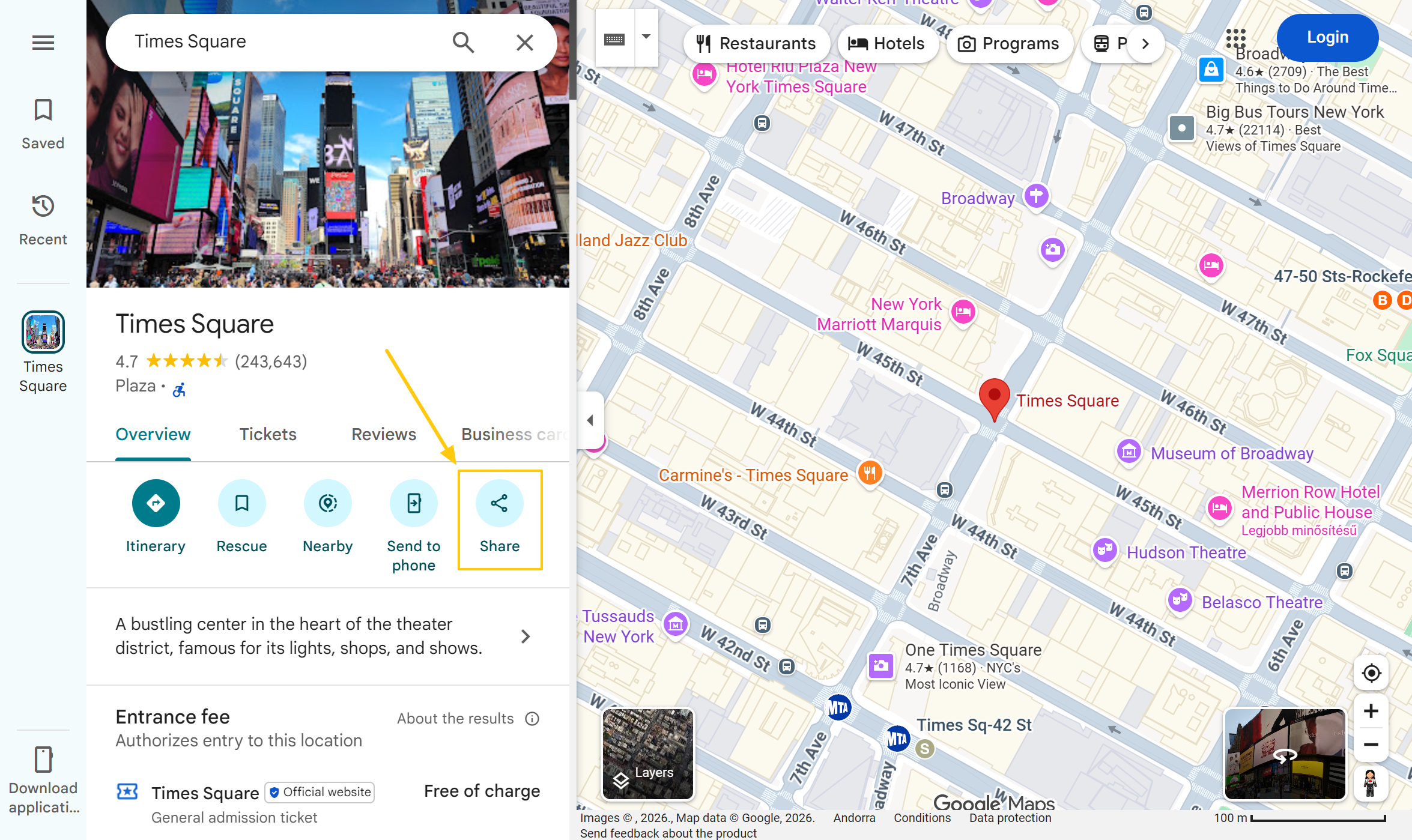
- In Google Maps, find your location, click Share, then choose the Embed a map tab.
- Click COPY HTML.
- Paste it into a Code element on your page.
Before you paste, there’s one small edit to make. The code Google gives you has a fixed size baked in, and you’ll want to remove that so the map’s size is controlled by Mosaic’s Style tab instead.
This is what Google copies for you:
<iframe src="https://www.google.com/maps/embed?pb=!1m18!1m12!1m3..." width="600" height="450" style="border:0;" allowfullscreen="" loading="lazy" referrerpolicy="no-referrer-when-downgrade"></iframe>Find and delete these two bits: width="600" and height="450" (the numbers may differ). Don’t touch anything else.
This is what you should be left with:
<iframe src="https://www.google.com/maps/embed?pb=!1m18!1m12!1m3..." style="border:0;" allowfullscreen="" loading="lazy" referrerpolicy="no-referrer-when-downgrade"></iframe>Paste that into the Code element. Now you can set the map’s width and height on the element’s Style tab, just like any other element — no code required.