The built-in honeypot
Mosaic includes an invisible honeypot that runs on every form, with no setup required. It quietly catches the automated submissions that bots produce, without getting in the way of real visitors. Because it does not rely on cookies or sessions, it keeps working even when your pages are served from a full-page cache. Logged-in administrators are exempt, so testing your own forms is never blocked.
Adding a CAPTCHA
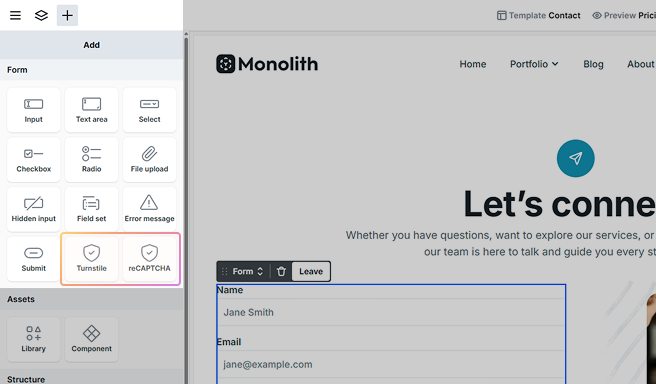
For stronger protection you can add one of two CAPTCHA elements: Cloudflare Turnstile or Google reCAPTCHA v3. They work alongside the honeypot rather than replacing it, and both are optional. Setting one up takes three steps: create your keys with the provider, enter them in Mosaic settings, and add the CAPTCHA element to your form.
A couple of things apply to both:
- Keys are required. If a CAPTCHA is enabled but its keys are missing, its element is skipped on the live site and the check is not run. The editor shows a warning on the element so you know it will not be active.
- Placement. Keep a CAPTCHA element inside the Form but outside any Field or Choice field. A CAPTCHA protects the whole submission, so it belongs at the form level, not inside a single field.
Cloudflare Turnstile
Cloudflare Turnstile is a privacy-friendly CAPTCHA that does not depend on Google. It gives a simple pass or fail result, often without the visitor having to do anything, so there is no score to tune.
Create your Turnstile keys
- Sign in to the Cloudflare dashboard. If you do not have an account, you can create one for free.
- Open Turnstile from the sidebar and select Add widget.
- Give the widget a name and add the domain, or domains, where your form appears.
- Choose a widget mode. Managed is a good default and lets Cloudflare decide when a check is needed.
- Select Create, then copy the Site key and Secret key.
Enable Turnstile in Mosaic
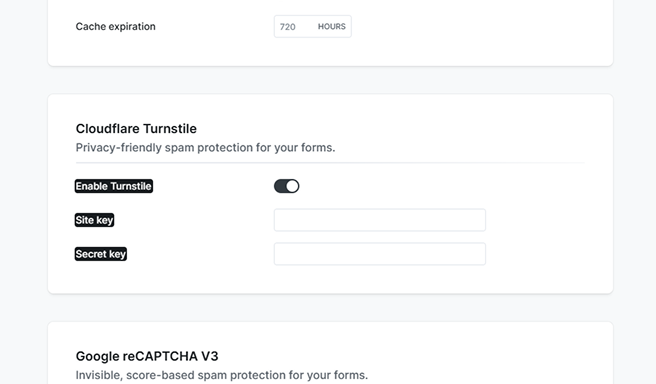
In Mosaic settings, open the Cloudflare Turnstile section, turn on Enable Turnstile, and paste your Site key and Secret key.
The Turnstile element
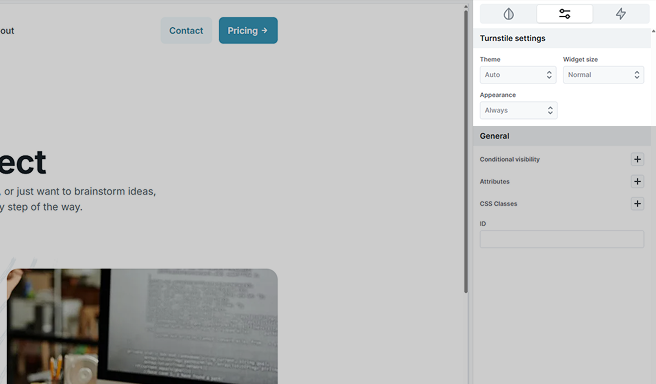
Add the Turnstile element to your form. Its settings control how the widget looks:
- Theme: auto, light, or dark.
- Widget size: normal, flexible (fills the available width), or compact.
- Appearance: controls when the widget becomes visible, whether always, only while a check is running, or only when interaction is needed.
Turnstile loads scripts from Cloudflare and is subject to Cloudflare’s privacy terms. It is designed to be privacy-preserving, and Mosaic stores no additional visitor data. You can read more in our GDPR guide.
Google reCAPTCHA v3
Google reCAPTCHA v3 is an invisible CAPTCHA from Google. Instead of a challenge, it scores each submission behind the scenes and lets you decide how strict to be.
Create your reCAPTCHA keys
- Sign in to the Google reCAPTCHA Admin Console with a Google account.
- Create a new site using the plus button.
- Enter a label so you can recognize the site later.
- For the reCAPTCHA type, choose Score based (v3).
- Add the domain, or domains, where your form appears, then accept the reCAPTCHA terms of service.
- Select Submit, then copy the Site key and Secret key.
Enable reCAPTCHA in Mosaic
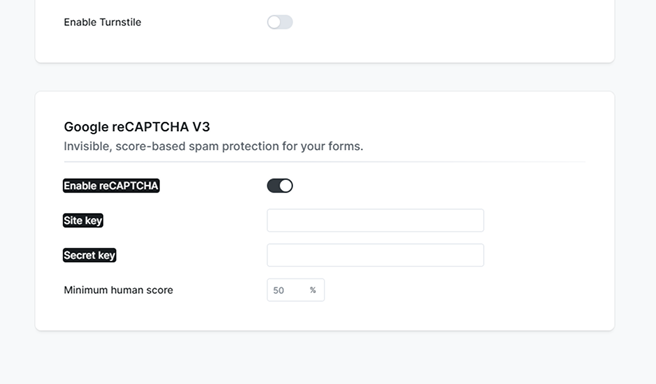
In Mosaic settings, open the Google reCAPTCHA V3 section, turn on Enable reCAPTCHA, and paste your Site key and Secret key. Set the Minimum human score to control how strict the check is: reCAPTCHA rates each submission as a percentage likelihood that the visitor is human, and submissions that score below your minimum are treated as spam. The default is 50%, which you can adjust after watching your form’s traffic.
The reCAPTCHA element
Add the reCAPTCHA element to your form. Its settings are:
- Action name: a label sent to reCAPTCHA that identifies this form in your Google reCAPTCHA analytics, for example contact.
reCAPTCHA loads scripts from Google and is subject to Google’s privacy terms. Google also asks that the reCAPTCHA badge, or its attribution text, stays visible on any page that uses it. You can read more in our GDPR guide.