Form actions don’t run in Preview. When you submit a form in the editor’s Preview, Mosaic only shows the success screen — no data is sent, so none of the actions (Webhook, Mailchimp, MailerLite, email, etc.) run. Test your actions on the frontend of the website to see the real result!
Adding an action
Actions are what a Mosaic form does when a visitor submits it: send an email, redirect the visitor, run a search, send the data to a webhook, or subscribe the visitor to your Mailchimp or MailerLite audience. A Form can run several actions at once, and each one has a Condition tab so you can decide when it should run.
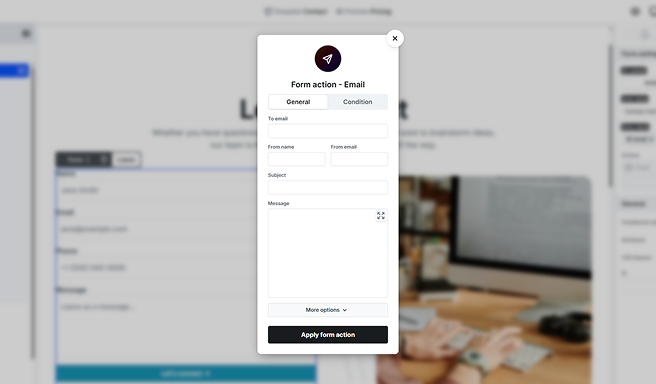
With On submit set to Actions, you build a list of actions that run when a submission succeeds. Add an action and pick its type: Email, Redirect, Search, Webhook, Mailchimp, or MailerLite. Each opens in its own window with two tabs:
- General: the action’s own settings, such as the recipient of an email or the address to redirect to.
- Condition: optional rules that decide whether the action runs at all. See Running an action only when a condition matches below.
Set up the action and select Apply form action to save it. A form can have several actions, and they run in the order they appear in your list. A single form could, for example, email you a copy of the submission and then send the visitor to a thank-you page.
Available actions
Mosaic comes with the following actions. Select any one to see its full settings:
- Email: sends a notification email to your site’s admin — or any address you set — each time the form is submitted.
- Redirect: sends the visitor to another page after a successful submission.
- Search: turns your form into a search form that looks through your site.
- Webhook: sends each submission to any web address — your own endpoint or an automation service like Zapier or Make.
- Mailchimp: subscribes the person who submits the form to a Mailchimp audience, with field mapping, groups, tags, and double opt-in.
- MailerLite: subscribes the person who submits the form to MailerLite, with field mapping, groups, and double opt-in.
Filling actions with dynamic variables
Most action settings accept dynamic variables, so an action can react to what was actually submitted instead of being fixed text. Insert a variable from the variable picker on a setting, and it is filled in for each submission when the action runs. You can use them in the email subject and body, the reply-to address, a redirect URL, a search phrase, and more. Available variables include:
- Submitted field values: the value the visitor entered in any field, referenced by its name.
- All fields at once: a single variable that outputs every submitted field as a readable list, handy for including the whole submission in an email.
- File details: for a File upload field, separate pieces you can drop in individually, such as the file’s download link, name, size, and type.
- The form name: the form’s name, handy for an email subject that says which form was submitted.
- Request details: information about the submission itself, such as the visitor’s IP address, browser, and the page the form was submitted from, useful for spam triage.
- Site and user details: values like your site title and, for logged-in visitors, details about the current user.
For the full list of variables and how the picker works, see Data variables.
Anything a visitor typed is treated as plain text when it is inserted into an action. If someone submits HTML or a script, it shows up as the exact text they entered rather than running, so your email notifications are safe by default without any extra setup on your part.
Running an action only when a condition matches
Every action has a Condition tab where you can add rules that decide whether that action runs. Leave it empty and the action always runs. Add a rule and the action runs only when the rule is met, so different submissions can trigger different actions.
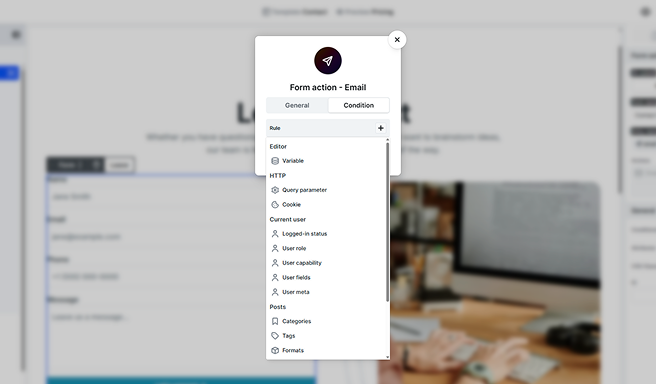
The most common rules read the visitor’s submitted field values. For example, you might send visitors to a different page depending on which option they chose in a radio field, or only send a certain email when a checkbox is ticked. Rules can also be built from other context, such as:
- The current visitor: whether they are logged in, their user role, and other account details.
- The current post: the page the form appears on, including its categories, tags, or format.
- The request: details like a URL query parameter or a cookie.
Because each action is gated on its own, you can combine them: several Email actions that each notify a different team depending on the answer, or several Redirect actions that each send a different group to the right place.
Saved submissions and retrying failed actions
Not every action is recorded. The Email, Webhook, Mailchimp, and MailerLite actions save a copy of the submission so you have a record of it, while the Redirect and Search actions do not save anything on their own, since they simply send the visitor somewhere. This keeps things tidy: a search form built with the Search action does not fill your Form submissions with entries. When a form has at least one of these saving actions, its submissions are always saved. Submissions with files uploaded through a File upload field are saved too, even if the form only uses Redirect or Search, so the uploaded files are kept.
If an action does not complete, for example an email that could not be sent, the submission is flagged as not fully completed. You can then open it in Form submissions and retry the action, which runs it again using the same details it had at submit time.