What you can use it for
Every time someone submits one of your forms, Mosaic saves a record you can open later. From the Form submissions screen you can:
- Read exactly what a visitor entered, field by field.
- Check whether the form’s actions ran, such as a notification email, and see the error when one fails.
- Retry an action that failed the first time, without asking the visitor to submit again.
- Find a specific submission by searching for the email address (or other identifier) it was sent with.
- Delete a submission (and its uploaded files) to honor a data-removal request.
Opening the submissions list
In the WordPress admin menu, go to Mosaic > Form submissions. The screen is available to site administrators and lists submissions from every form on your site, newest first.
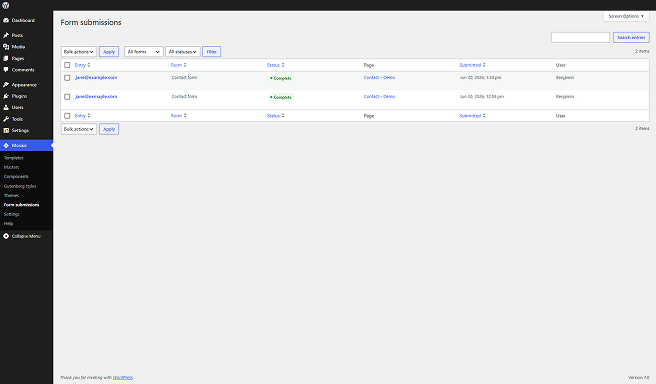
The submissions list
Each row is one submission. The list shows these columns:
- Entry: the value from the field you picked as the entry name (usually an email address). Click it to open the full submission. It reads “Unknown” when that field was left empty.
- Form: the form’s name, taken from its Form name setting. It reads “Unlabeled form” when you have not named the form yet.
- Status: the submission’s overall result (Complete, Pending, or Partial fail). See “What the statuses mean” below.
- Page: the page the form was submitted on. It opens the live page in a new tab.
- Submitted: the date and time of the submission, for example “Jun 25, 2026, 1:09 pm”. Rows are sorted newest first; click the column heading to change the order.
- User: the signed-in WordPress user’s name, or “Guest” when the visitor was not logged in.
Filtering and searching
The bar above the list helps you narrow things down when submissions pile up:
- All forms: limit the list to a single form. The dropdown includes every form that has at least one submission.
- All statuses: show only submissions with a certain status (Pending, Complete, or Partial fail).
- Search entries: find submissions by their entry value, such as a visitor’s email address.
Choose a form and a status, then select Filter to apply them. Searching and filtering can be combined.
What the statuses mean
A submission’s status reflects how its actions turned out:
- Complete: every action finished successfully (or was skipped because its conditions did not apply).
- Pending: at least one action has not run yet.
- Partial fail: at least one action failed. Open the submission to see which one and why.
Deleting submissions
To remove a single submission, hover its row and select Delete. To remove several at once, tick their checkboxes, choose Delete from the Bulk actions menu, and select Apply. Both ask you to confirm first.
Deleting a submission is permanent and also removes any files that were uploaded with it. There is no trash to restore it from.
Reviewing a single submission
Click a row’s entry value to open the full submission. The title shows the form name and the entry value together (for example, “Contact form — sarah@example.com”), with the status badge beside it and a link back to the list.
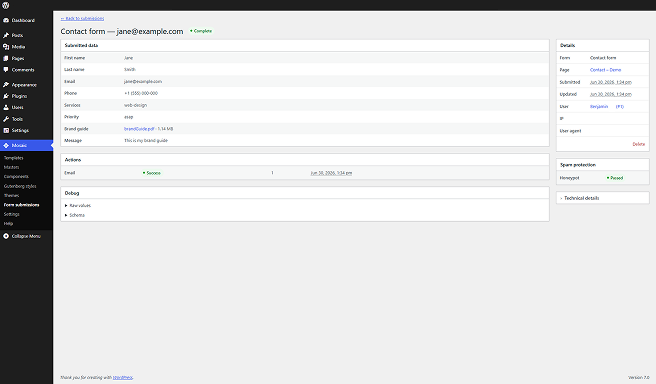
Submitted data
This table lists every field on the form with the value the visitor entered. File uploads appear as download links with their file size, so you can open them directly. A field set to be hidden shows *** in place of its value (see “Choosing what gets stored” below).
Actions and retry
The Actions table shows what the form tried to do on submit, one row per action, with its status, how many times it has been attempted, and when it last ran. Action statuses are:
- Success: the action ran and completed.
- Failed: the action ran but did not complete. Its error message is shown right below it.
- Skipped: the action was not run because its conditions did not apply to this submission.
- Pending: the action has not run yet.
A failed action shows a Retry button. Select it and Mosaic runs that one action again with the values from the original submission, then reloads the page with the result. If it fails again, the row shows the new error so you can see what went wrong.
Only failed actions can be retried. Actions that already succeeded have no Retry button, so you will not accidentally send a second copy of a notification email.
To learn what each action does and how to set one up, see Actions.
Details, spam protection, and technical info
The sidebar collects the facts about the submission:
- Details: the form (links into the editor when the form still exists in the active theme), the page it was submitted on, when it was submitted and last updated, the user, and their IP address and browser. A Delete button removes the submission from here too.
- Spam protection: which checks ran and passed. The built-in honeypot always appears, and each CAPTCHA you enabled (Cloudflare Turnstile or Google reCAPTCHA) shows its own Passed or Failed row.
- Technical details: theme, master, template, and instance identifiers, collapsed by default and mainly useful for support.
At the bottom of the main column, a Debug section holds the raw submitted values and the form structure as JSON. It stays collapsed and is meant for troubleshooting, so you can usually ignore it.
For more on the spam checks and how to set up keys, see Spam protection.
Naming forms and entries
Two settings on the form control how its submissions read in the admin. You will find them in the form’s settings in the editor.
- Form name: names the form so you can tell it apart from others. It appears in the Form column of the list and in the title of each submission. Leave it blank and submissions read “Unlabeled form”. The form name is also available as a dynamic variable, so you can reuse it elsewhere, such as an email subject (see Data variables).
- Entry name: picks which field becomes the row identifier in the Entry column, usually the visitor’s email or name. If you do not set it, Mosaic uses the first email field on the form, and if there is none, the first text field.
Choosing what gets stored
Each field has a Data logging setting that decides how its value is kept in the submission record. This is useful for sensitive fields you would rather not save in full:
- Store: keeps the value and displays it in the submission. This is the default.
- Mask: keeps the value but displays *** in the submission, so it is saved without being visible at a glance.
- Exclude: does not keep the value. The submission shows *** in its place.
The difference matters for privacy: Mask still saves the real value in your database (it is only hidden in the admin view), while Exclude does not keep it. Choose Exclude for data you do not want kept on your site at all. This setting affects only the saved submission, not what the visitor sees or what the form checks as they fill it in.
How long submissions are kept
Submissions are stored indefinitely. Mosaic does not delete them automatically, so they stay until you remove them yourself, either one at a time from a submission or in bulk from the list. Deleting a submission also deletes any files uploaded with it.
Because the records can include personal data, review them from time to time and delete what you no longer need. This is also how you handle a data-removal request. For more on data protection in Mosaic, see GDPR.
Uploaded files are covered in more detail on the File upload page.
If email still isn’t arriving after all of this, reach out to support and we’ll help you get it sorted.