What you can use it for
A File upload field is the right choice whenever a submission needs a document or image from the visitor, not just text they type. Common uses include:
- Job applications: a CV or cover letter attached to your careers form.
- Support requests: a screenshot or photo that shows the problem.
- Applications and orders: a document you asked the visitor to provide, such as a signed form or a spec.
Adding a File upload field
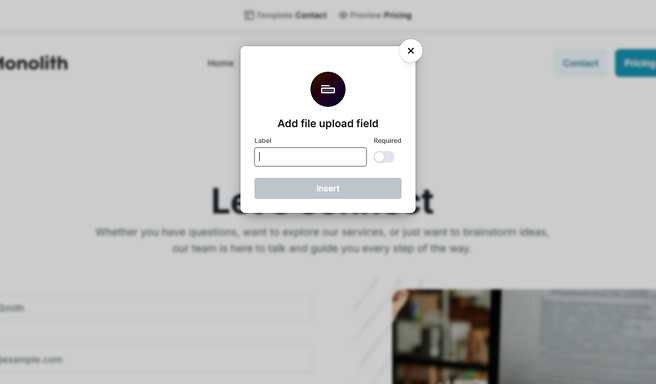
Add a File upload field the same way you add any other field. When you insert it, Mosaic asks for a label so your visitors know what to send, then places the field into your form ready to configure. You can also select it in the Navigator at any time to open its settings. For how labels, names, and required fields work in general, see Fields & field groups.
File upload settings
Select the field to open its settings. The main options sit at the top; select More options to reveal the rest.
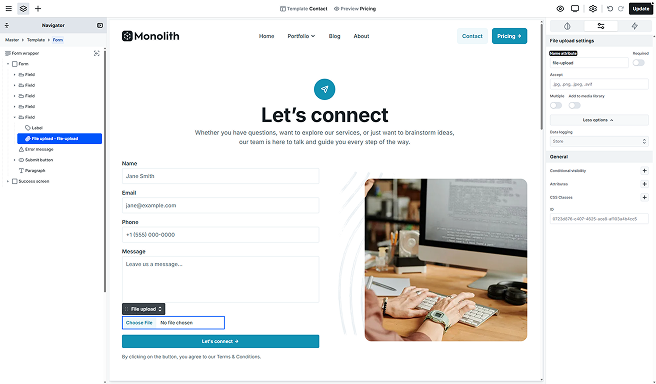
- Name attribute: the key the uploaded file is submitted under. It identifies the field in your form submissions and in actions like email, so give it a clear, meaningful name.
- Required: makes the field mandatory, so the form cannot be submitted until the visitor uploads a file.
- Accept: limits which file types the field takes, entered as a comma-separated list of extensions or types (for example, .jpg, .png, .pdf). Leave it empty to accept any file type Mosaic considers safe. See Which files visitors can upload below.
- Multiple: lets a visitor attach more than one file to the field. Each file is checked and stored separately.
- Add to media library: also saves each uploaded file to your WordPress Media Library. See Add to Media Library below.
- Data logging: controls how the uploaded file is recorded with your submissions. It sits under More options. See Data logging below.
A File upload field has no Default value setting. For security reasons, browsers never let a file field be filled in on a visitor’s behalf, so the file always comes from the visitor. See Default values for the fields that can be prefilled.
Which files visitors can upload
The Accept setting decides which file types the field takes. Enter a comma-separated list of file extensions or types, for example .jpg, .png, .pdf. In the visitor’s browser, this filters the file picker so it offers matching files first. Leave Accept empty and the field accepts any file type Mosaic considers safe.
Mosaic checks uploads in two places. In the browser, the Accept list and the Required option give your visitor quick feedback before the form is sent. Because anything in the browser can be bypassed, Mosaic checks every file again on your server, and the server’s decision is the one that counts.
The server-side check looks at the real content of each file, not just its name or the type the browser reports (both of which can be faked). It confirms the file’s actual content matches your Accept list, and it always refuses dangerous or runnable file types, such as PHP, HTML, JavaScript, SVG, and program files, even when you leave Accept empty. It also catches files disguised with a second extension, like photo.php.jpg, so a script cannot slip in behind an allowed extension.
Because the real check happens on your server, the Accept list is a helpful filter for visitors, not a guarantee on its own. A file that fails the server-side check is rejected, and the visitor sees a validation error. See Error message.
How uploaded files are stored
Uploaded files are never left sitting on your server as plain, openable files. Mosaic wraps each upload in a secure envelope: the file’s data and its details (original name, type, and size) are sealed together into a single file, saved with an extension your web server does not run or serve. These envelopes live in a private folder the web server is blocked from delivering, so no one can reach an uploaded file by guessing its web address.
When a file needs to be handed back, for example an admin downloading it from a submission, Mosaic reads it through its own secure path and confirms the sealed data has not been altered before serving a single byte. Uploaded files are kept with their submission and stay available until you delete that submission; there is no automatic expiry. See Form submissions.
Add to Media Library
Turn on Add to media library to also save each uploaded file into your WordPress Media Library as a normal media attachment, in addition to the secure copy described above. This is handy when an upload is an asset you want to keep and reuse, such as a logo or a portfolio image, rather than a one-off submission file.
The Media Library copy goes through WordPress’s own upload handling, exactly like a file you add in the media manager. That means WordPress applies its own security and file-type rules, and it may refuse a file even after Mosaic has accepted it. If WordPress declines the file, the visitor sees an error and the submission does not go through.
A file added to the Media Library becomes a public, permanent part of your site. It can be reached by its Media Library web address, and it is not removed when you delete the submission. This is independent of the field’s Data logging option. Turn it on only for files you are comfortable making public and keeping, and be mindful of any personal data they may contain. See GDPR.
Using uploaded files in your actions
Uploaded files can flow straight into your form’s actions. In the email action, for example, you can attach the uploaded files to the message with its Attachments setting, or include a link to a file in the email text. A file field also gives you separate pieces you can drop into an action: the file’s link, size, type, and filename. See Actions and Data variables.
When an action needs a link to an uploaded file, Mosaic generates a secure download link that works for 30 days and then stops working. This lets you share a file by link, in an email notification for instance, without ever making the stored file public. If Add to media library is on for that field, the link instead points to the permanent public file in your Media Library.
Data logging
The Data logging option, under More options, controls how the uploaded file is recorded in your stored submissions. Use it when a file may be sensitive and you want to limit how it appears in your submissions view. To learn how data logging works across the whole form, see Form submissions.