The Mailchimp action subscribes the person who submits your form to a Mailchimp audience. Map your form fields to Mailchimp’s merge fields, add subscribers to groups, apply tags, and choose whether they go through double opt-in.
Connect your Mailchimp account
To use this action, add your Mailchimp API key to Mosaic once:
- Log in to Mailchimp and open your API keys page at admin.mailchimp.com/account/api
- Under Your API keys, click Create A Key, give it a name (for example “Mosaic”), and click Generate Key.
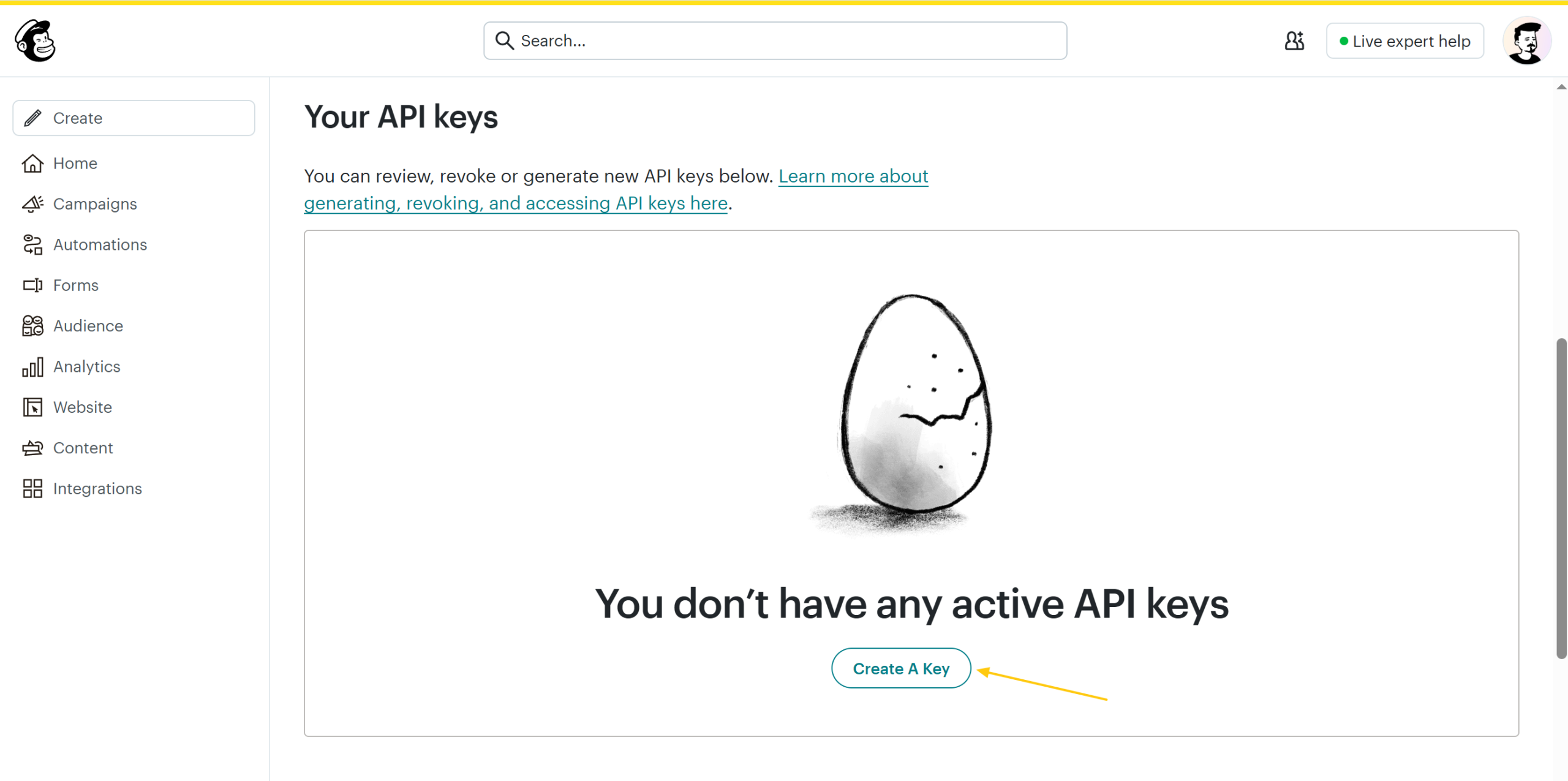
- Copy the key right away — Mailchimp shows it only once. It ends with a datacenter suffix like
-us21; copy the whole thing, suffix included. - In WordPress, go to Mosaic → Settings → Integrations, paste it into Mailchimp API key, and save.
Settings
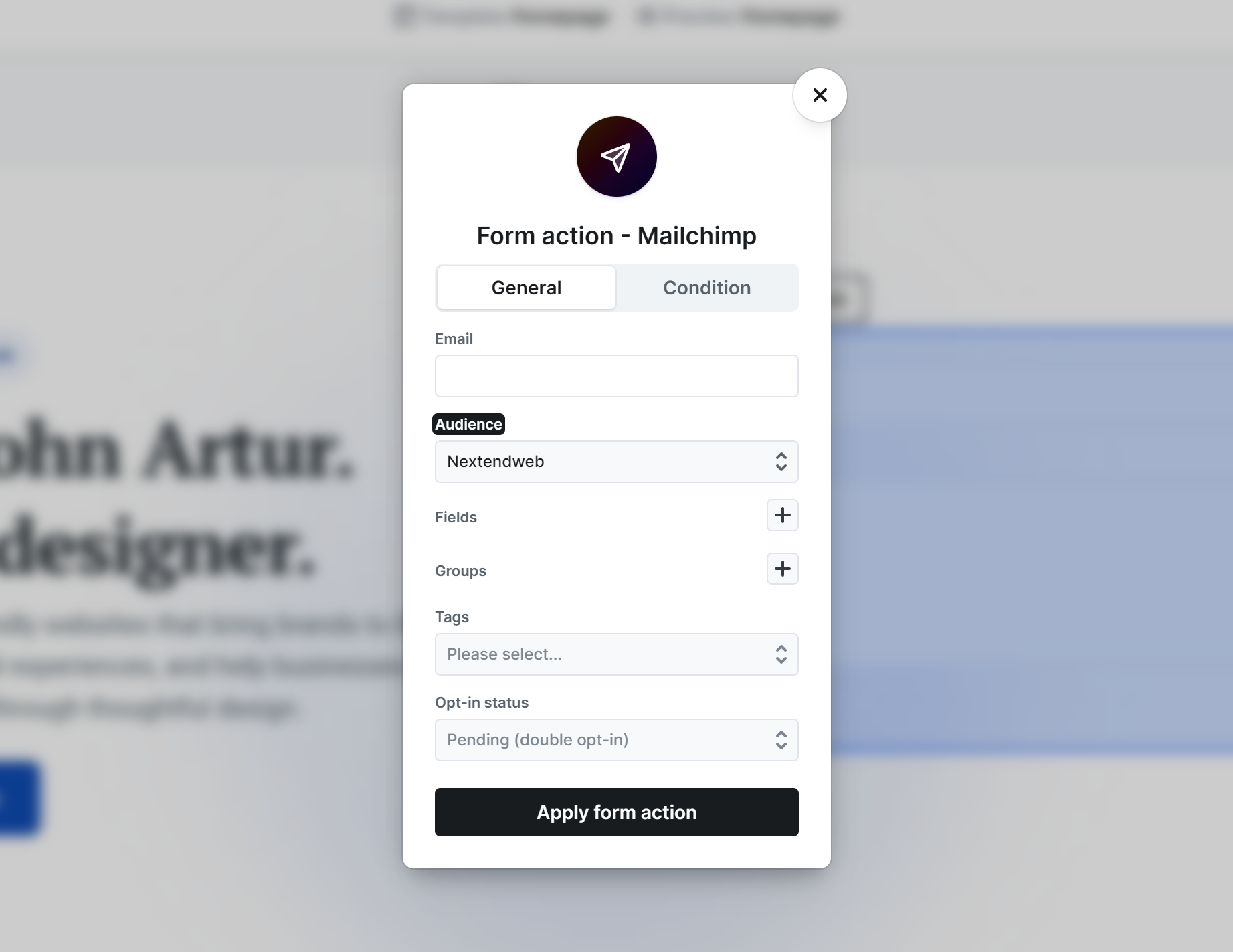
- Email — Which submitted value holds the subscriber’s email address. Insert your form’s email field here. This is required — without it there’s nothing to subscribe.
- Audience — The Mailchimp audience to add people to. The settings below depend on the audience, so pick it first; changing it resets them.
- Fields — Map your form fields to the audience’s merge fields (First Name, Last Name, and any custom fields you’ve created in Mailchimp). Only the fields you add here are sent.
- Groups — Add subscribers to the audience’s groups. These are the same groups you manage in Mailchimp under your audience.
- Tags — Apply one or more of the audience’s existing tags. You can pick from the tags already in the audience; creating new tags from here isn’t supported yet.
- Opt-in status — How the person is added. Pending (double opt-in) — the default — sends them a Mailchimp confirmation email and only subscribes them once they confirm. Subscribed adds them right away, without a confirmation step.
– Test on the frontend, as the backend Preview doesn’t run actions!
– Mailchimp address-type merge fields aren’t supported. If you want to collect an address, create a text-type merge field in Mailchimp and map your form field to that instead.
– If a merge field is marked required in Mailchimp, make sure you map a form field to it, otherwise Mailchimp rejects the subscriber and the action is logged for retry.
Good to know
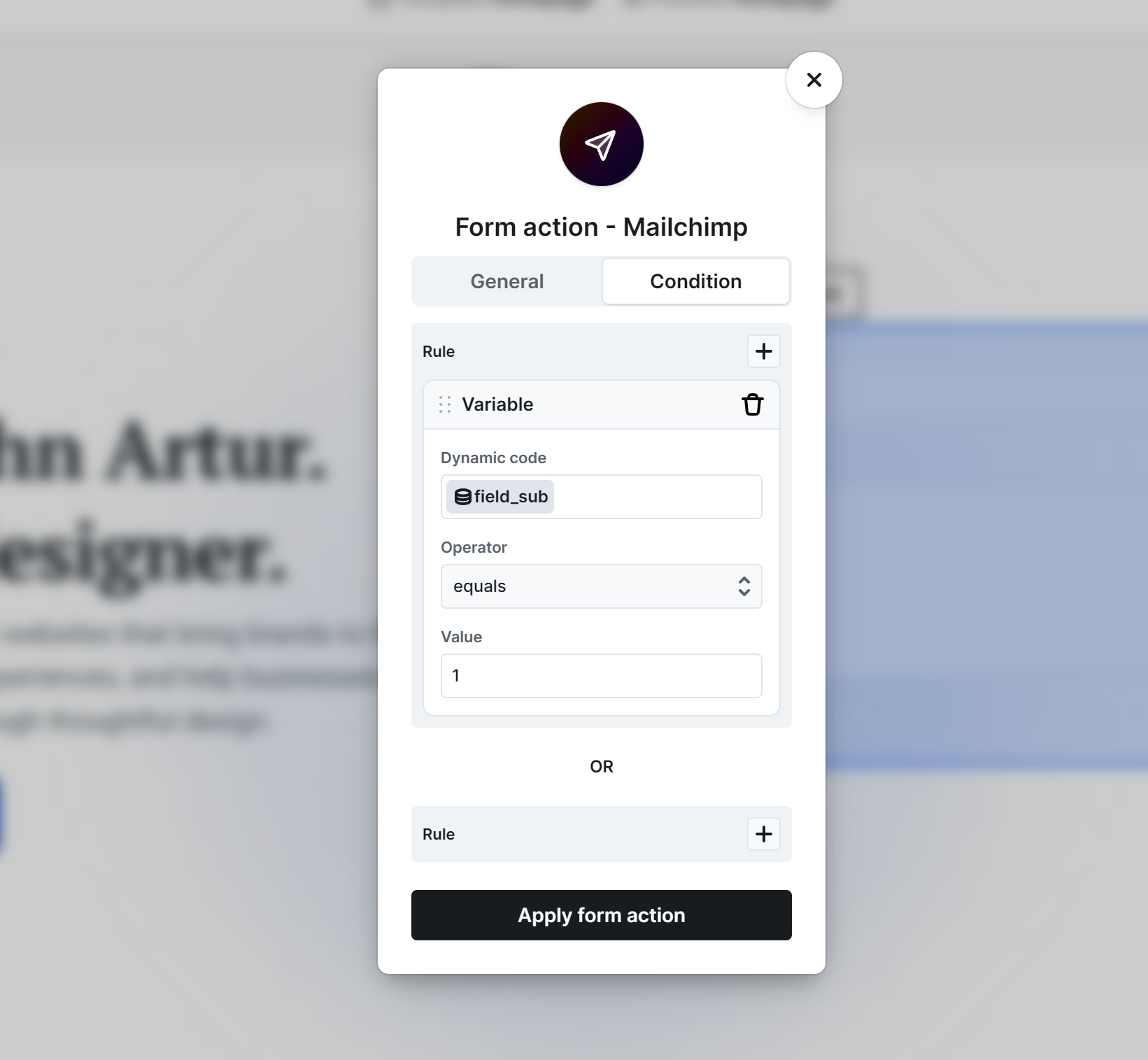
- Use the action’s Condition tab to only subscribe when it’s appropriate — for example, only when a “Subscribe me to the newsletter” checkbox is checked.
Where you’ll see the results: new subscribers appear in your Mailchimp audience. With Pending (double opt-in), a contact stays in a “pending” state until they click the confirmation email, so it’s normal not to see them as subscribed right away. In WordPress, each submission and whether the Mailchimp action succeeded is recorded under Mosaic → Form submissions, where a failed action can be retried.