What you can use it for
A default value prefills a form field before the visitor types anything, so it is useful whenever a sensible starting value saves your visitor time or carries information you need on the submission. Common uses include:
- Start a subject line with a helpful suggestion the visitor can still change.
- Carry a campaign tag from a link into a hidden field.
- Prefill a signed-in member’s email using dynamic data, so they don’t have to retype it.
Mosaic can pull that starting value from several places, either set by your site or read from the visitor’s own browser, and a default never overwrites something the visitor has already entered.
Adding a default value
The Default value setting appears in the settings of a form field or input. Until you configure it, it reads Not set. Select it to open the Default value popover, where you choose a source and fill in its details.
- Select the Default value setting to open the popover.
- Under Get value from, choose where the value should come from.
- Fill in the field that appears for the source you picked.
- Select Apply to save. To close without keeping your changes, select the ✕.
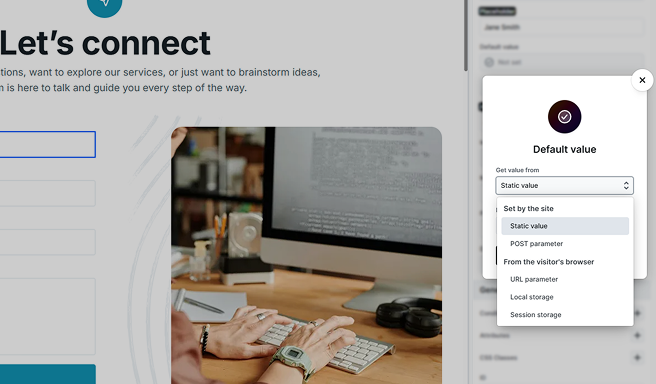
Once set, the summary shows the current source and value at a glance, so you can tell how a field is prefilled without opening the popover again.
Where the value comes from
The “Get value from” menu groups the sources by who provides the value. That grouping matters, because it decides when the value is worked out and whether it stays correct on cached pages.
Set by the site
Your site works out these values when the page is built, before it reaches the visitor. They are the same for everyone, which is exactly what you want for a fixed starting value.
- Static value: A value you type into the Default value field. Leave it as plain text for a fixed default, or insert dynamic data to fill it from the page’s context (see below).
- POST parameter: Uses a value that was sent to this page in a POST request, matched by the POST parameter name you enter. This suits the case where one page’s form submits to the page that holds this form.
A Static value can be more than a fixed string. Insert dynamic data to pull the starting value from the page’s context, such as the current post, the logged-in visitor, or a value from a loop. Mosaic works the value out when the page is built and places it straight into the field. See Data variables for what you can use.
From the visitor’s browser
These values are read in the visitor’s own browser as the page loads, so each visitor gets their own. Because that work happens in the browser rather than on your server, these sources stay correct even when your pages are served from a full-page cache.
- URL parameter: Reads a value from the page’s web address, matched by the Parameter name you enter. For example, a link ending in ?utm_campaign=spring fills a field set to the utm_campaign parameter with the value “spring”. This is the usual way to capture campaign or referral tags into a form.
- Local storage: Reads a value the browser has saved under the Key you enter. Local storage stays around between visits, so it is useful for remembering something the visitor gave you before.
- Session storage: Reads a value saved under the Key you enter, but only for the current browsing session. It is cleared when the visitor closes the tab.
Values set by the site show in the editor’s Preview. Values from the visitor’s browser only fill in on the live page, since they depend on the visitor’s own address bar or browser storage. Do not be surprised if a browser source looks empty while you are editing.
Which elements can have a default value
You can set a default on a field or directly on the input inside it. Setting it on the field works the same way as giving the field its name: the input picks the default up automatically. How the default appears depends on the element:
- Text inputs and text areas: The default becomes the field’s starting text. A text area keeps line breaks, so a multi-line default works fine.
- Select: The default selects the option whose value matches. A select that allows multiple selections can start with several options selected.
- Radio & checkbox: Set the default on the Choice field, and Mosaic checks the choice (or choices) whose value matches. Individual radio and checkbox inputs do not have their own Default value setting; instead each has a checked toggle for a fixed starting state.
- Hidden input: A hidden input has no visible field, so its whole value comes from the Default value setting. This is how you attach behind-the-scenes data, like a campaign tag, to every submission.
- File upload: No default value. For security reasons, browsers do not let a file field be filled in on the visitor’s behalf.
How a default value behaves
A field’s default value comes from the single source you choose in its Default value popover. When the page loads, that source either supplies a value, which becomes the field’s starting value, or it doesn’t, in which case the field has no default.
A default value only fills a field as the page loads. It never replaces something the visitor has already typed or selected.
Selecting more than one value
For a select that allows multiple selections, or a checkbox group, a browser source can provide several values at once:
- URL parameter: Repeat the parameter with square brackets, for example ?topic[]=news&topic[]=offers.
- Local storage or session storage: Save the value as a JSON array, for example [“news”,”offers”].
Mosaic selects exactly the options that match, and clears any option you had pre-selected that isn’t in the set.
Default values are always placed into the field as plain text. If a value happens to contain HTML or code, it appears literally and is never run. Prefilled values are also checked by the same validation as anything a visitor enters, so a default gives no special trust.