The Kit action (formerly ConvertKit) subscribes the person who submits your form to Kit. Map your form fields to Kit’s fields, and add subscribers to forms, sequences, and tags.
Connect your Kit account
To use this action, add your Kit API key to Mosaic once:
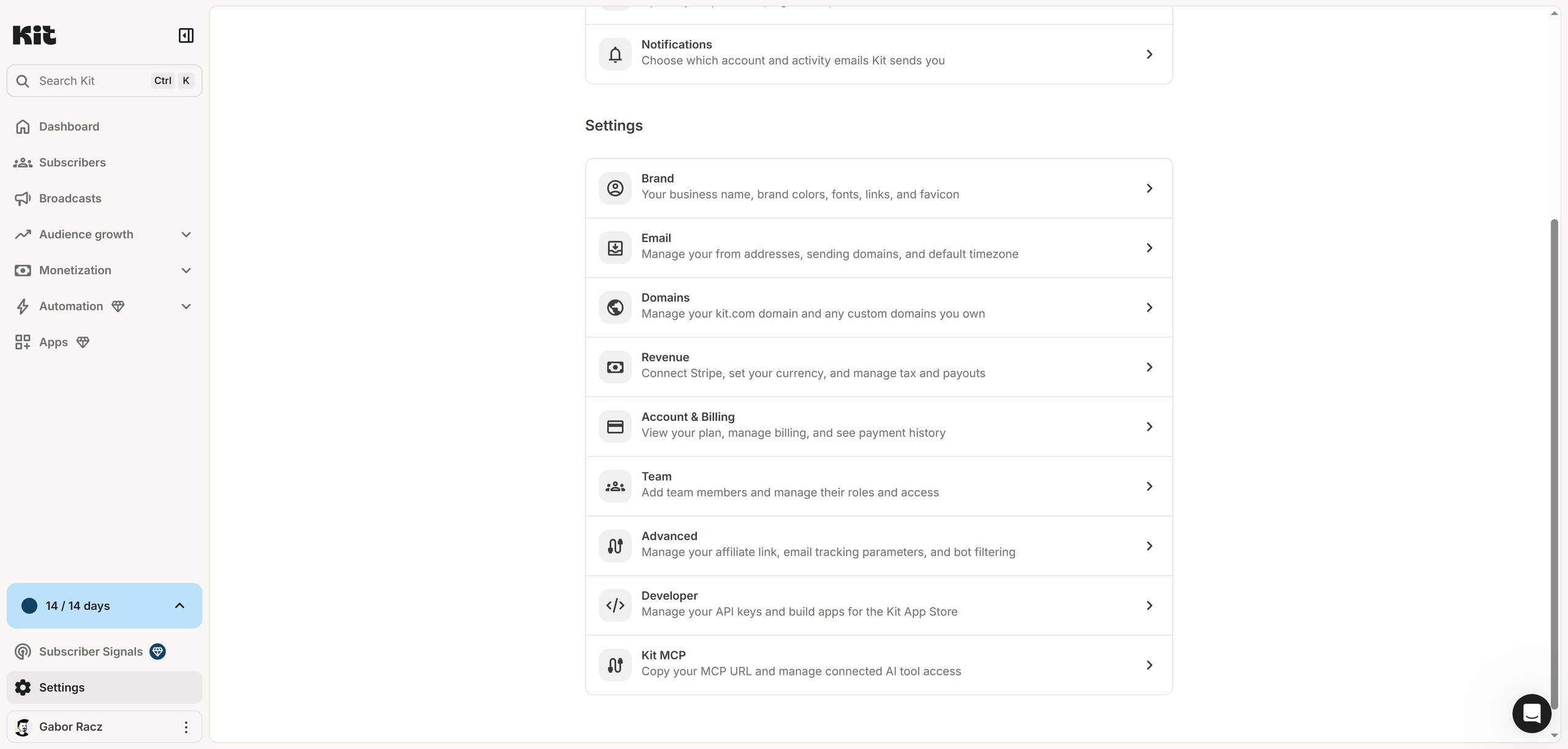
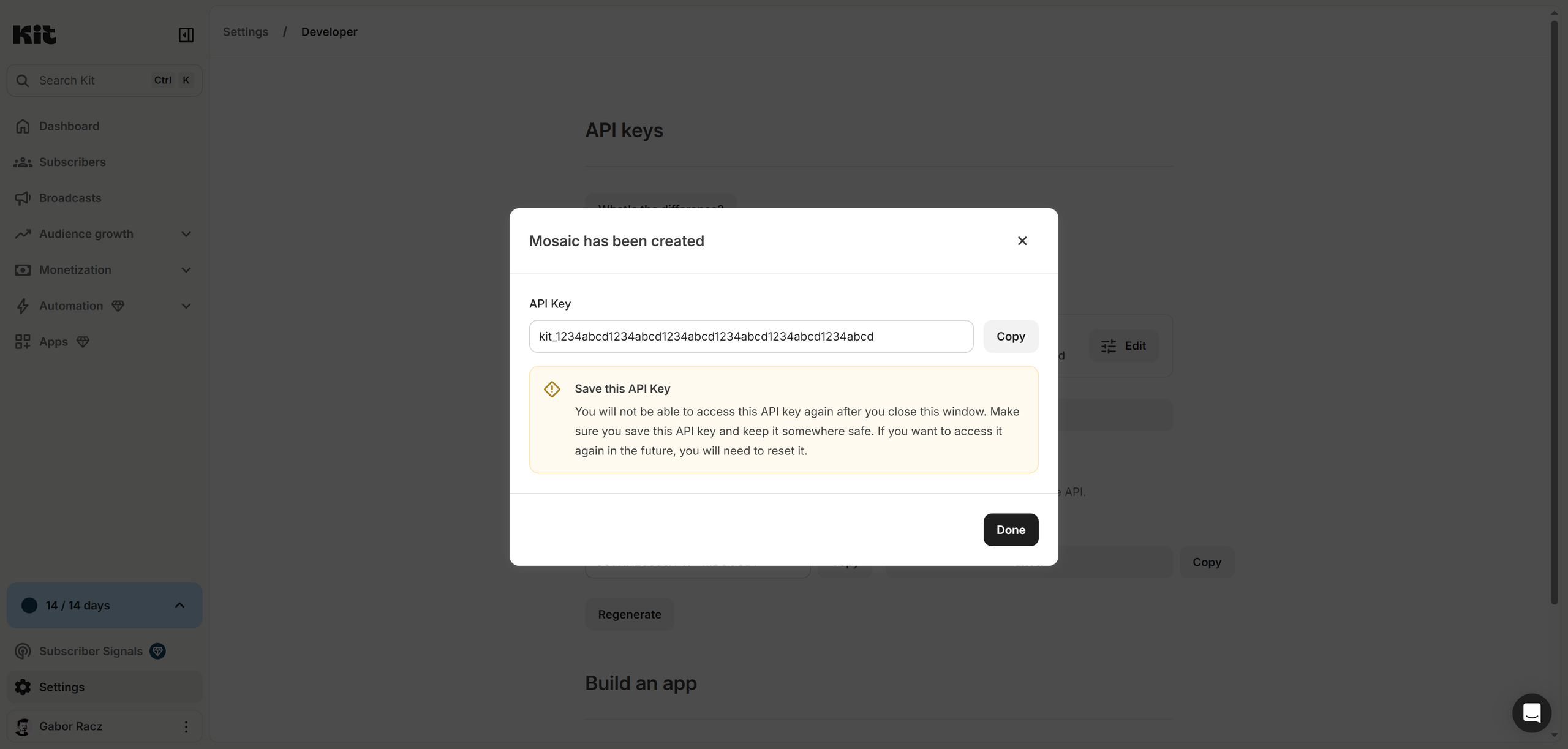
- Under V4 Keys, click Add a new key. Use a V4 key. The older V3 key doesn’t work with Mosaic.
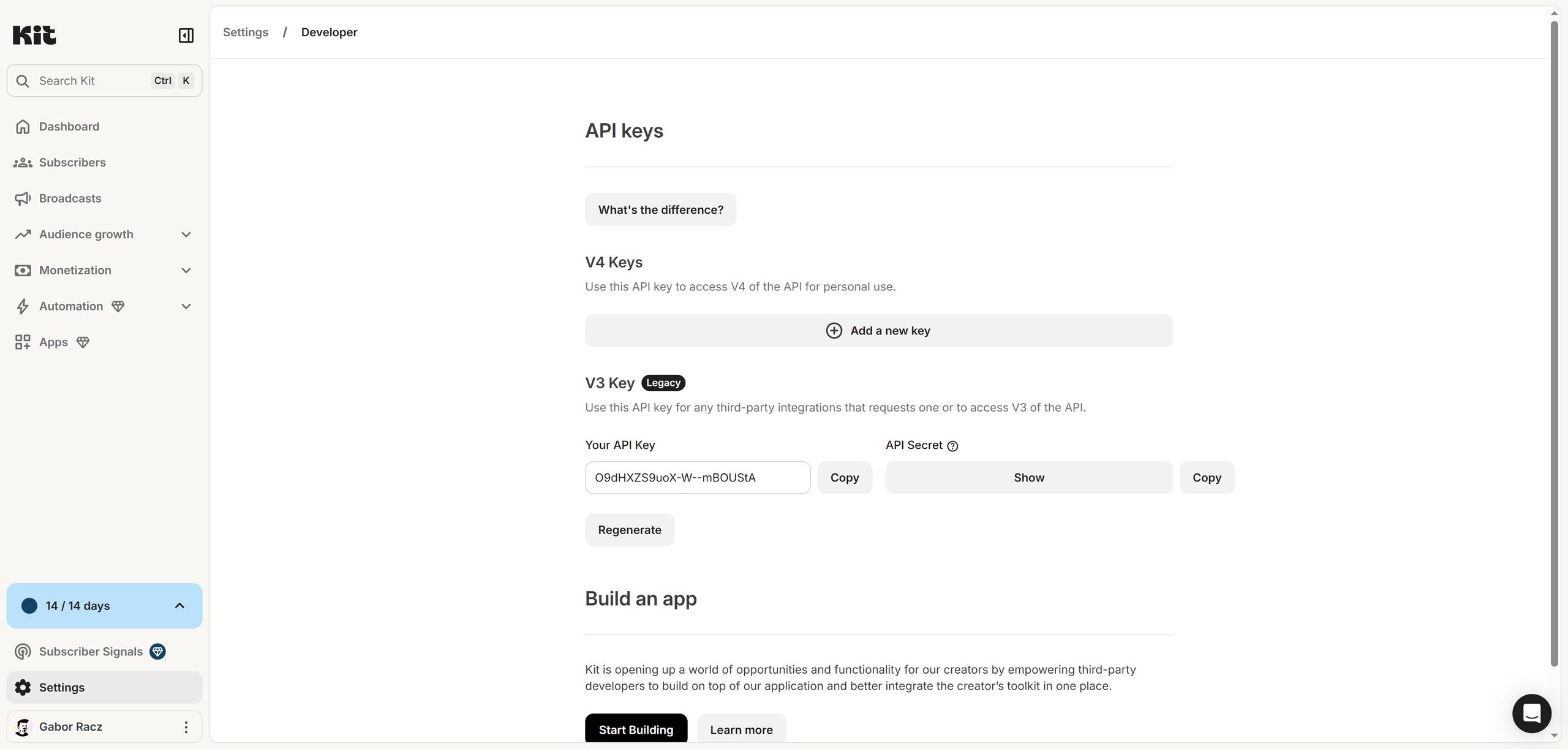
- Give the key a name (for example “Mosaic”), and click Create API Key.
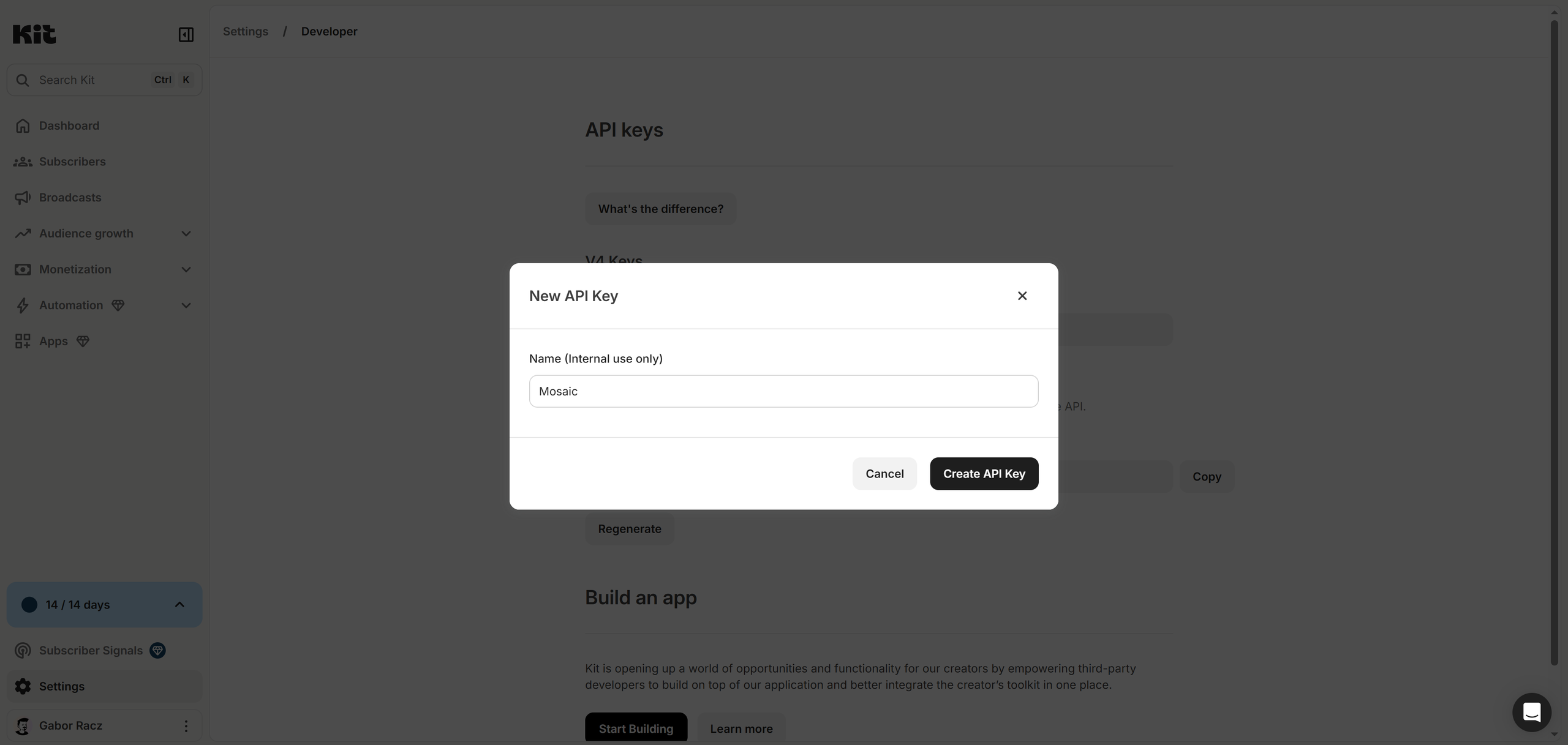
- Copy the key right away — Kit shows it only once.
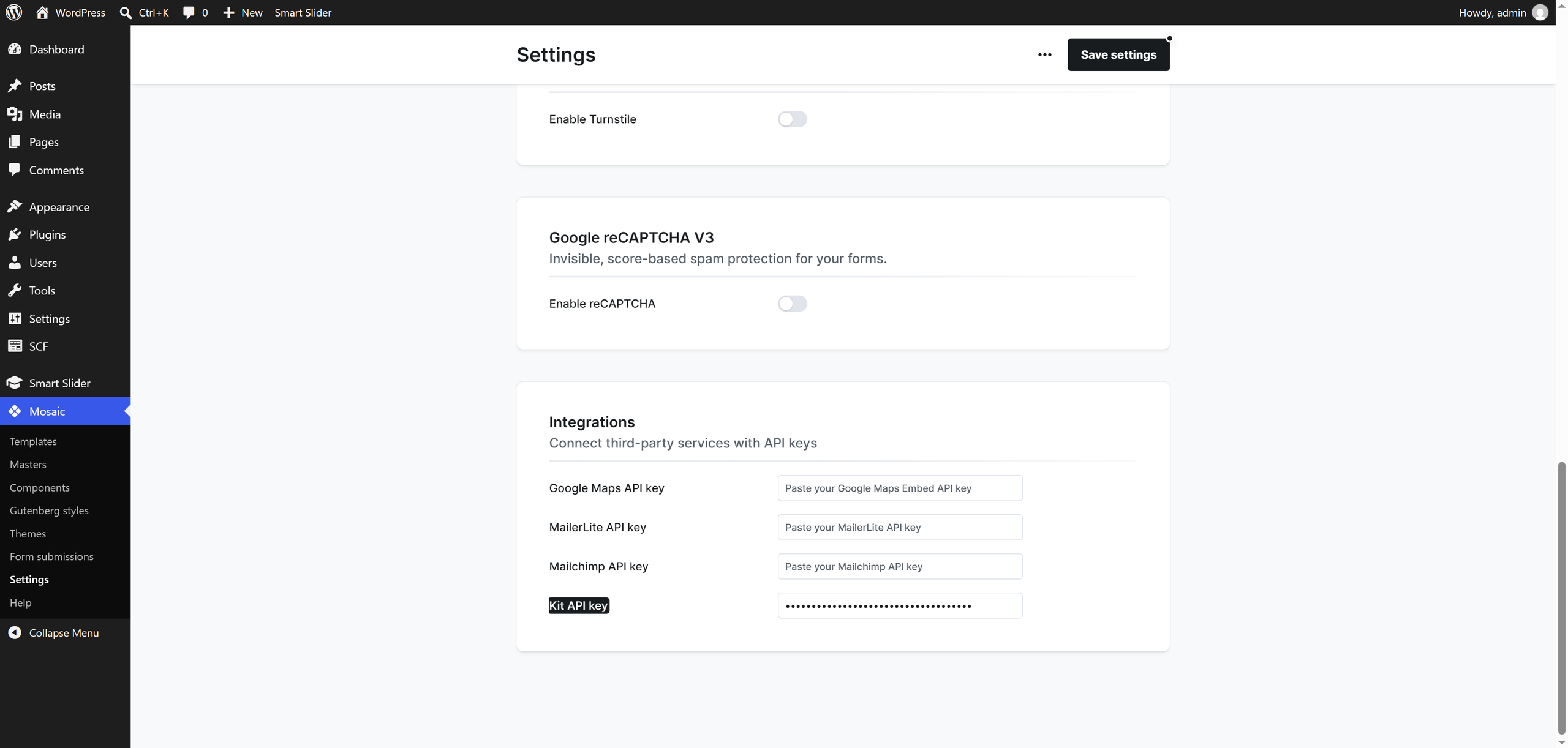
- In WordPress, go to Mosaic → Settings → Integrations, paste it into Kit API key, and click Save settings.
Until a key is saved, the action shows a Setup button and its options stay hidden.
Settings
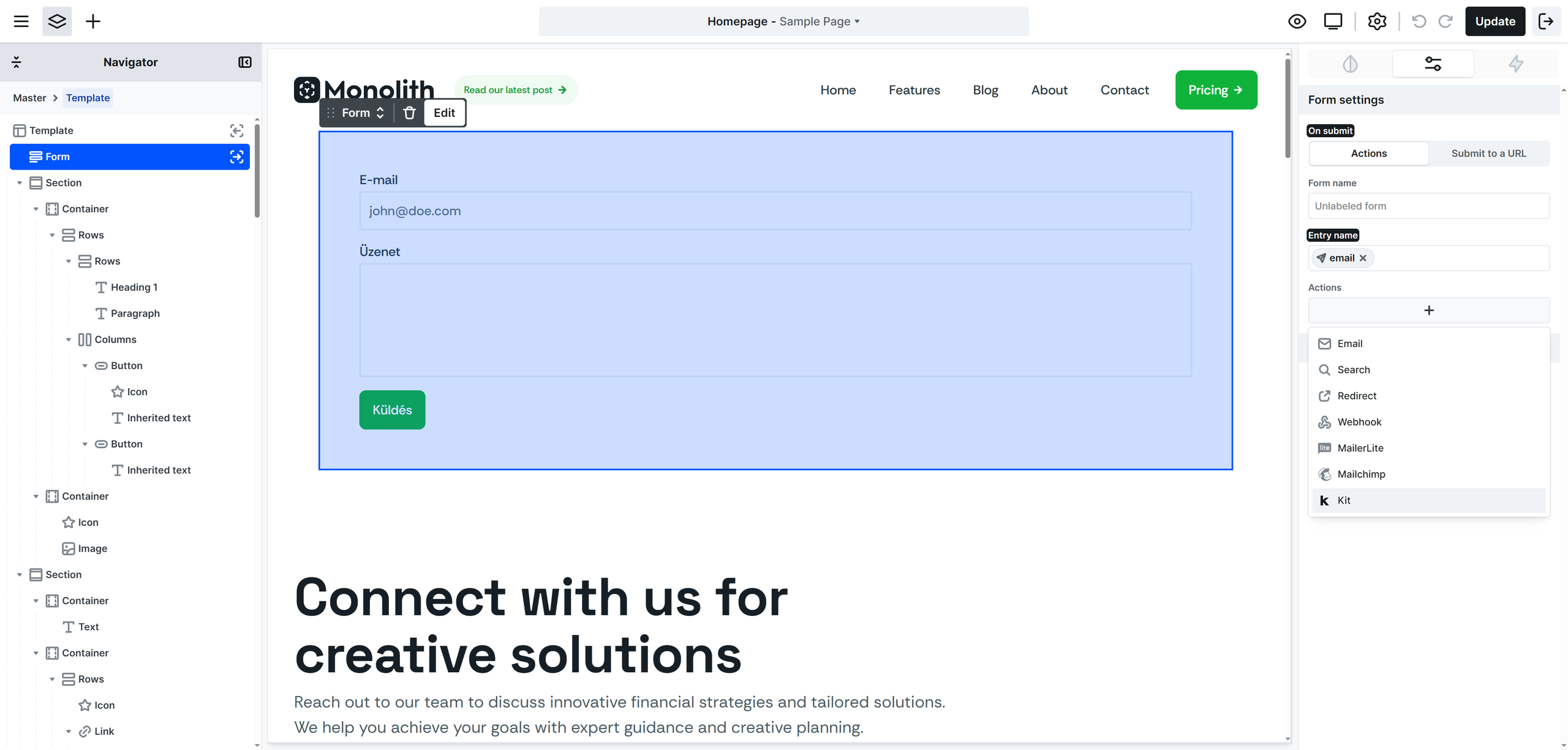
To add the action, select your Form, click + under Actions in the Form settings, and choose Kit. See Adding an action.
The Kit action has these settings:
- Email — Which submitted value holds the subscriber’s email address. Insert your form’s email field here. This is required.
- Fields — Map your form fields to the subscriber’s first name and to your Kit custom fields. Only the fields you add here are sent. A custom field has to exist in Kit before you can map it.
- Forms — Add subscribers to one or more of your Kit forms. Optional.
- Sequences — Add subscribers to one or more of your Kit sequences. Optional.
- Tags — Tag subscribers with one or more of your Kit tags. Optional.
Test on the frontend, as the backend Preview doesn’t run actions!
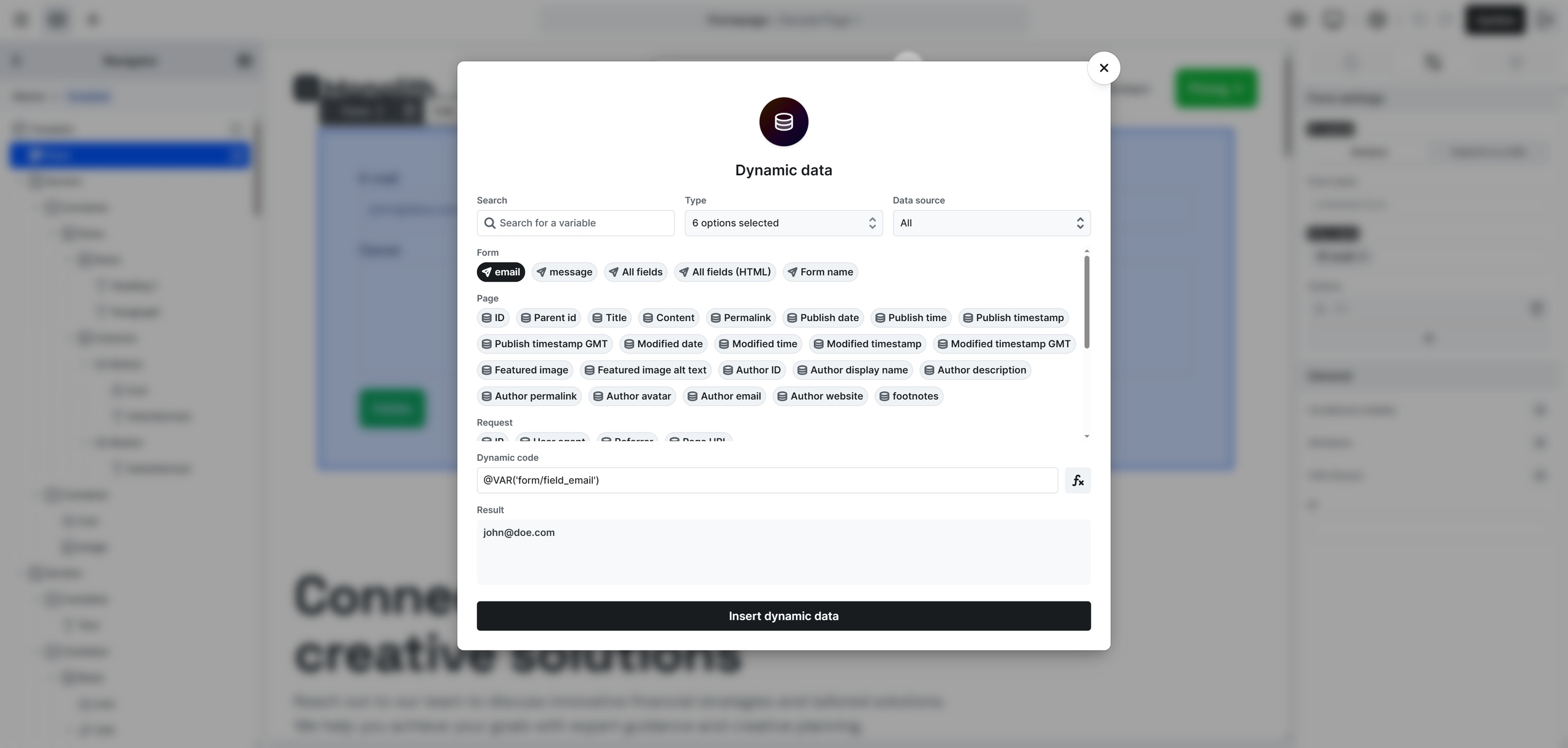
In the form’s actions, you can fill fields like Email with a variable — for example, the address a visitor typed into your form’s email field. Click the field, and choose the variable in the Dynamic data window. See Using variables.
Double opt-in
There’s no opt-in setting in Mosaic, because in Kit double opt-in belongs to the Kit form:
- With one or more Forms selected: the Kit form decides. If its confirmation email is turned on, the subscriber stays unconfirmed until they click it. If it’s turned off, Kit confirms them right away.
- Without a form: the subscriber is added as confirmed right away, with no confirmation email.
You’ll find the confirmation email setting in the Kit form’s settings. Here it’s turned off, so subscribers are confirmed automatically:
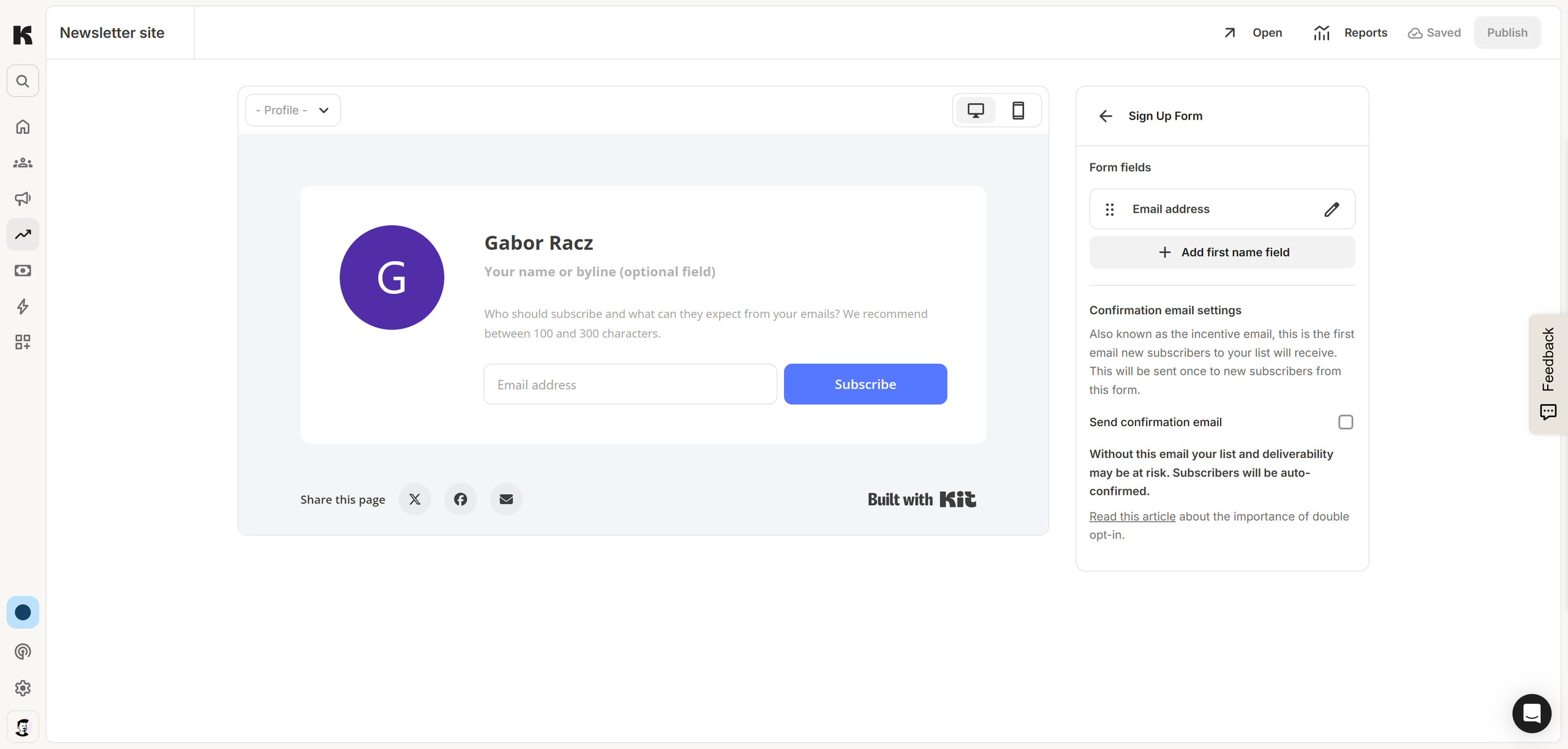
If you need double opt-in, select a Kit form that has its confirmation email turned on.
Good to know
- Use the action’s Condition tab to only subscribe when it’s appropriate — for example, only when a newsletter consent checkbox is checked. See Running an action only when a condition matches.
- If a form, sequence, or tag you selected is later deleted in Kit, the subscriber is still saved and added to the rest, but the action is marked as failed so you notice it. Select another one in the action settings.
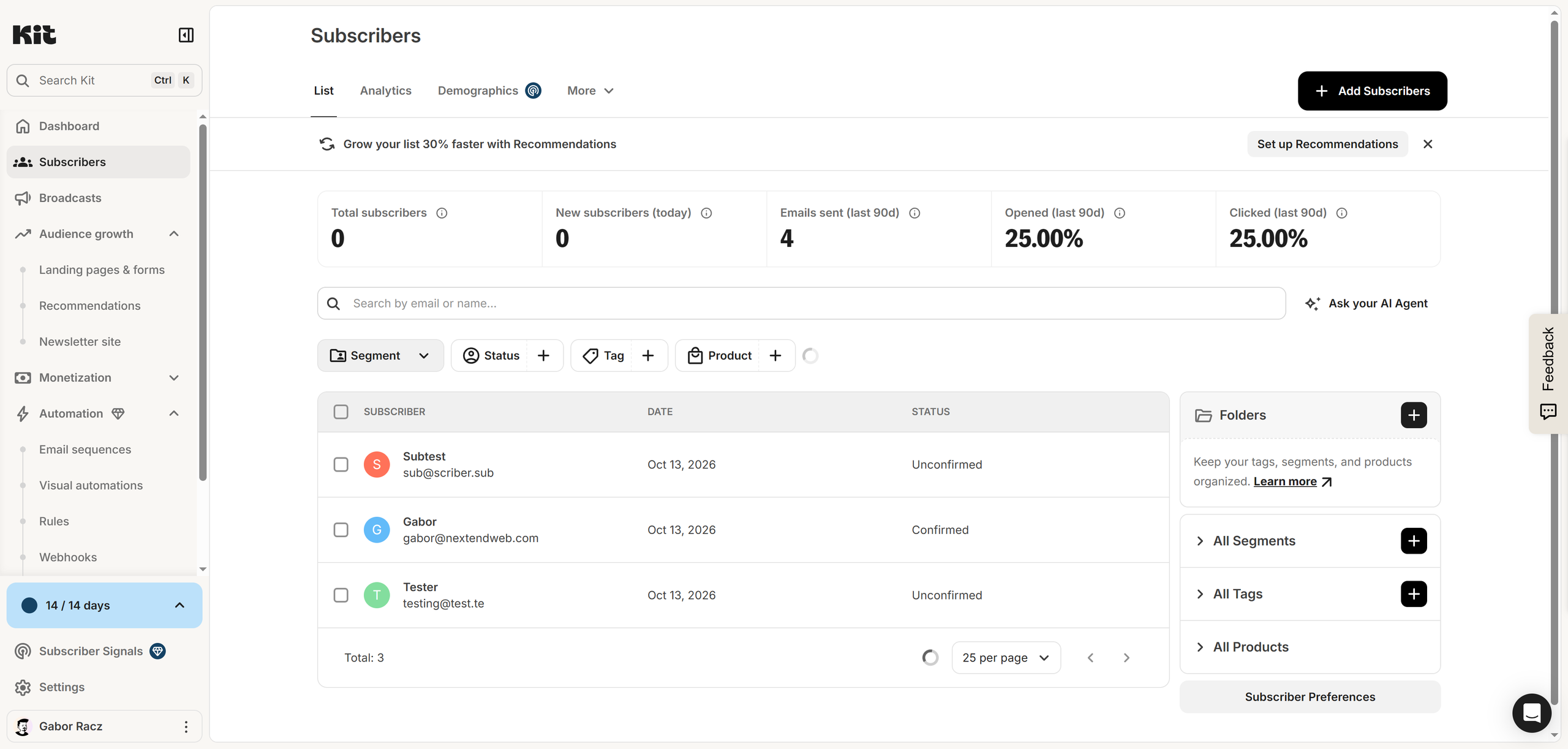
Where you’ll see the results: new subscribers appear in Kit under Subscribers, along with their status (Confirmed or Unconfirmed). In WordPress, each submission and whether the Kit action succeeded is recorded under Mosaic → Form submissions, where a failed action can be retried.